How To Create a Website URL QR Code
If you want people to open your website instantly by scanning a QR code, this guide is for you. Whether you're printing QR codes on business cards, product packaging, banners, or ads — follow these steps to get it done correctly.
Before You Start
Before creating your QR code, confirm the following:
- You have the correct, complete website link
- The link opens properly in a browser
- The page loads well on a mobile phone
Mobile First
Most people scan from a smartphone. If your website is slow or not mobile-optimized, users will leave before they see your content.
Step 1: Login & Start
- Log in to your QRTRAC dashboard
- Click Create QR Code
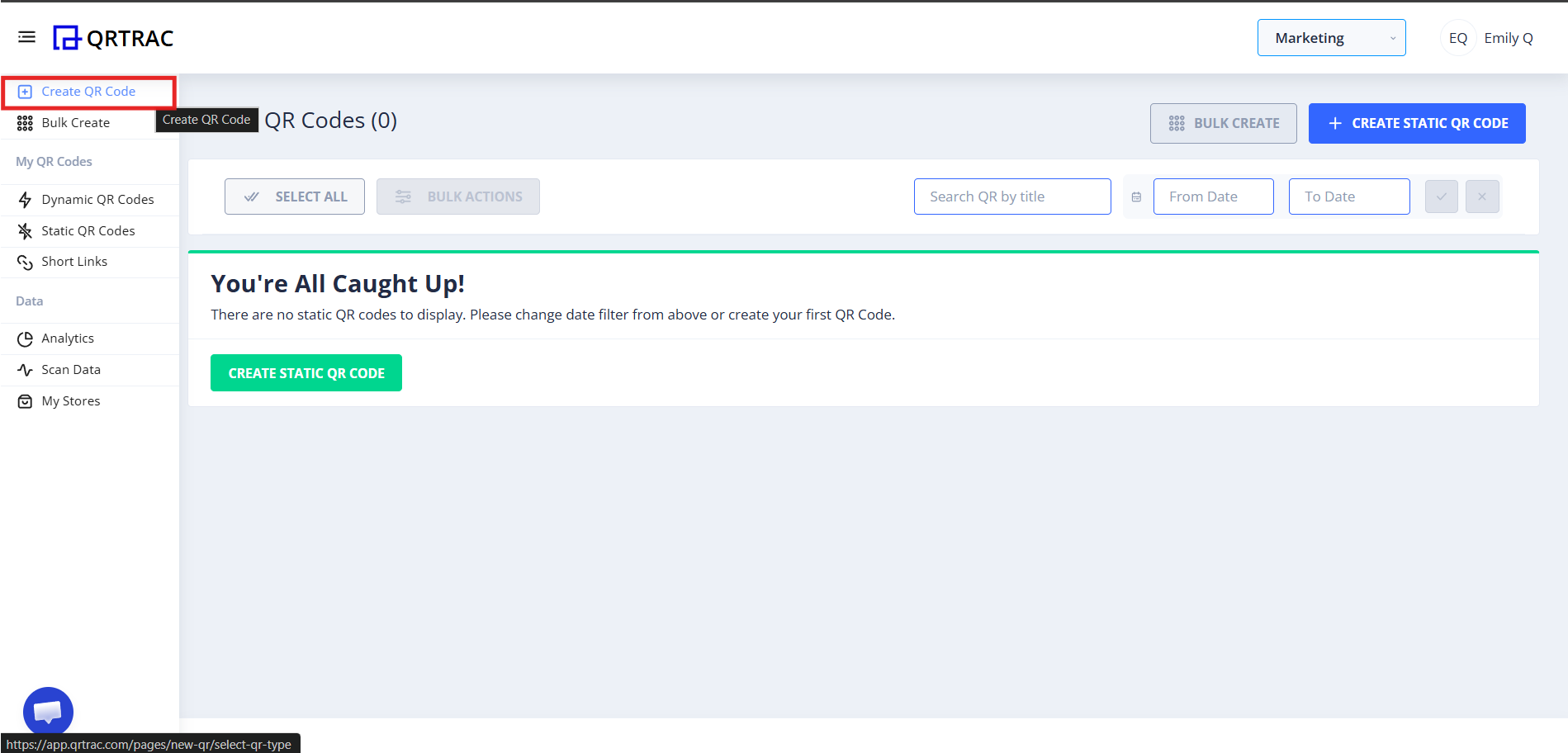
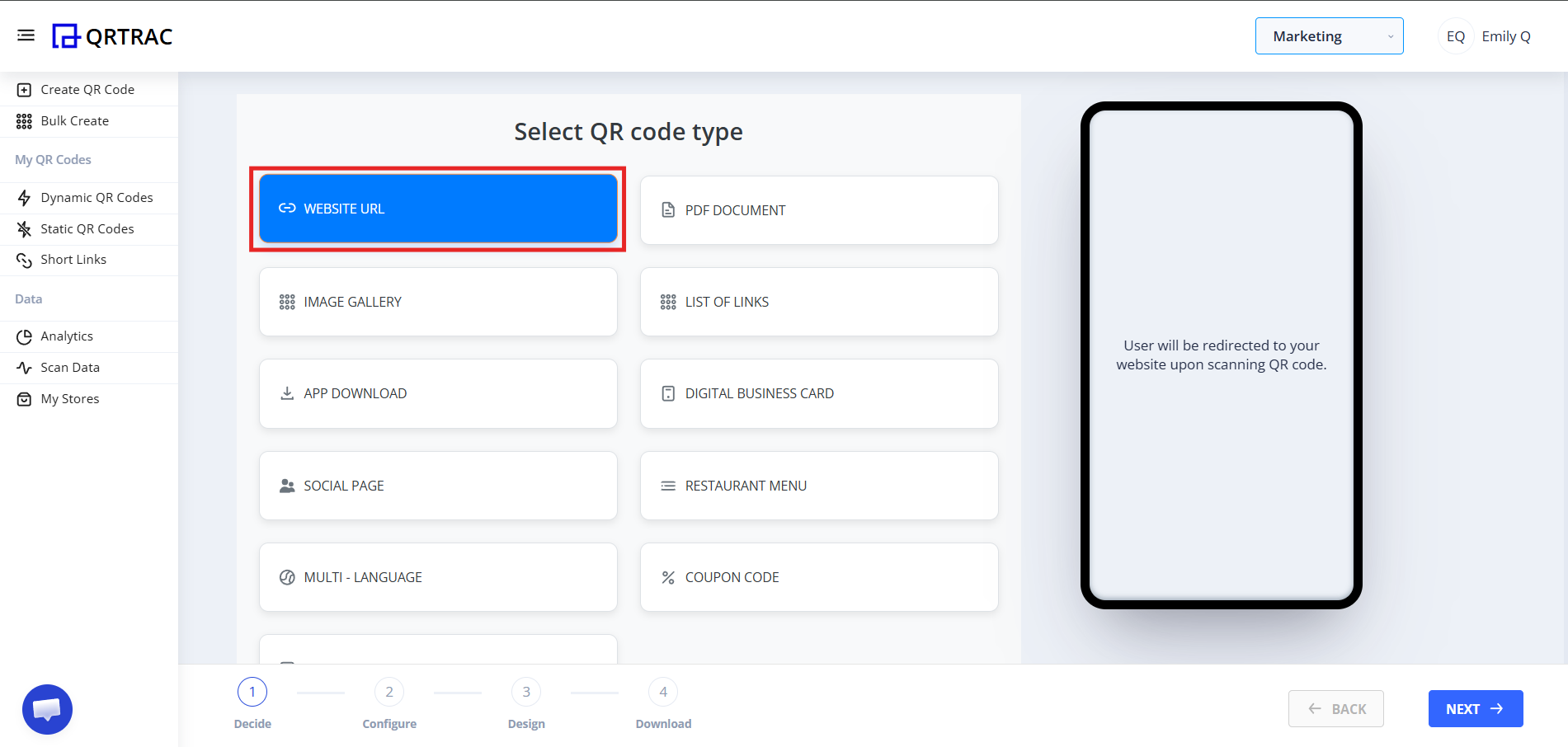
Step 2: Select "Website URL"
From the QR types list:
- Choose Website URL
- Click Next
Step 3: Enter Your Website Link
Paste your full website URL into the input field. Always include https:// at the start.
✅ Correct
https://yourwebsite.com ❌ Wrong
yourwebsite.com 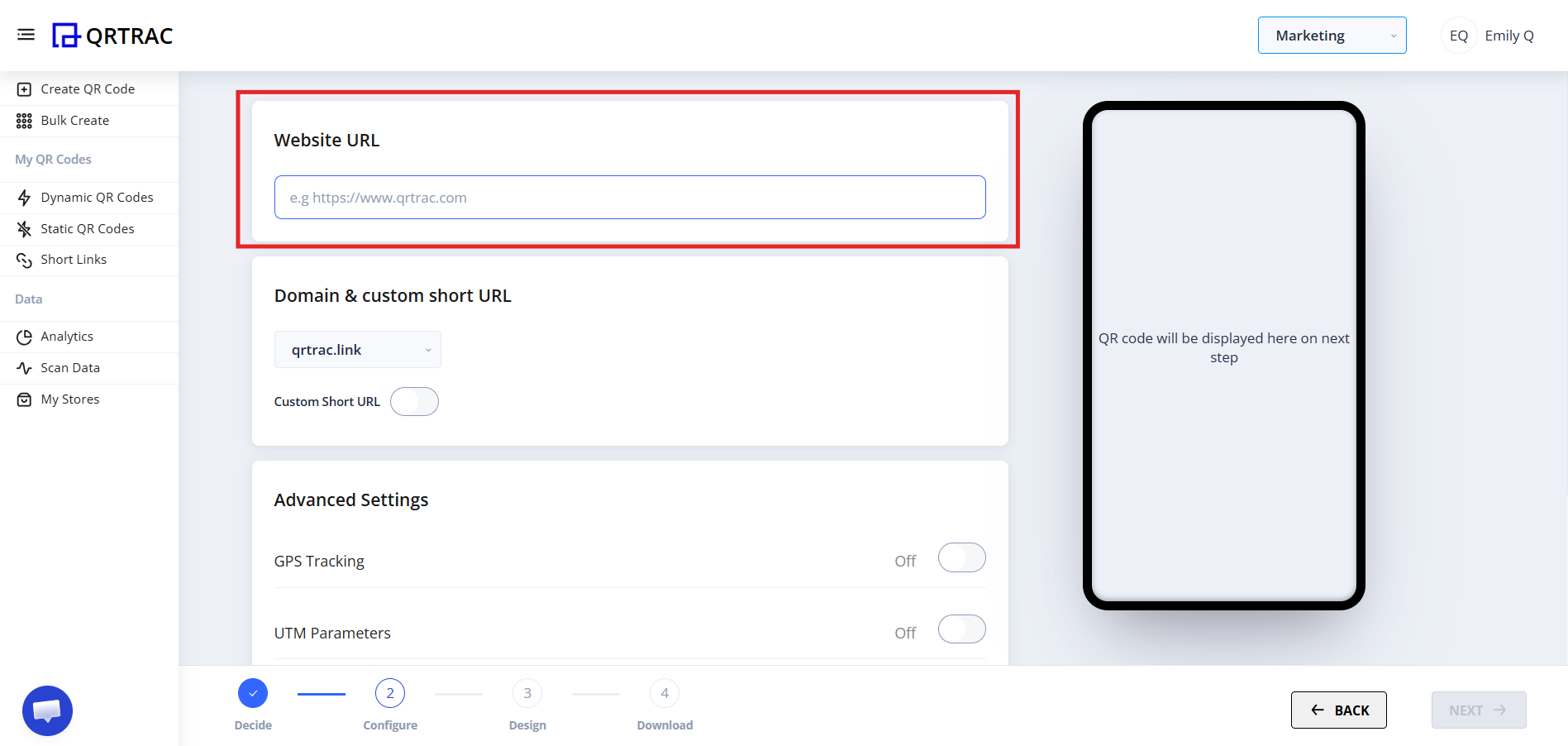
Common Problems at This Step
❌ "My QR Code is not opening the website"
- You forgot
https://at the start - You pasted the wrong URL
- Your website is currently down
- You used an admin or login-only URL instead of a public page
Fix: Open the link in your browser first. If it works there, it will work in the QR too.
❌ "It opens but shows an error page"
- The page may have been deleted
- The domain may have expired
- The page may require a login to view
QR codes can only open pages that are publicly accessible.
❌ "It opens desktop version and looks bad on mobile"
Your website is not mobile-optimized. Since most scans happen on smartphones, a non-responsive site will hurt engagement.
Step 4: Design Your QR Code
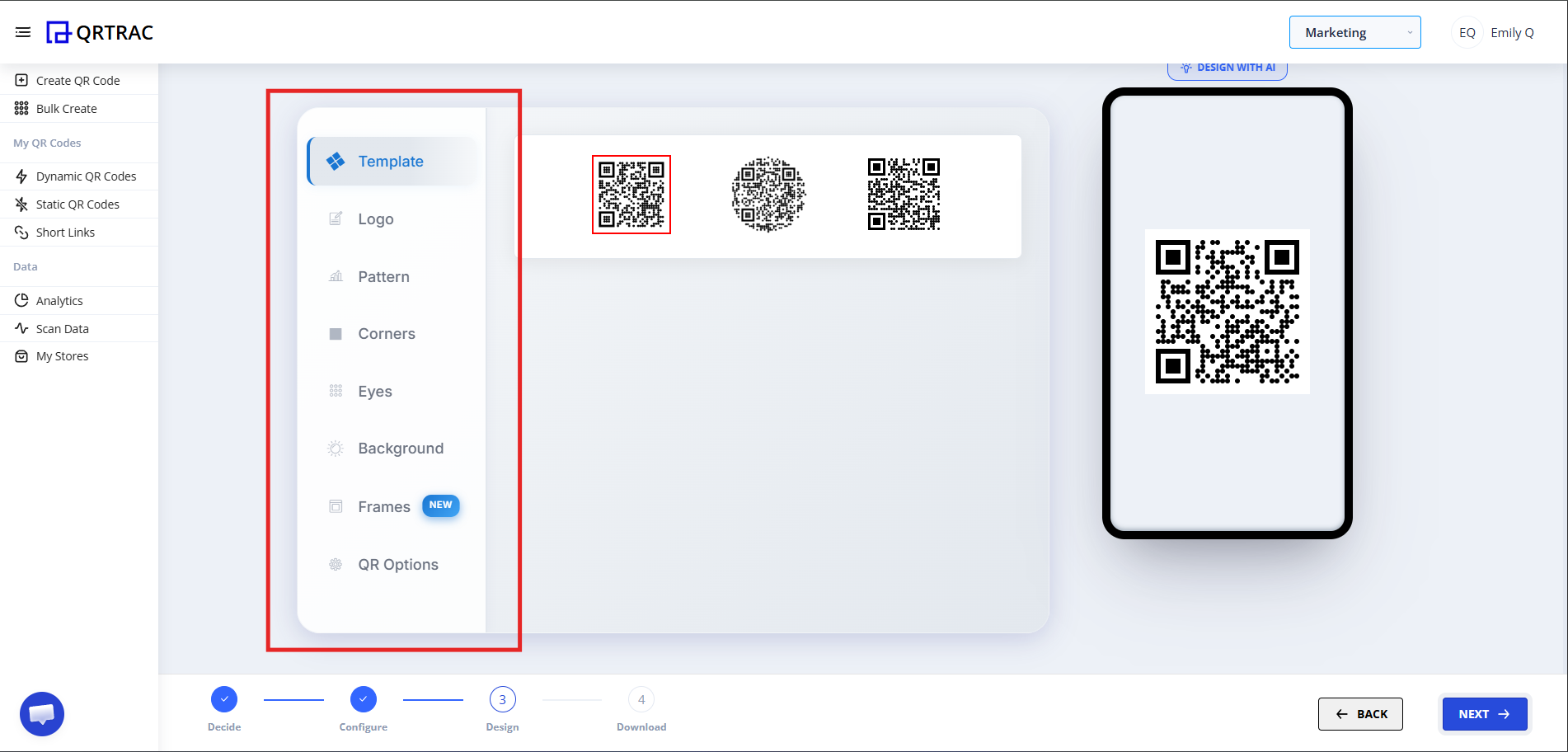
After entering your URL, click Next to reach the Design section. Here you can:
- Change the QR color
- Add your logo
- Customize the eye style
- Change the dot shape
- Set a background color
Dynamic QR — No Reprinting Needed
Changed your website URL? Update it any time from the QRTRAC dashboard. Your printed QR codes keep working — no reprinting required.
Step 5: Review & Download
After finishing your design:
- Click Next
- Preview your QR code
- Select your file format (PNG, SVG, etc.)
- Click Download
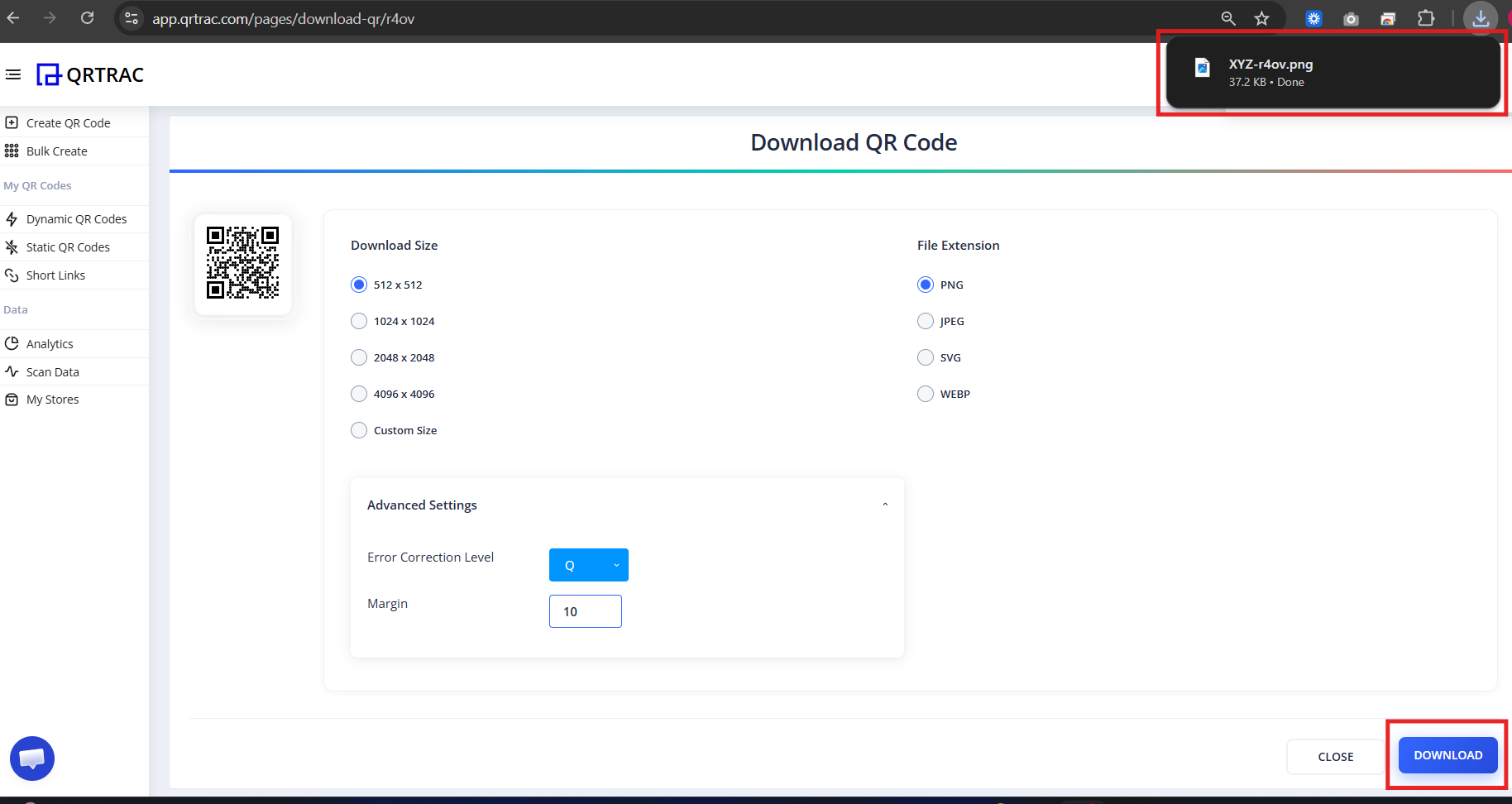
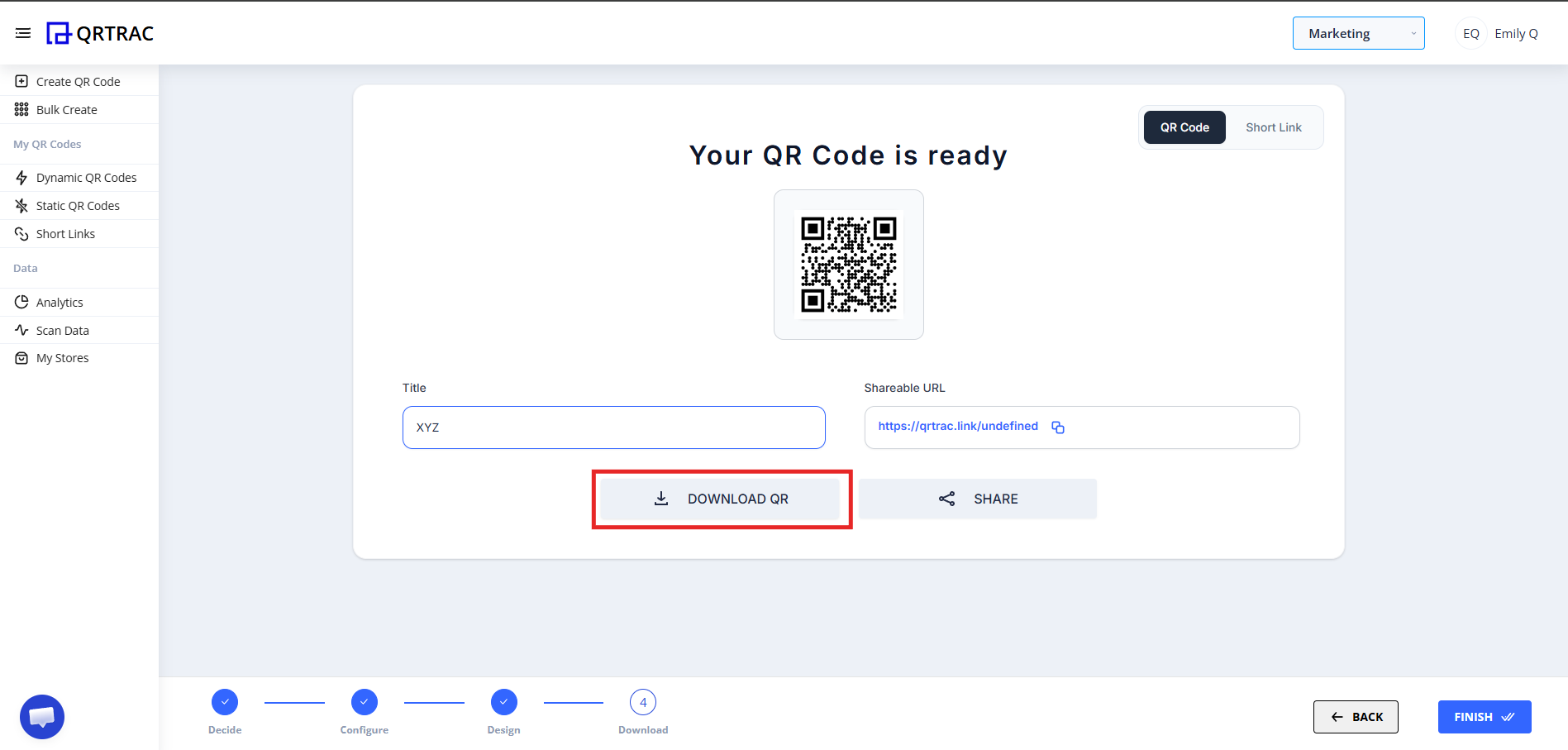
Tip: Always test your QR code by scanning it with a smartphone camera directly from your monitor before downloading and printing.
Popular Use Cases
Website URL QR codes work well in a wide range of contexts:
- Business Cards
- Product Packaging
- Print Ads & Banners
- Conference Badges
- Trade Show Booths
- Email Signatures
Frequently Asked Questions
Can I change the website URL after printing?
Yes. QRTRAC uses Dynamic QR codes, so you can update the destination URL at any time from your dashboard — no reprinting needed.
Can I track how many people scanned my QR code?
Yes. The analytics dashboard shows real-time scan counts, unique visitors, device types, and geographic locations.
Does the QR code work without internet?
No. The scanner needs an active internet connection to redirect to your website. This applies to all dynamic QR codes.
Can I link to any page, not just my homepage?
Yes. You can link to any publicly accessible page — a product page, landing page, booking form, portfolio, or any other URL.
Common Mistakes
- ❌ Pasting a URL without
https:// - ❌ Linking to a login-protected or admin page
- ❌ Printing without testing the QR code first
- ❌ Using a website that isn't mobile-optimized
Launch Checklist
- URL includes https:// and opens correctly
- Page loads well on mobile
- QR design matches your brand
- Scanned and tested before printing