How To Create Digital Business Card QR Code
If you want people to save your contact details instantly by scanning a QR code, this guide is for you. Follow the steps below to build a fully configured Digital Business Card QR Code in minutes.
Maybe you are:
- Printing QR on visiting cards
- Sharing contact at networking events
- Adding QR to email signature
- Using it at exhibitions or trade shows
- Wanting paperless contact sharing
- Tracking profile views
Before You Create the QR Code
Before starting, make sure:
- Your phone number is correct (with country code)
- Your email address is active
- Your social links are correct
- Your website URL works properly
Wrong contact details = Lost opportunities
Double-check every phone number, email, and URL before generating your QR code. A single typo means every scan leads to a dead end.
Step 1: Login & Start (Decide Phase)
- Login to your QRTRAC dashboard
- Click Create QR Code
- Select Digital Business Card
- Click Next
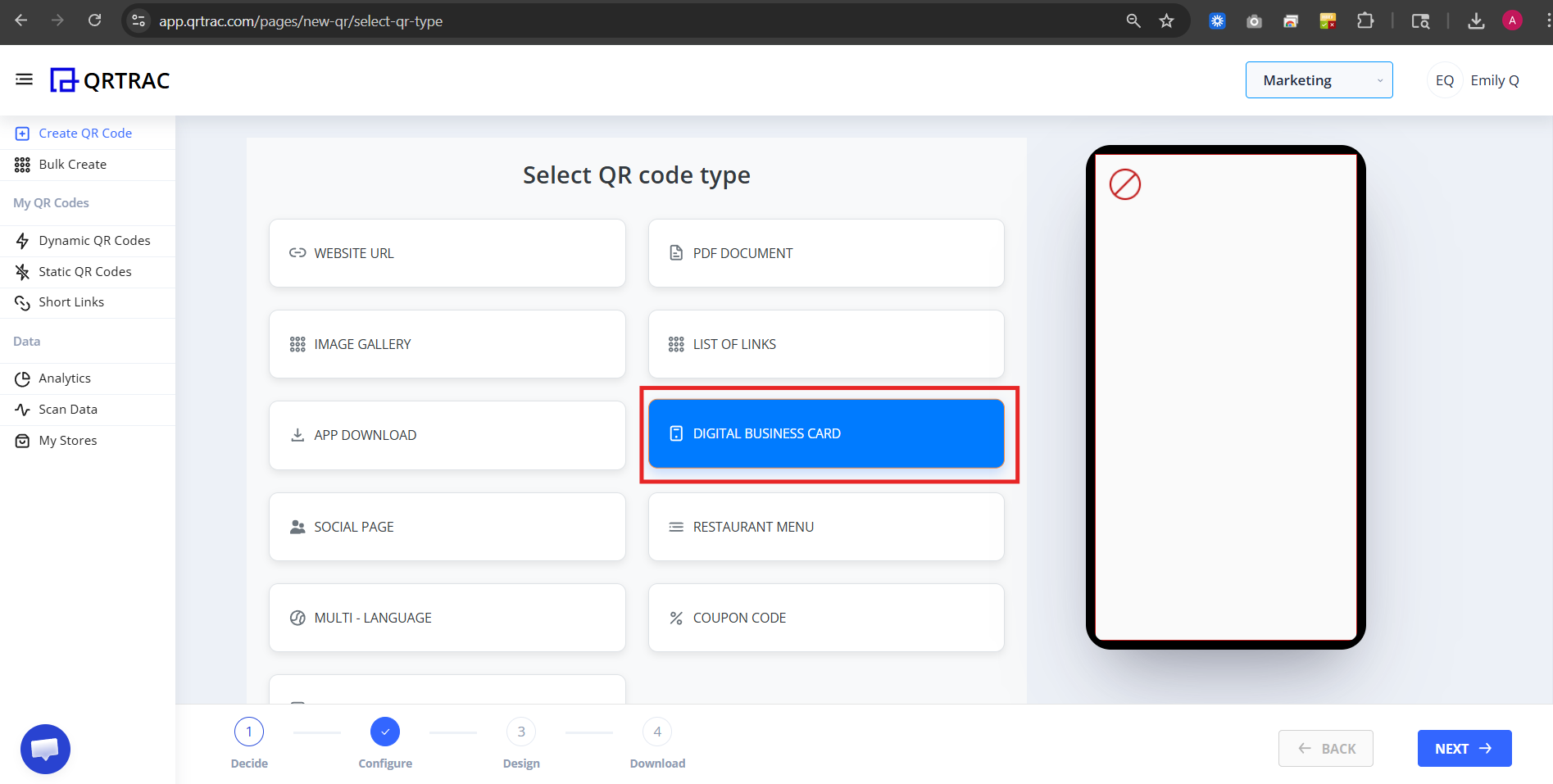
Step 2: Configure Your Digital Business Card
Now you are inside the Configure section. Here you will fill in all your profile details.
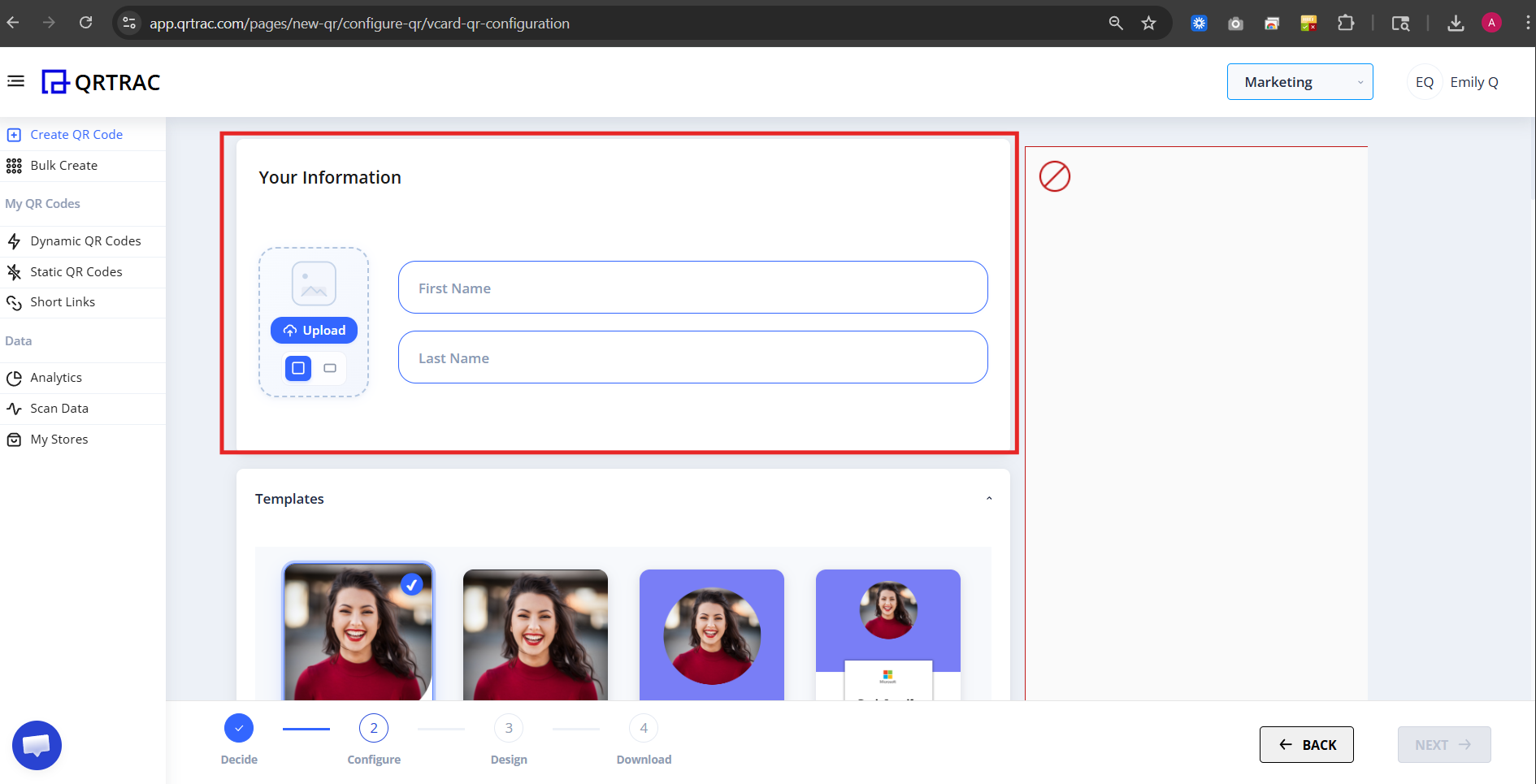
A) Your Information
Fill in:
- First Name
- Last Name
- Upload Profile Image
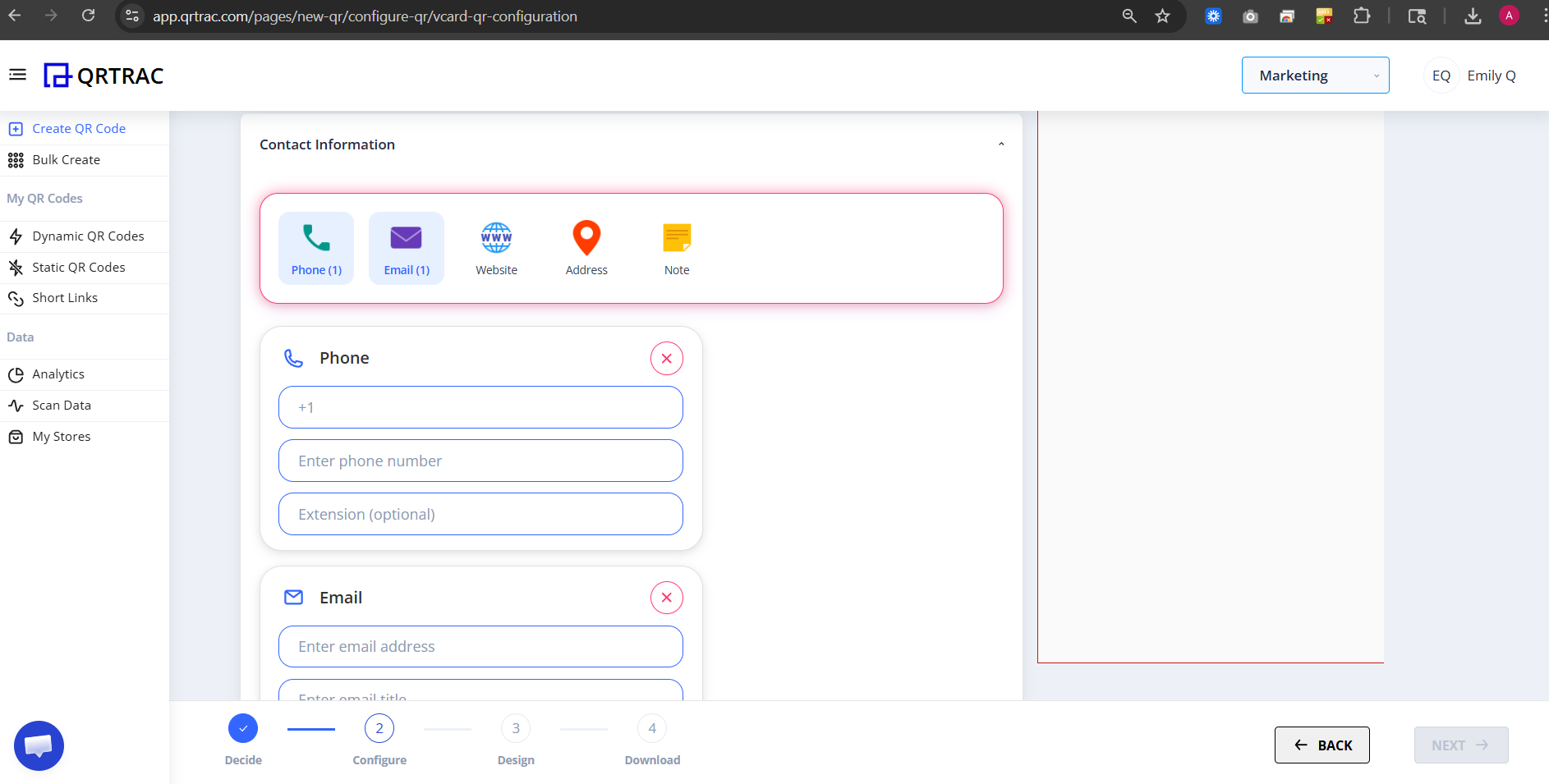
B) Contact Information
Under Contact Information section, add:
- Phone
- Website
- Address
- Note (Short professional bio)
Tip: Keep your Note short and professional — one or two sentences is ideal.
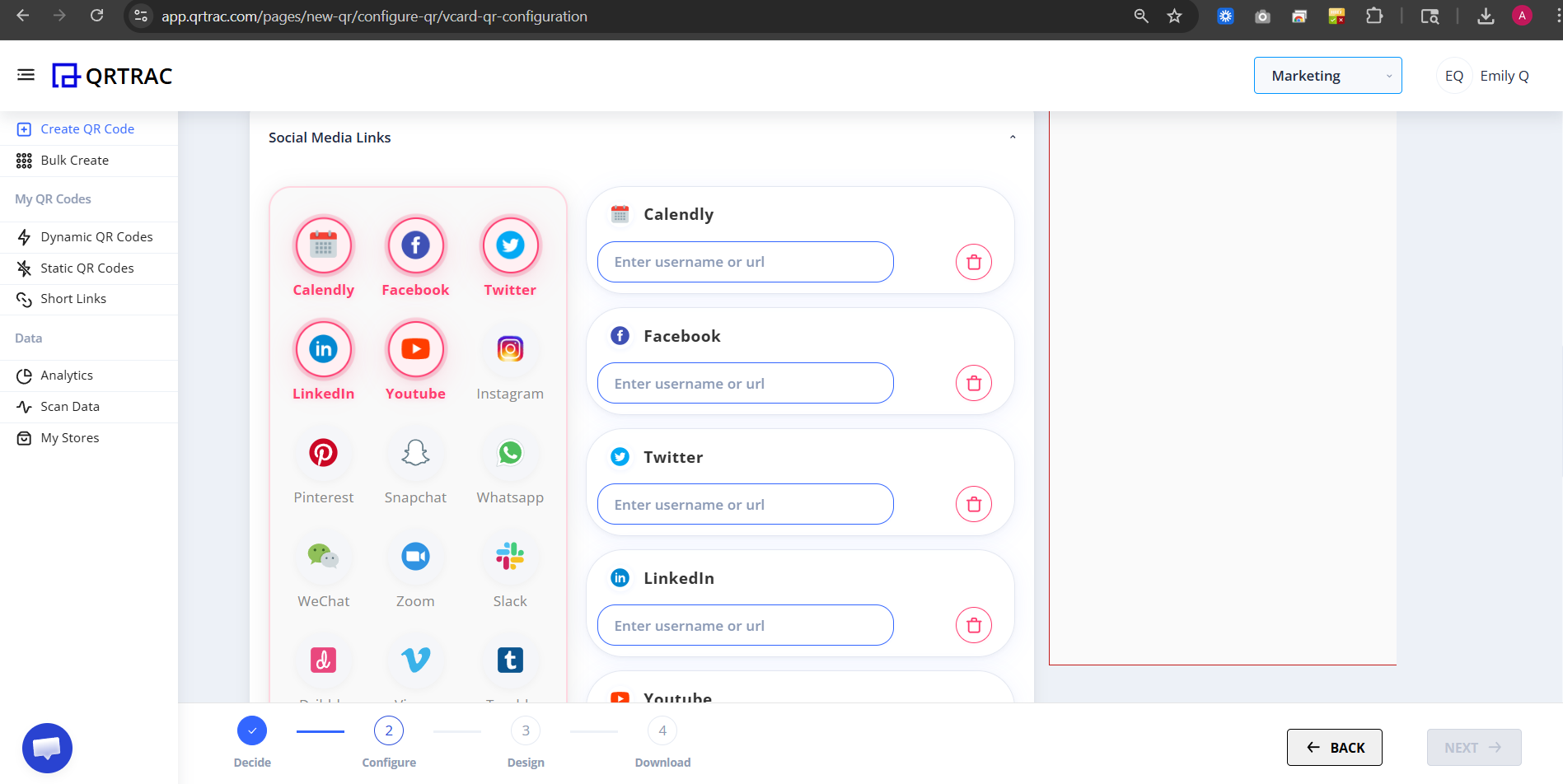
C) Social Media Links (Optional)
You can add multiple social profiles such as:
- Calendly
- YouTube
- Snapchat
- Zoom
- Slack
- Dribbble
- Vimeo
- Tumblr
- Wistia
- Foursquare
- Mix
- Flickr
- Patreon
- GitHub
- RSS
- PayPal
- Custom Link
- TikTok
- Line
- Telegram
Tip: Add only platforms you actively use — a clean card with fewer links makes a stronger impression.
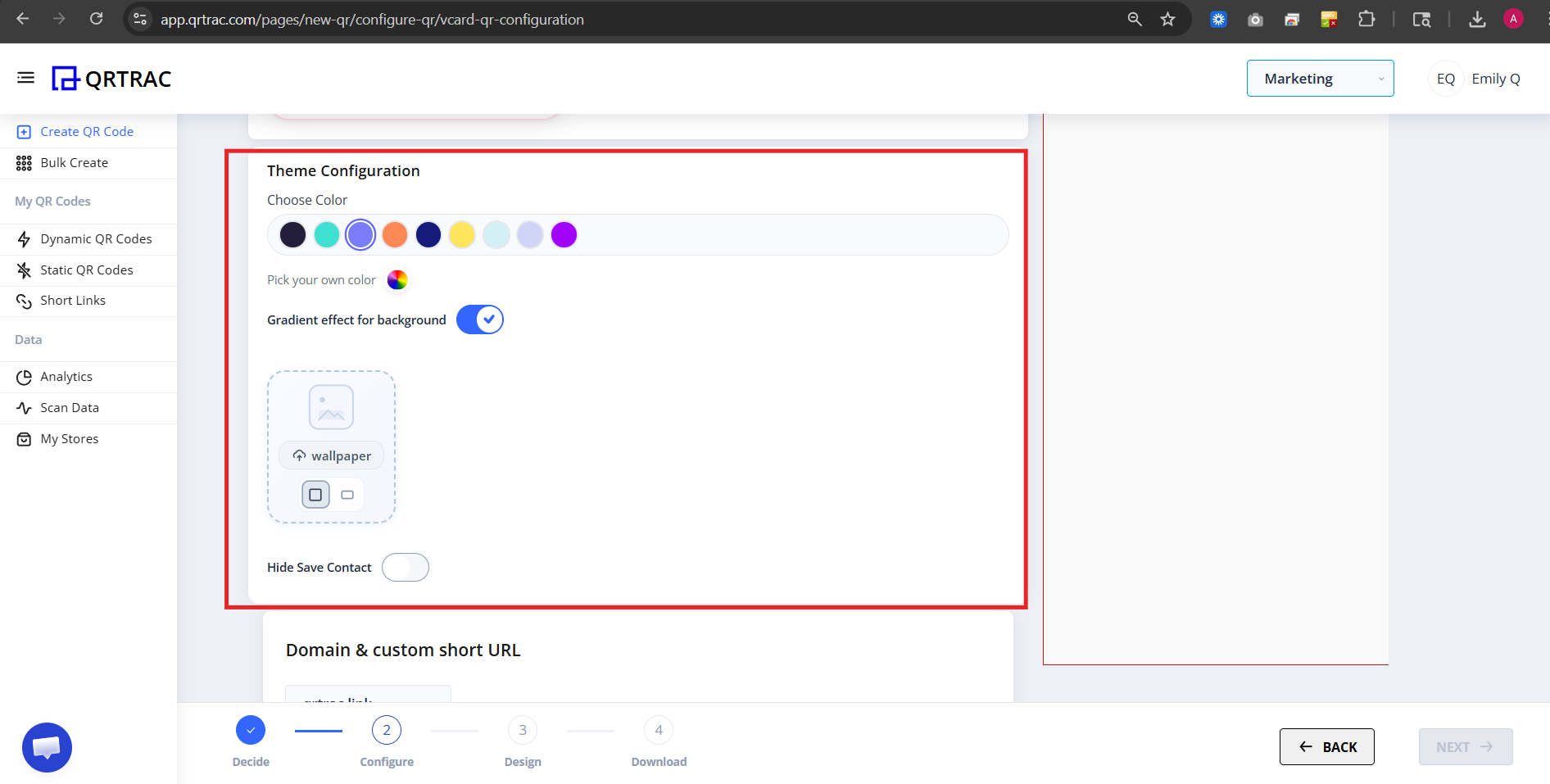
D) Theme Configuration
Under Theme Configuration, you can customize:
- Choose Color
- Pick a custom color
- Enable Gradient effect for background
- Add Wallpaper
- Hide "Save Contact" button (when enabled, users cannot directly save your contact to their phone)
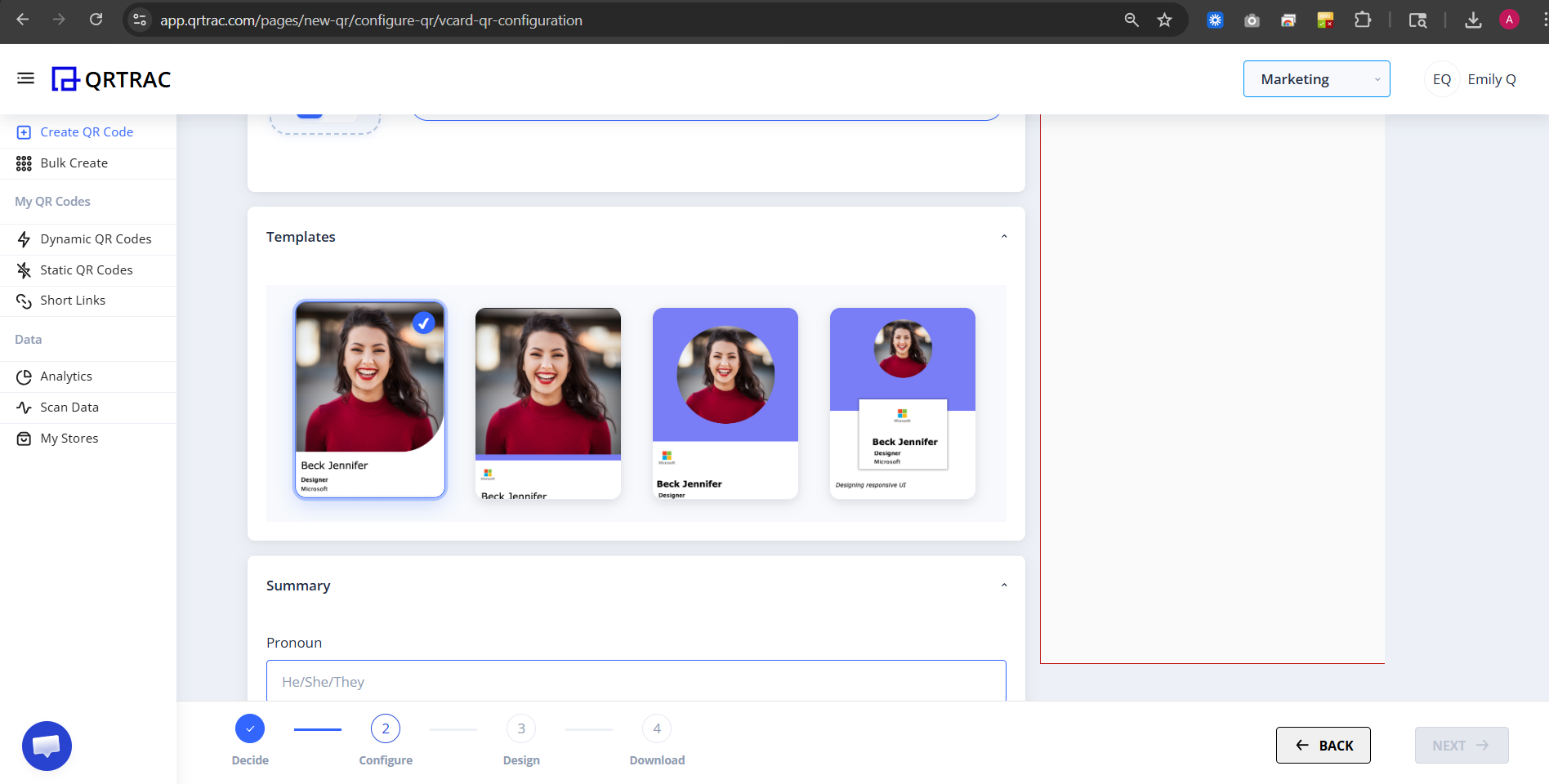
E) Templates
Choose a template layout for your digital card:
- Profile image layout
- Card style design
- Minimal or detailed format
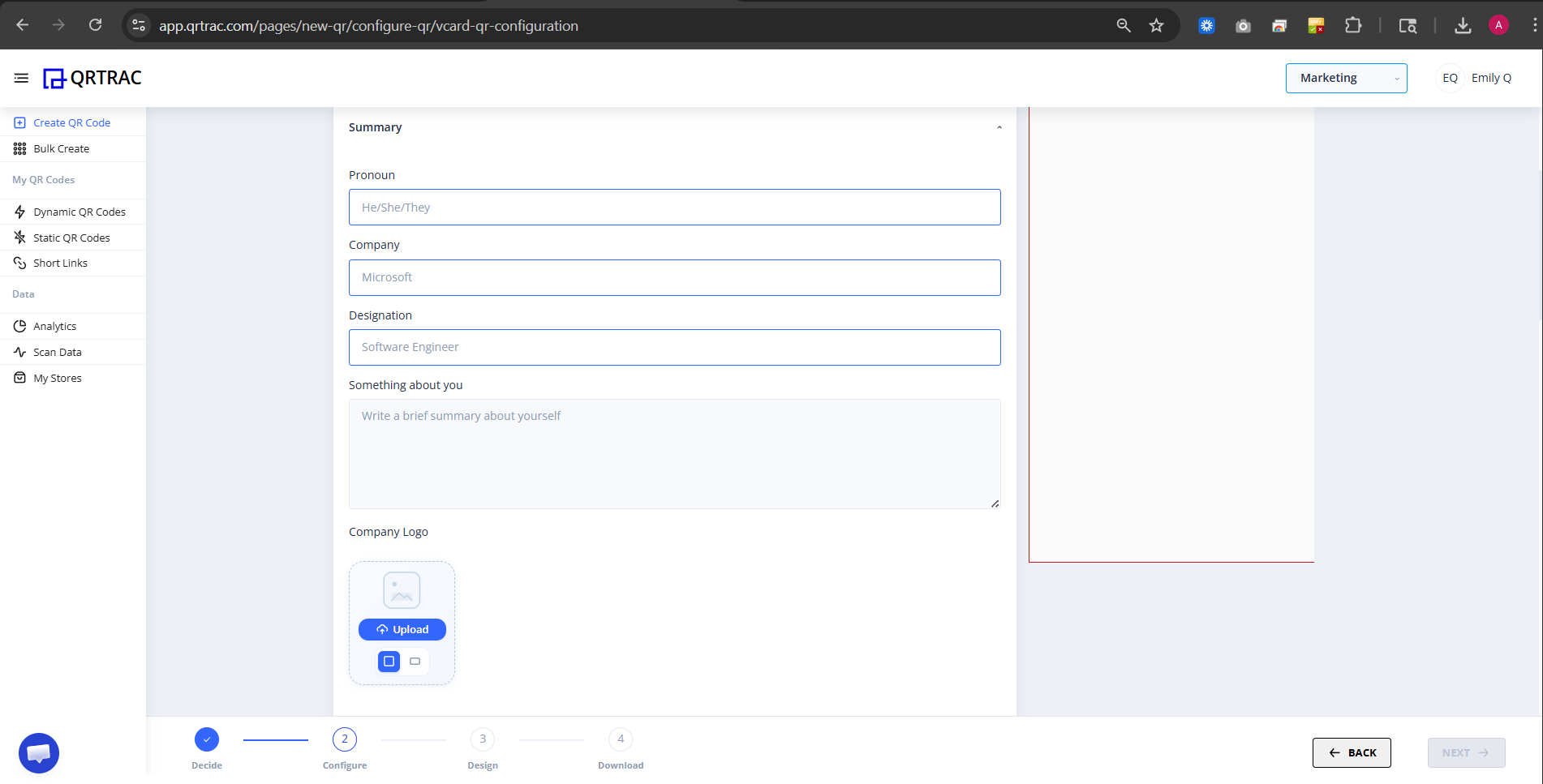
F) Summary Section (Inside Configure)
As you scroll down, you will see a Summary section. Here you can review:
- Pronoun
- Company
- Designation
- Short bio
- Company logo
This helps you verify everything before moving to Design.
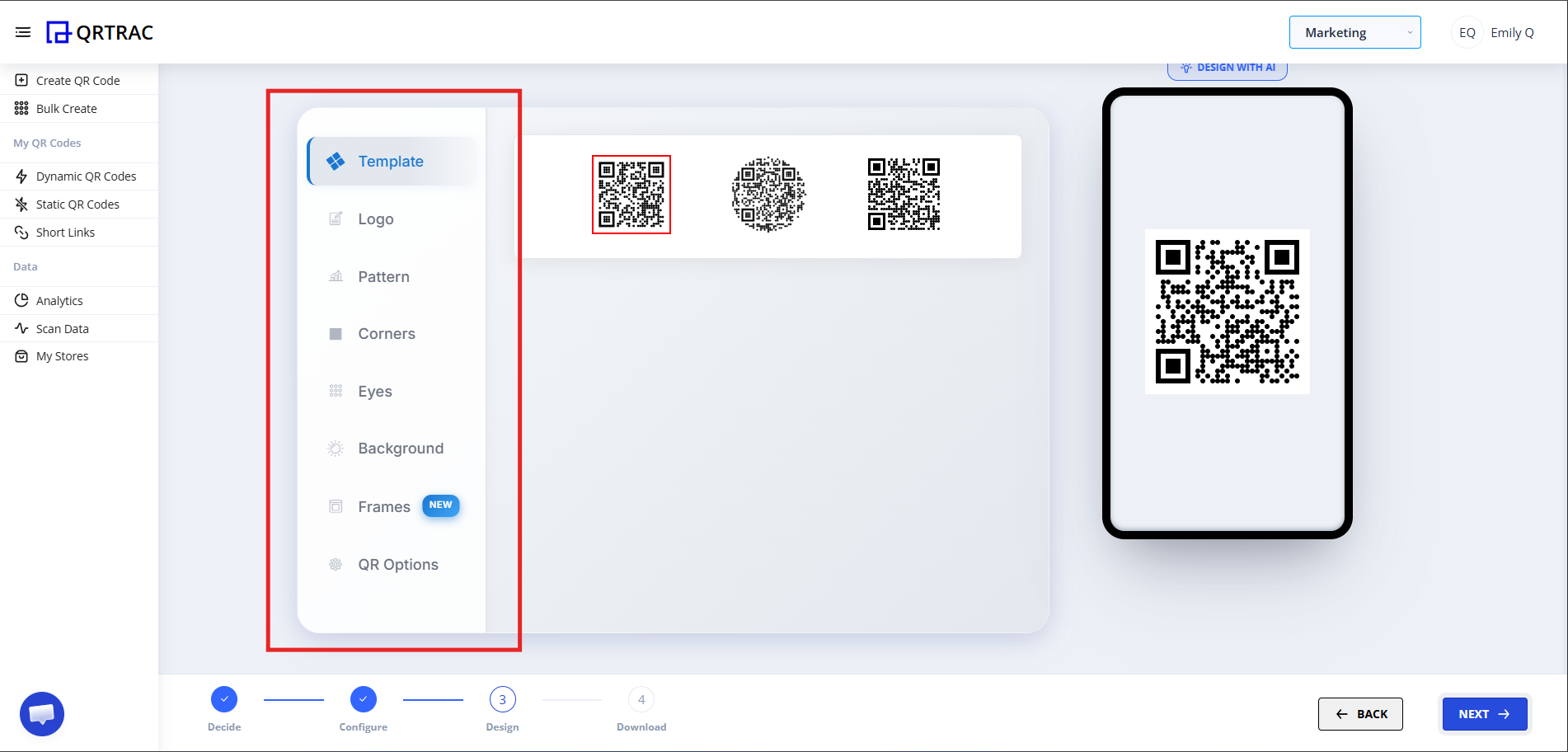
Step 3: Design Your QR Code (Design Phase)
Click Next to move to the Design section. Here you can:
- Change QR color
- Add logo in center
- Modify QR pattern
- Change eye style
- Adjust background
Dynamic QR — No Reprinting Needed
Update your contact details at any time from the QRTRAC dashboard without reprinting.
Step 4: Review & Download (Download Phase)
After designing:
- Click Next to go to Preview
- Preview your digital business card
- Click Download QR
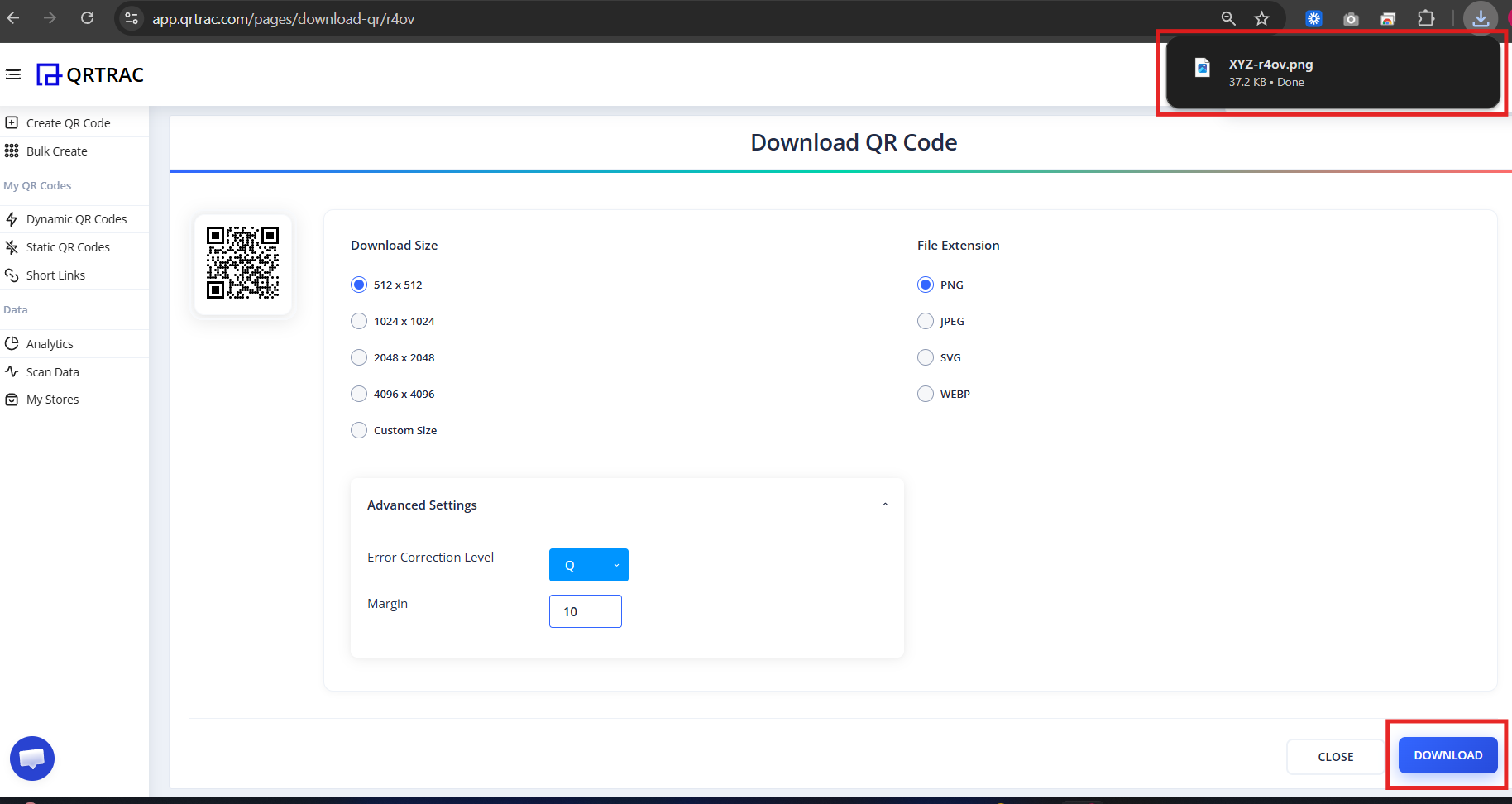
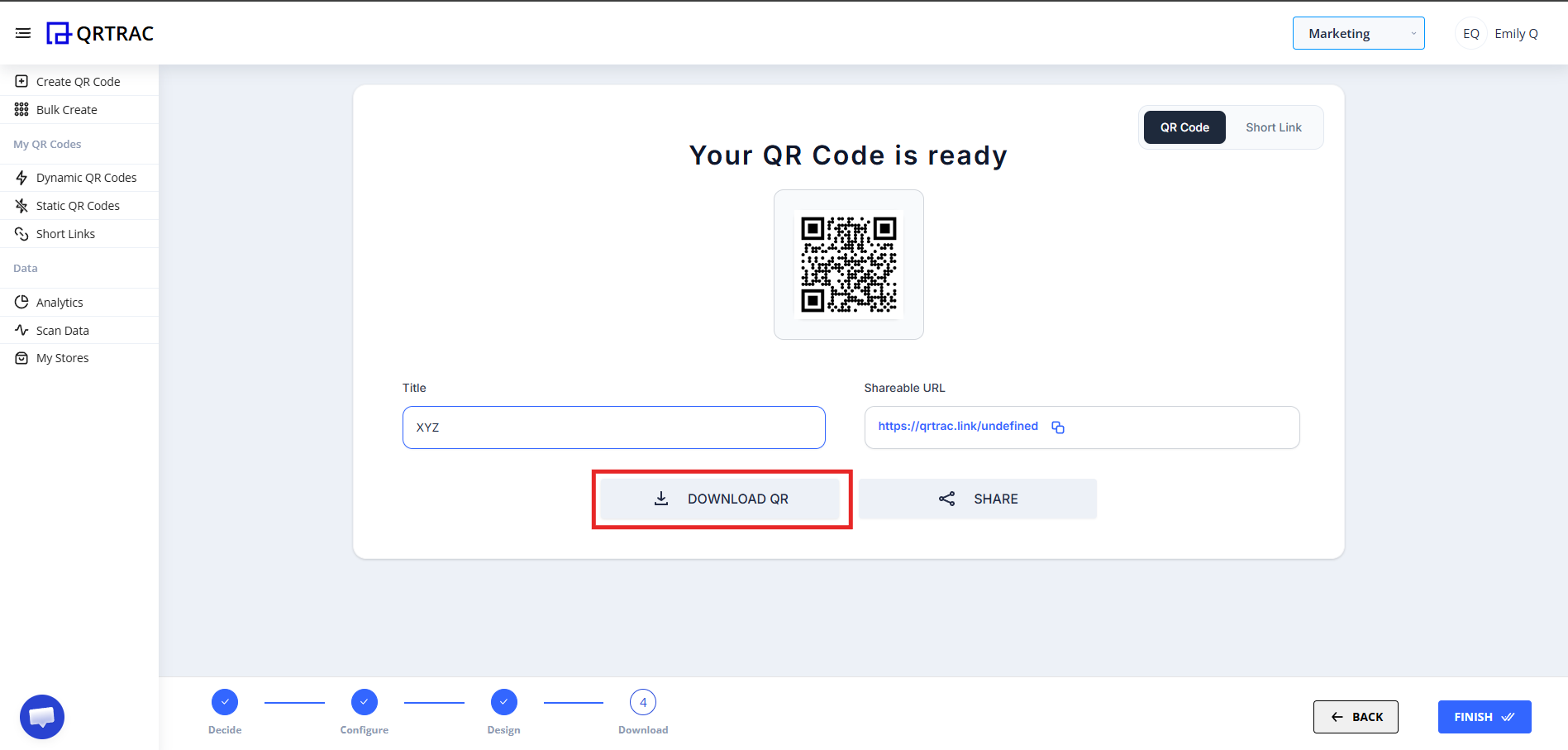
Download the format you need (PNG, SVG, etc.)
Best Practices Before You Print
Always test your Digital Business Card before printing it on physical materials to ensure a seamless experience for your connections.
- Test the Scan: Use your phone's native camera to scan the code.
- Verify Actions: Tap the "Save Contact", phone, and email buttons to confirm they open the correct apps.
- Check Social Links: Ensure all social media links route to the correct profiles.
Popular Use Cases
Digital Business Cards are versatile and adapt to your networking context:
- Printed Business Cards
- Email Signatures
- LinkedIn Profiles
- Conference Badges
- Trade Show Booths
- Sales Presentations
Frequently Asked Questions
Can I update my details later?
Yes. Because this is a Dynamic QR Code, you can log into your QRTRAC dashboard and update your contact information at any time without needing to reprint the physical code.
Can I track how many people viewed my card?
Absolutely. The analytics dashboard provides real-time data on scan volume, unique visitors, and geographic locations.
Does it work offline?
No, an internet connection is required for the scanner to load your digital profile and download the contact file.
Can I save the contact to my phone?
Yes. Scanners will see a "Save Contact" button on the card page that saves your vCard directly to their phone's contacts app — unless you hide it in Theme Configuration.
Common Mistakes
- ❌ Forgetting the country code in your phone number.
- ❌ Overcrowding the profile with broken or irrelevant social links.
- ❌ Skipping the final testing phase before bulk printing.
- ❌ Using a low-contrast QR color that makes scanning difficult.
Launch Checklist
- Contact details verified
- Brand theme selected
- Code scanned successfully
- Social links open correct profiles