How To Create List of Links QR Code
How To Create List of Links QR Code?
A List of Links QR Code allows users to scan once and access multiple links on a single mobile-friendly page.
Instead of sharing many URLs separately, you can combine everything into one clean landing page.
Perfect for:
Influencers
Digital business cards
Agencies
Restaurants
Freelancers
Coaches
Startups
Brands
This guide will walk you step-by-step and answer real user doubts.
Before You Start
Make sure:
All your important links are ready
Each link works in browser
Social media profiles are public
You copy links directly from browser (avoid typing manually)
👉 Always test your links first.
Step 1: Login & Click Create QR Code
- Login to your QRTRAC dashboard
- Click Create QR Code
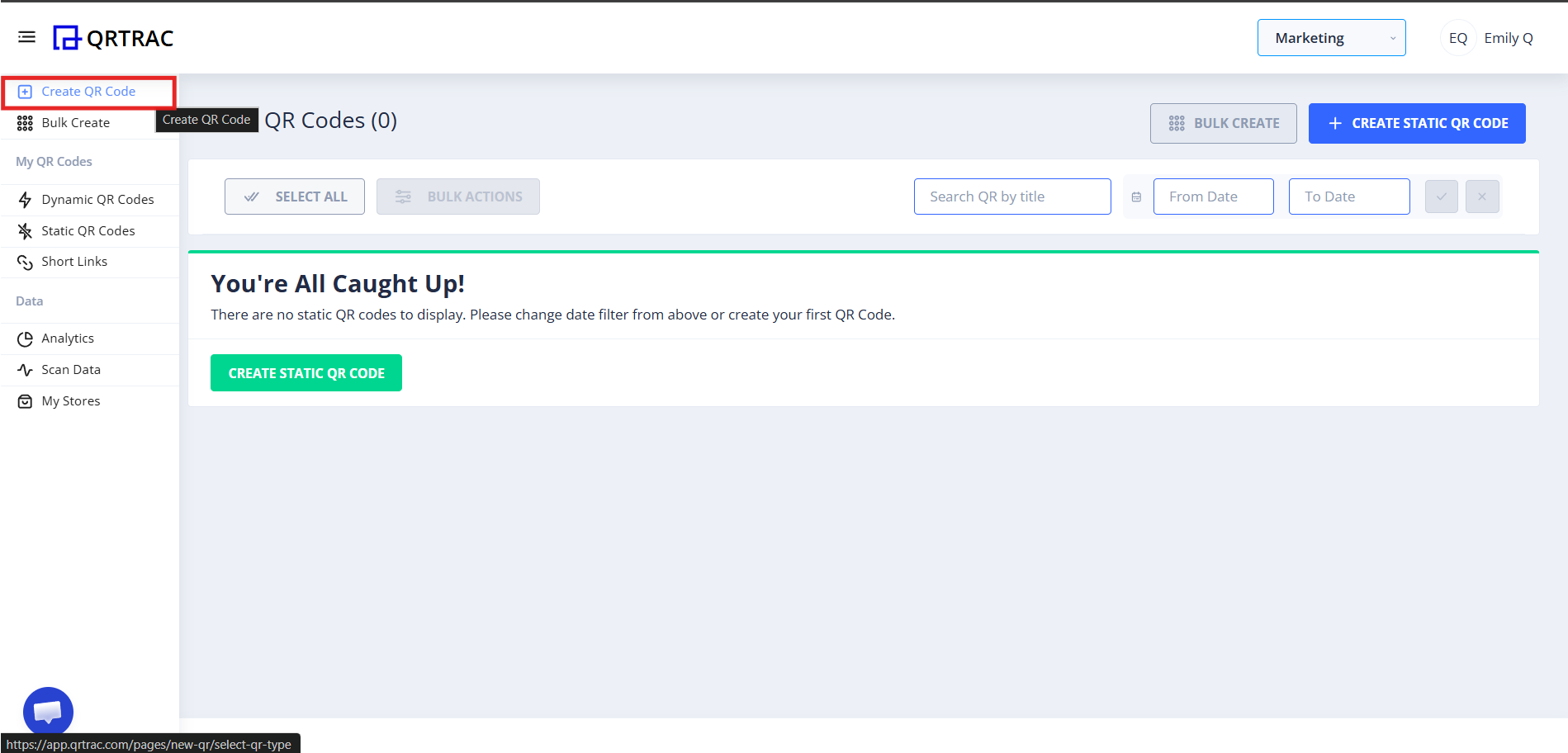
Step 2: Select “List of Links”
- Choose List of Links from the QR types list
- Click Next
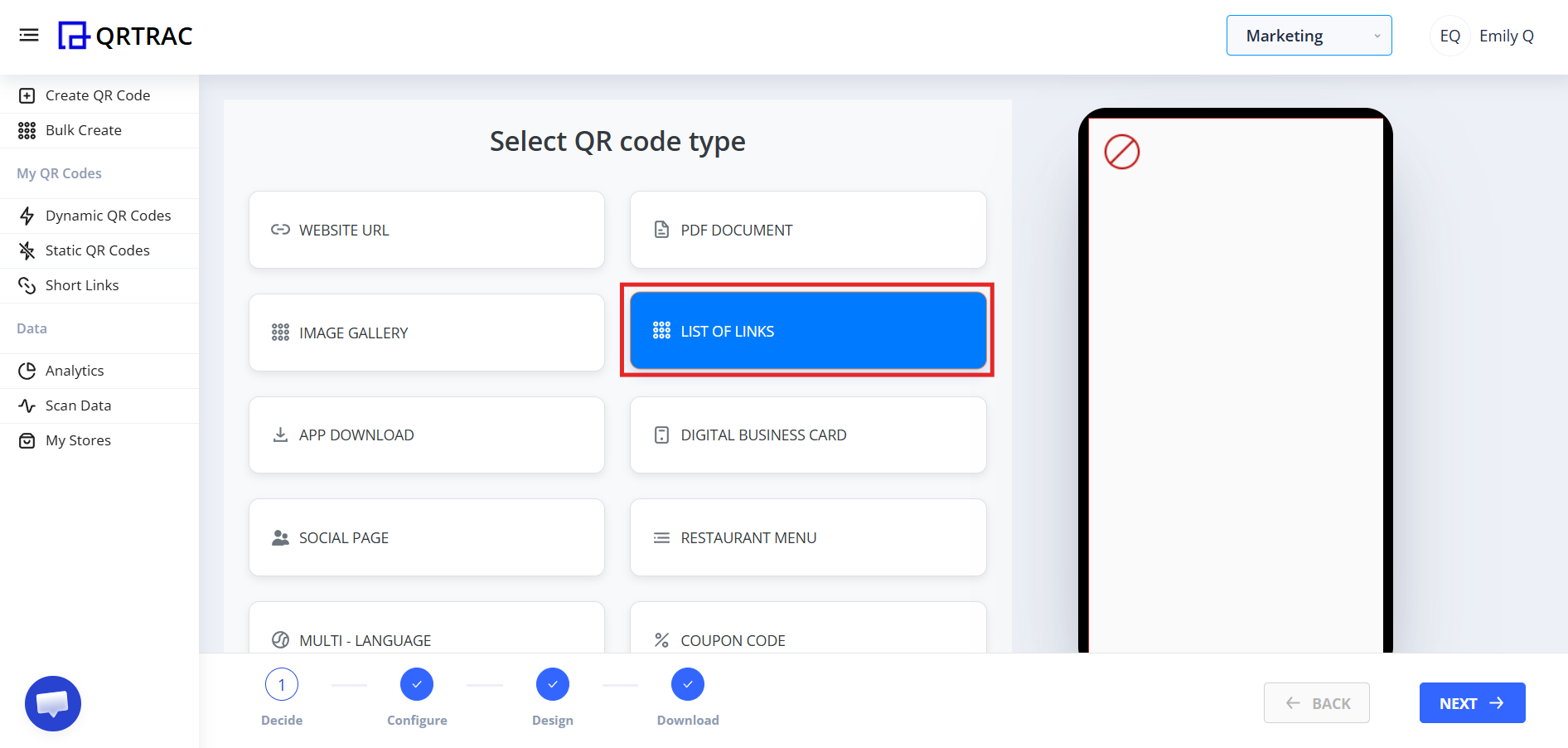
Step 3: Set Up Your Page
You will now see the page setup section.
Add:
Page Title (Example: “Connect With Us”)
Description (optional)
Thumbnail or profile image
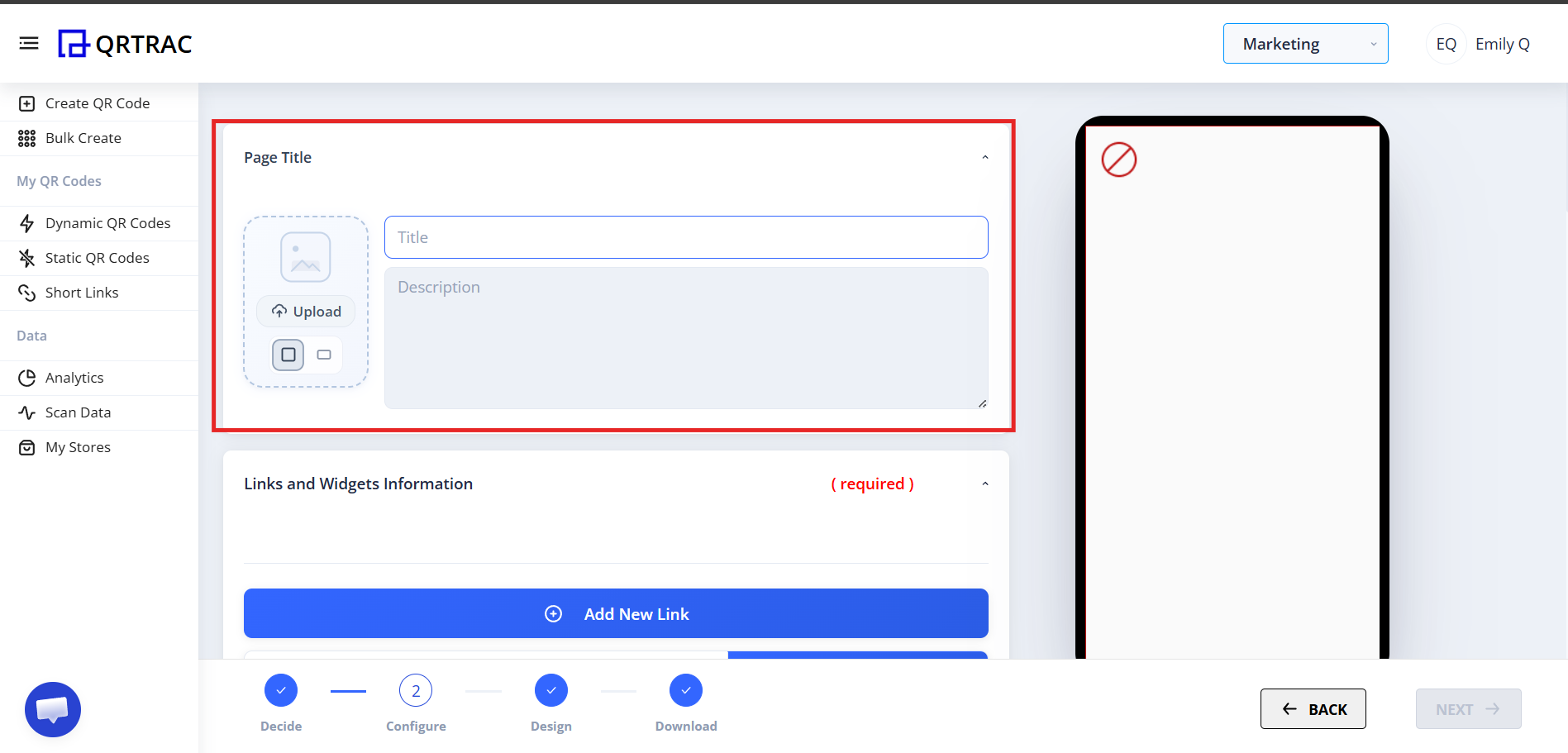
This is what users will see after scanning.
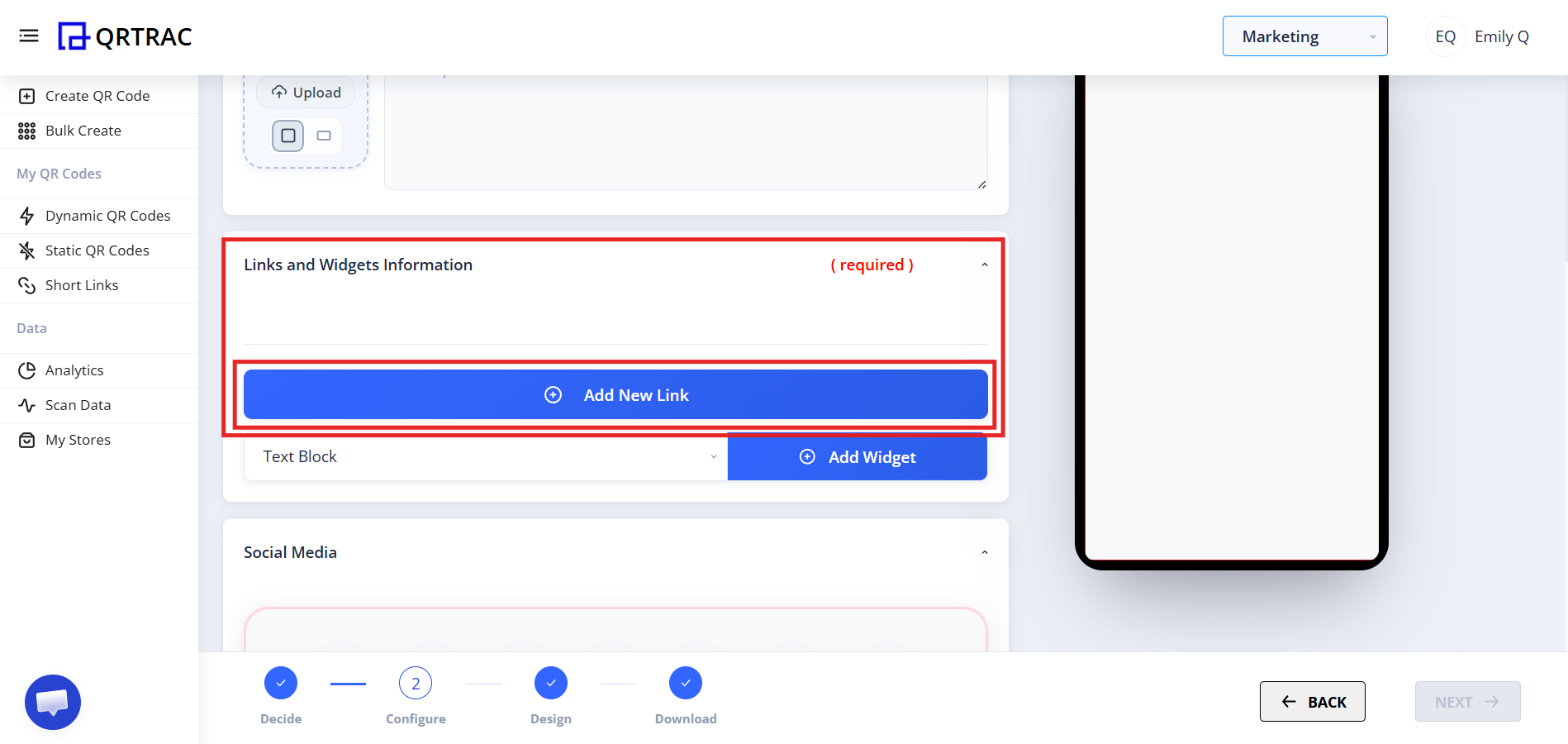
Step 4: Add & Customize Your Links
Click Add New Link
When adding a link, you can configure:
Basic Link Information
Link Title – The button text users will click
Enter Link URL – Paste full URL (e.g., https://example.com)
Icon – Add an icon for better visual clarity
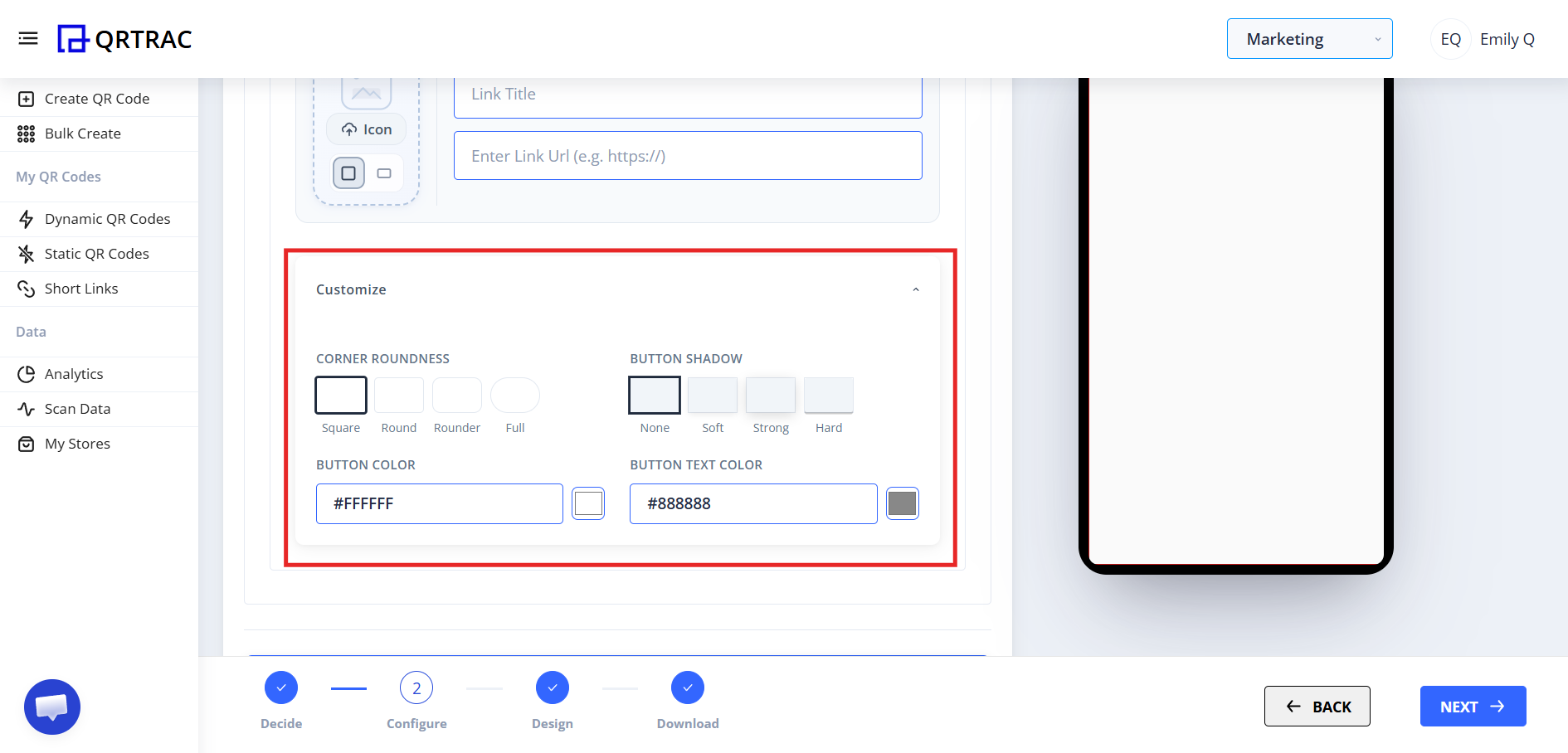
Customize Button Appearance
You can fully control how your link buttons look.
Corner Roundness Options
Choose button shape:
Square
Round
Rounder
Full
This changes how curved the button edges appear.
Button Shadow Options
Choose shadow style:
None
Soft
Strong
Hard
Shadow improves visual depth and click appeal.
Button Color & Text Color
You can choose:
Button background color
Button text color
Example:
Button Color: #FFFFFF
Button Text Color: #888888
This helps match your brand identity.
Common Mistakes Users Make
❌ “Link button shows but doesn’t open”
Check:
Did you paste full URL?
Did you include https://?
Is there extra space before or after the link?
Is the profile public?
Always test each link after saving.
Step 5: Add Widgets (Advanced Customization)
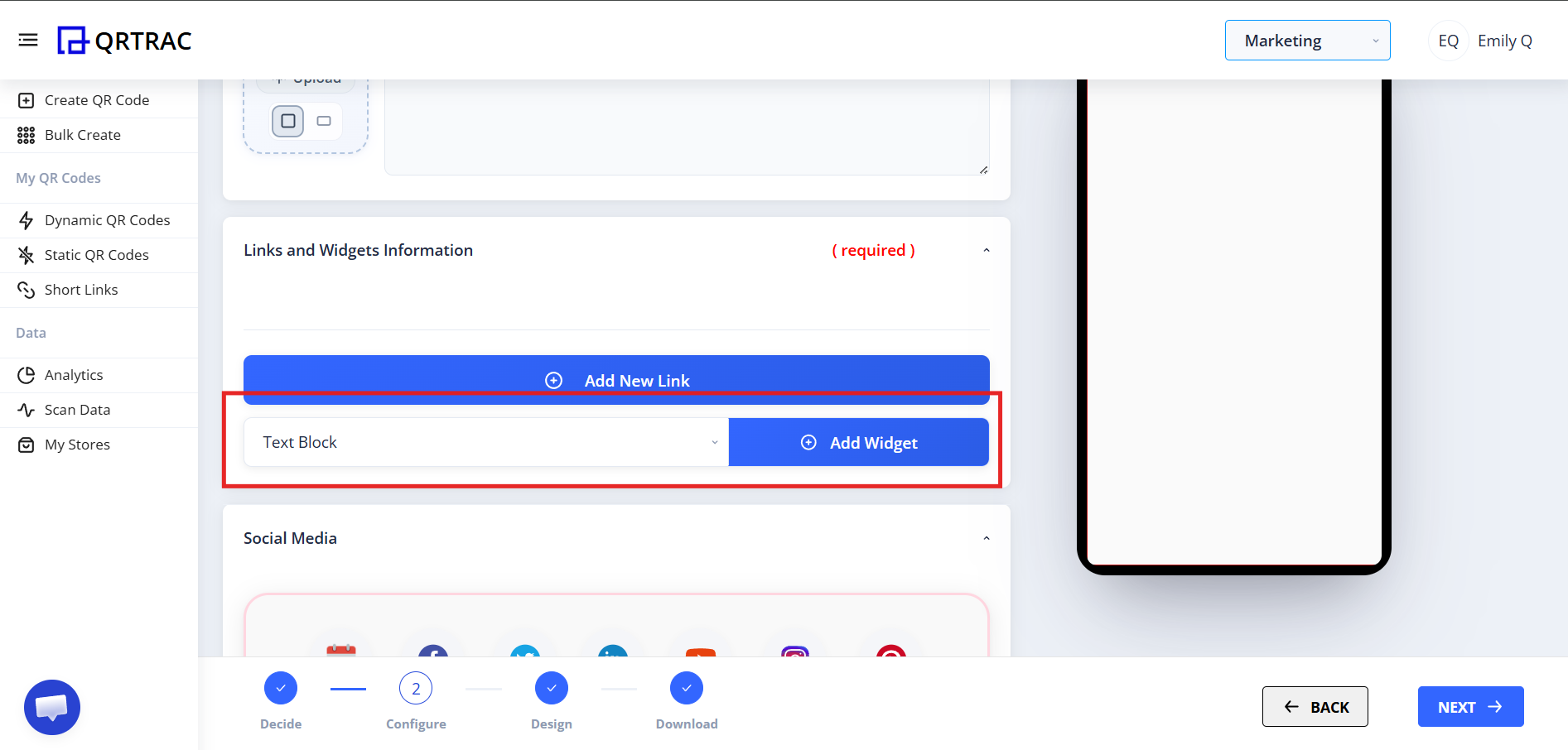
Below the Add Link section, you will see:
A dropdown menu
An Add Widget button
Available widget types:
Text Block
Image Gallery
Video
Button
HTML
Divider
How To Add a Widget
Select widget type from dropdown
Click Add Widget
A configuration window will open
Customize it
Save
Example: Adding a Divider Widget
If you select Divider, a configuration window appears.
You can configure:
Width
Default: 100%
Enter percentage (100%)
Or pixels (200px)
Color
Select divider color.
Alignment
Left
Center
Right
Preview
You can preview before saving.
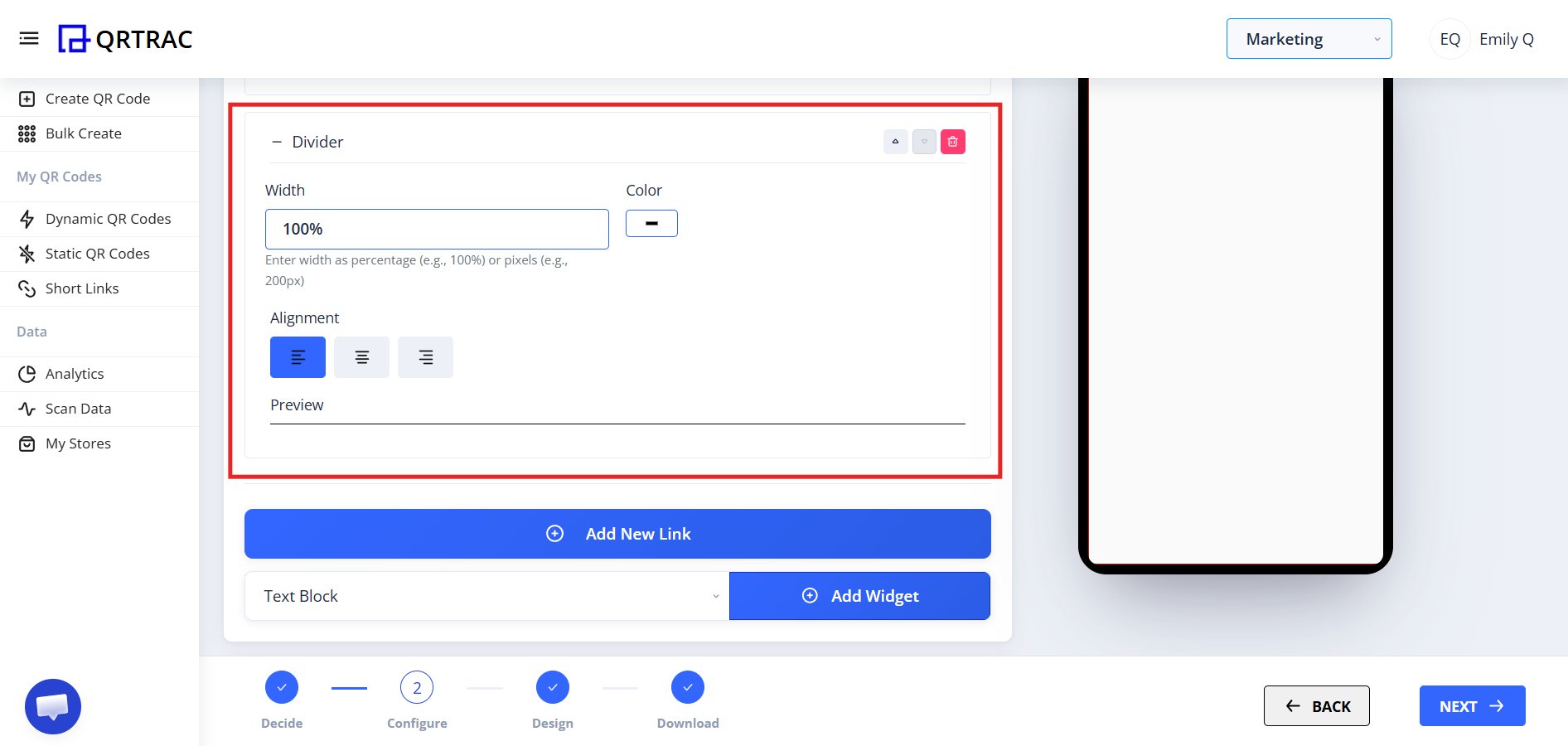
Divider helps visually separate sections and improve readability.
Why Widgets Are Useful
Widgets allow you to:
Add headings or custom text
Embed videos
Add image gallery
Attach downloadable PDFs
Insert custom HTML
Create structured layouts
This makes your link page more professional and interactive.
Step 6: Add Social Media Links (Quick Platform Section)
Below the Widgets section, you will see a Social Media section with multiple platform logos.
This allows you to quickly add popular platforms without manually creating buttons.

How It Works
Click on any social media platform logo
Enter your profile URL
Save
The platform button will automatically appear on your page
You can add:
One platform
Multiple platforms
Or even all platforms
There is no restriction on adding more than one.
Available Platforms Include
Calendly
YouTube
Twitter (X)
Telegram
TikTok
Snapchat
Zoom
Slack
GitHub
PayPal
RSS
Vimeo
Dribbble
Tumblr
Wistia
Flickr
Patreon
LINE
Foursquare
Website
…and more depending on updates.
Why This Section Is Useful
Instead of manually creating a button and pasting link:
Platform logo is automatically added
Design stays consistent
Users instantly recognize the platform
Faster setup process
Common User Mistakes
❌ “My social link is not opening”
Check:
Profile is public
Correct URL copied
No extra space in link
Platform not restricted in your region
Always test your profile link before saving.
Step 7: Customize Page Appearance
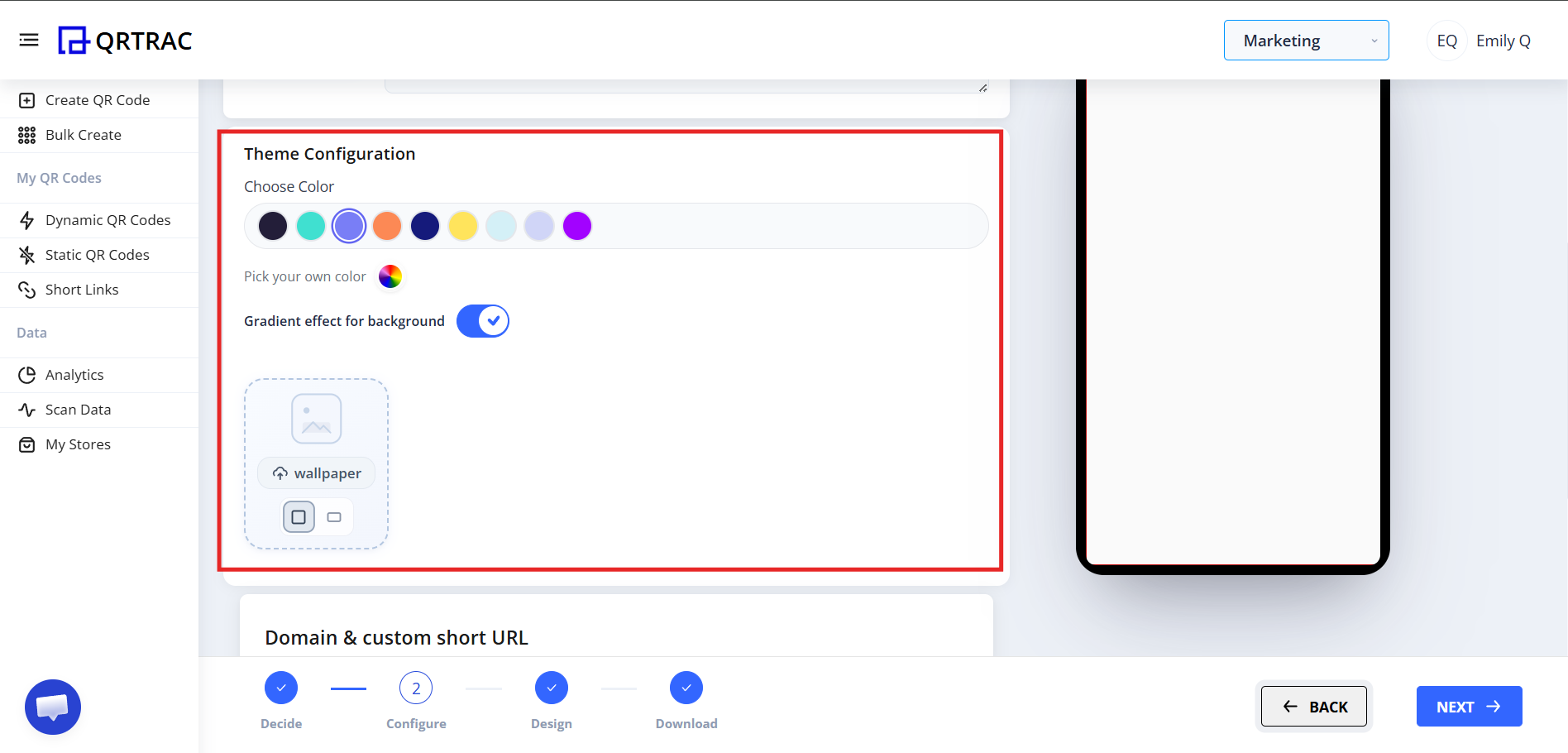
You can personalize your link landing page:
Choose theme color
Select custom color
Enable gradient background
Upload background image
Important User Question
“Can I edit or add links later?”
Yes.
You can update, delete, or rearrange links anytime from your dashboard without changing the printed QR code.
Advanced configuration options are explained here:
🔗 [LINK: QRTRAC QR Settings Guide]
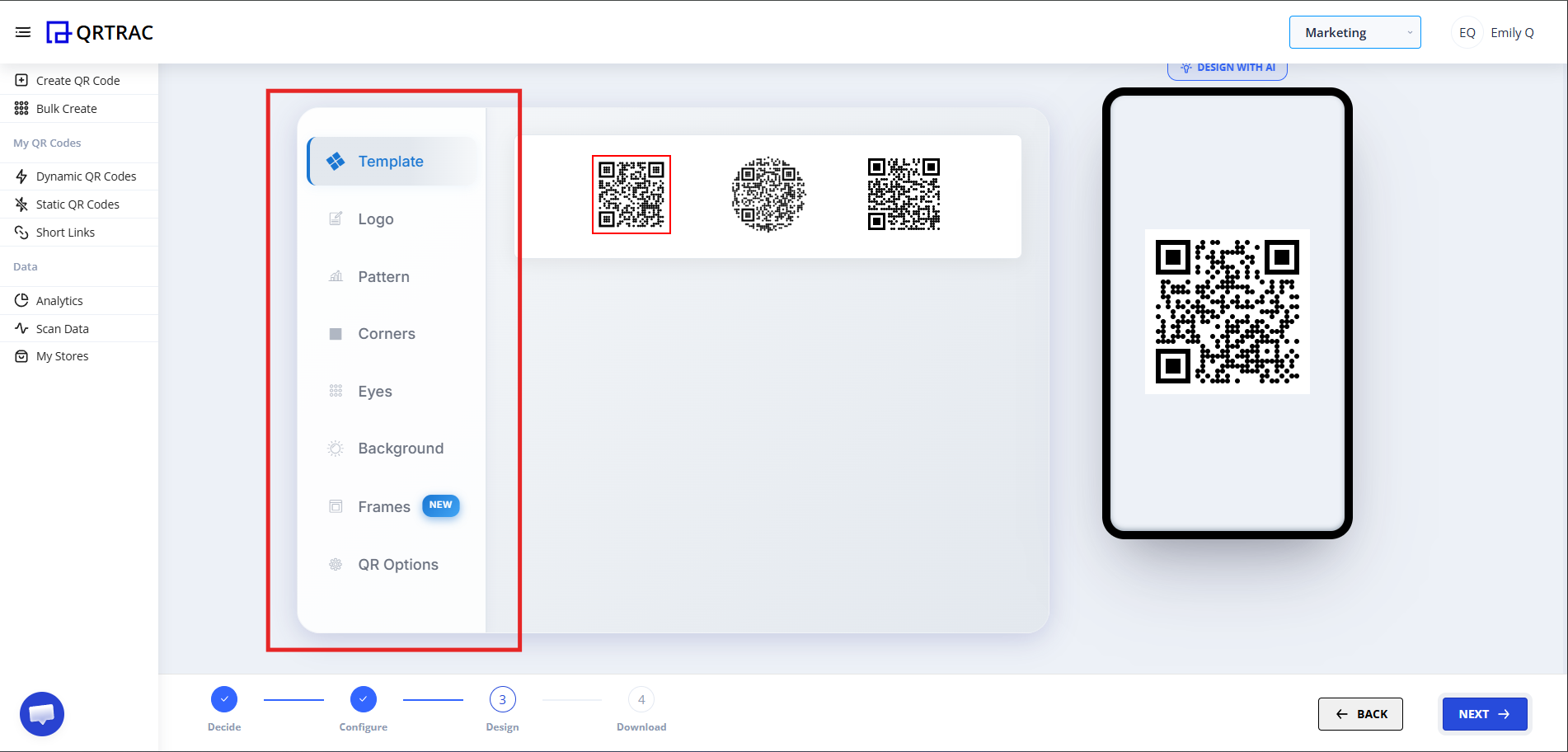
Step 8: Design the QR Code
Click Next to move to QR design section.
Here you can:
Change QR color
Add logo
Modify pattern
Adjust eye style
Change background
Step 9: Review & Download
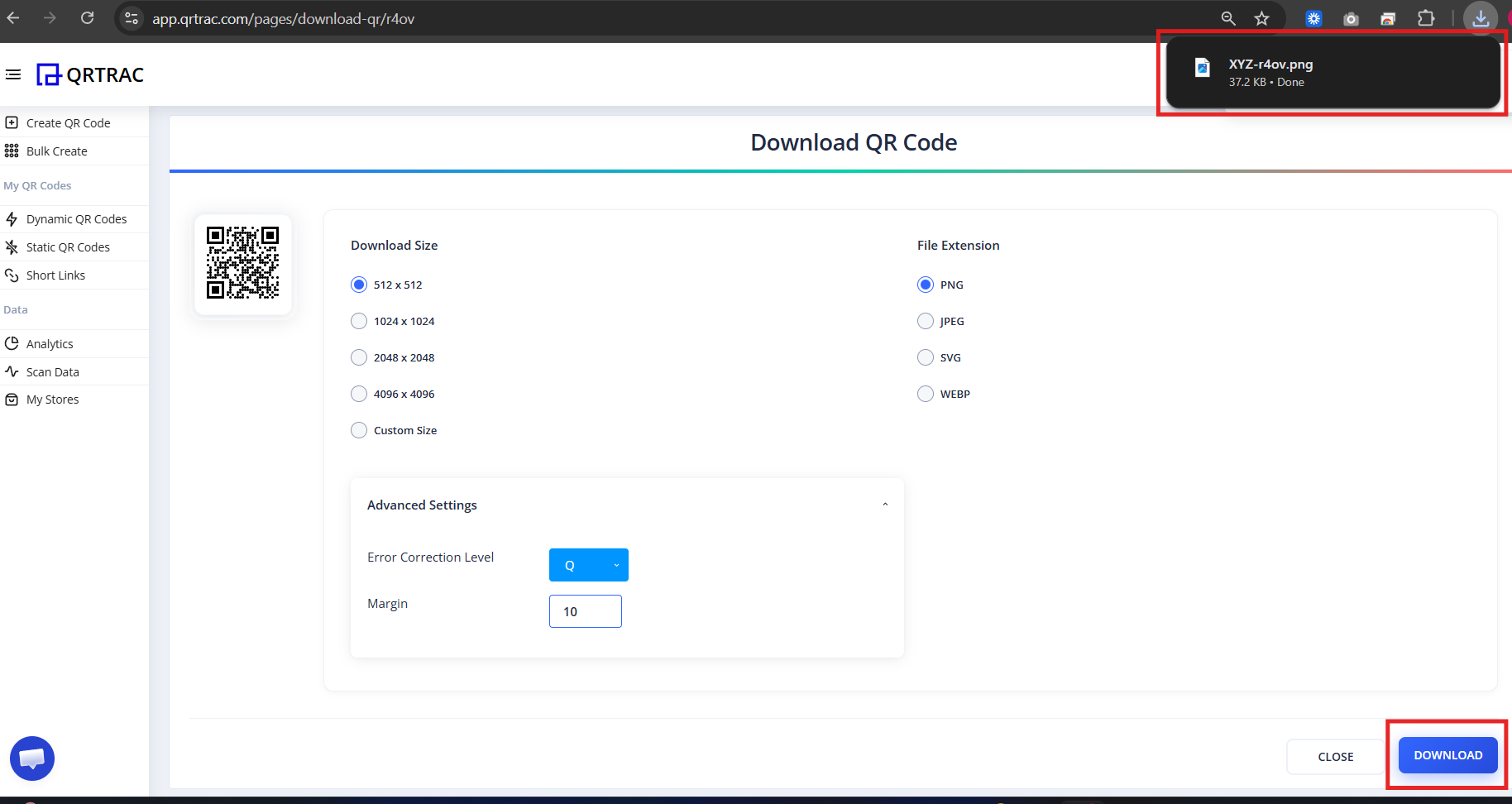
Click Next
Preview your QR code
Click Download
Before Printing or Sharing
This is where many users make costly mistakes. Always test on real devices first.
Never print bulk material without testing
A quick scan test on two devices takes 2 minutes and can prevent costly reprints.
- Scan the QR yourself
- Click every link to verify it works
- Test on a second device
- Check the mobile view looks correct
- Verify page loading speed
What Users Will See After Scanning
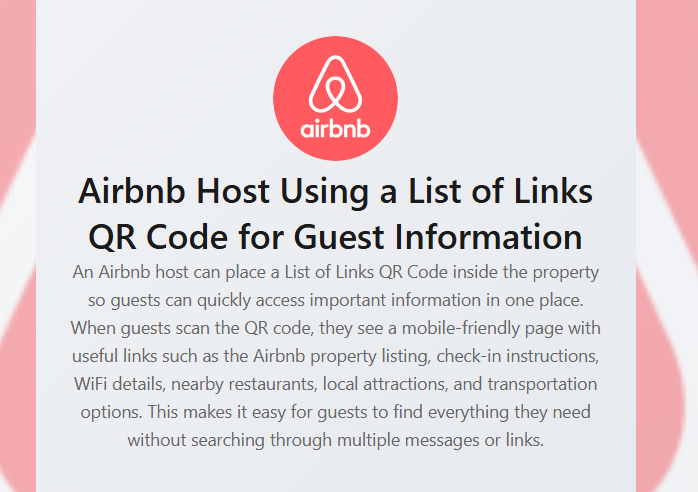
When someone scans your List of Links QR Code, a mobile-friendly landing page opens with all your important links organized in one place.
Profile Section
At the top of the page users will see:
- Profile image or brand logo
- Page title (e.g., "Connect With Us")
- Short description or tagline
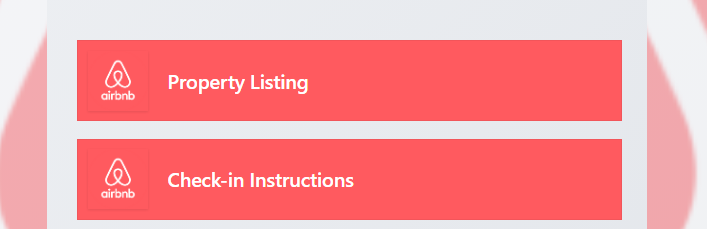
Link Buttons Section
Below the profile, users see large clickable buttons. Each button leads to a different destination:
- Product pages
- Support pages
- Portfolio links
- Booking pages
- Website pages
Media & Widget Content
You can embed rich media elements directly on the page:
- Images and banners
- Embedded YouTube videos
- Downloadable PDFs
- Product previews or promotional content
Social Media Icons
At the bottom of the page, visitors can quickly access your social platforms. Common icons include Instagram, Twitter (X), Facebook, LinkedIn, YouTube and many more.
Why This Page Is Powerful
Instead of sharing multiple links separately, you get:
1️⃣
One QR Code
🔗
Unlimited Links
📱
Mobile-Friendly
🎨
Fully Branded
📊
Scan Analytics
✏️
Edit Anytime
Tip: Always test your QR code with a smartphone camera straight from your computer monitor before you download and print it.
Frequently Asked Questions
Can I rearrange or remove links later?
Yes. You can edit, reorder, or delete any link at any time from your QRTRAC dashboard without reprinting the QR code.
Can I track scan analytics?
Yes. The analytics dashboard provides real-time data on scan volume, unique visitors, device types, and geographic locations.
Why is one of my links not opening?
Check that you pasted the full URL (including https://), there are no extra spaces, the destination is publicly accessible, and the profile is set to public.
Is an internet connection required to view the page?
Yes. The landing page is hosted online, so users need an active internet connection to load it after scanning.
Common Mistakes
- ❌ Pasting a link without https:// — it won't open.
- ❌ Adding too many links and overwhelming visitors.
- ❌ Not testing each link before printing or sharing.
- ❌ Leaving the profile image blank — it looks unfinished.
Launch Checklist
- All links verified and working
- Profile image and title added
- Brand theme selected
- QR code scanned successfully on mobile