How To Create Bulk Digital Business Card QR Codes
If you want to create Digital Business Card QR Codes for an entire team or organization at once, this guide is for you — generate hundreds of personalized vCard QR codes from a single spreadsheet upload.
- Creating QR codes for your entire sales team
- Generating QR codes for all employees
- Printing QR codes for corporate staff cards
- Managing contacts for franchise locations
- Sharing contact details at scale
- Tracking profile views separately per person
Before You Start
Before uploading your file, confirm:
- All employee/contact details are ready and verified
- Phone numbers include country code (e.g. +1, +44)
- Email addresses are correct
- Your file uses the QRTRAC template format
One Row = One Business Card QR Code
Each row creates a separate, individually personalized Digital Business Card QR code. Do not change or delete column headers in the template.
Step 1: Login & Start
- Login to your QRTRAC dashboard
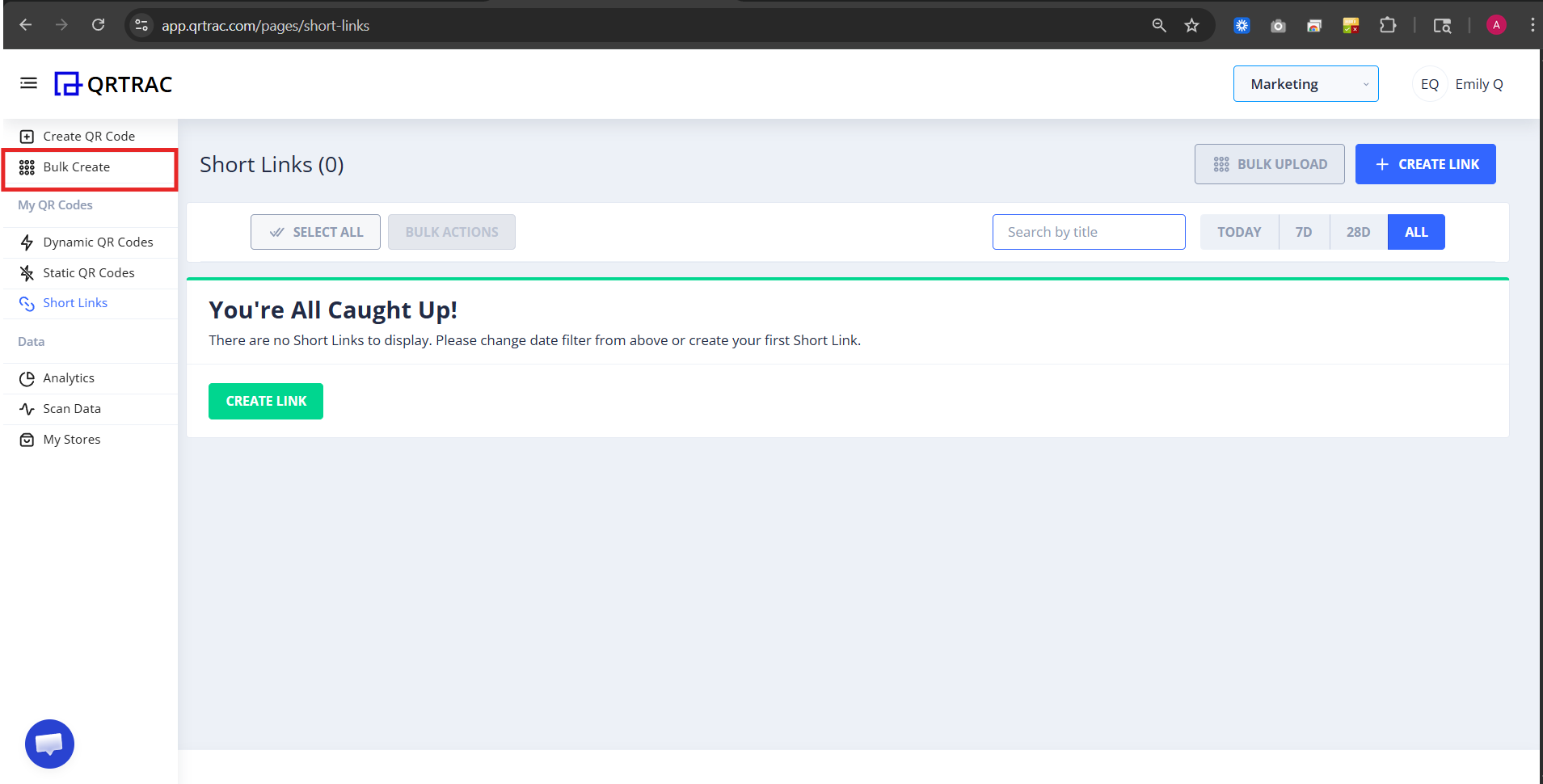
- Click Bulk Create
- Select Digital Business Card
- Click Next
Step 2: Download the Sample File
Before uploading your data:
- Click Download Excel or Download CSV
- Open the sample file
- Do not change column names
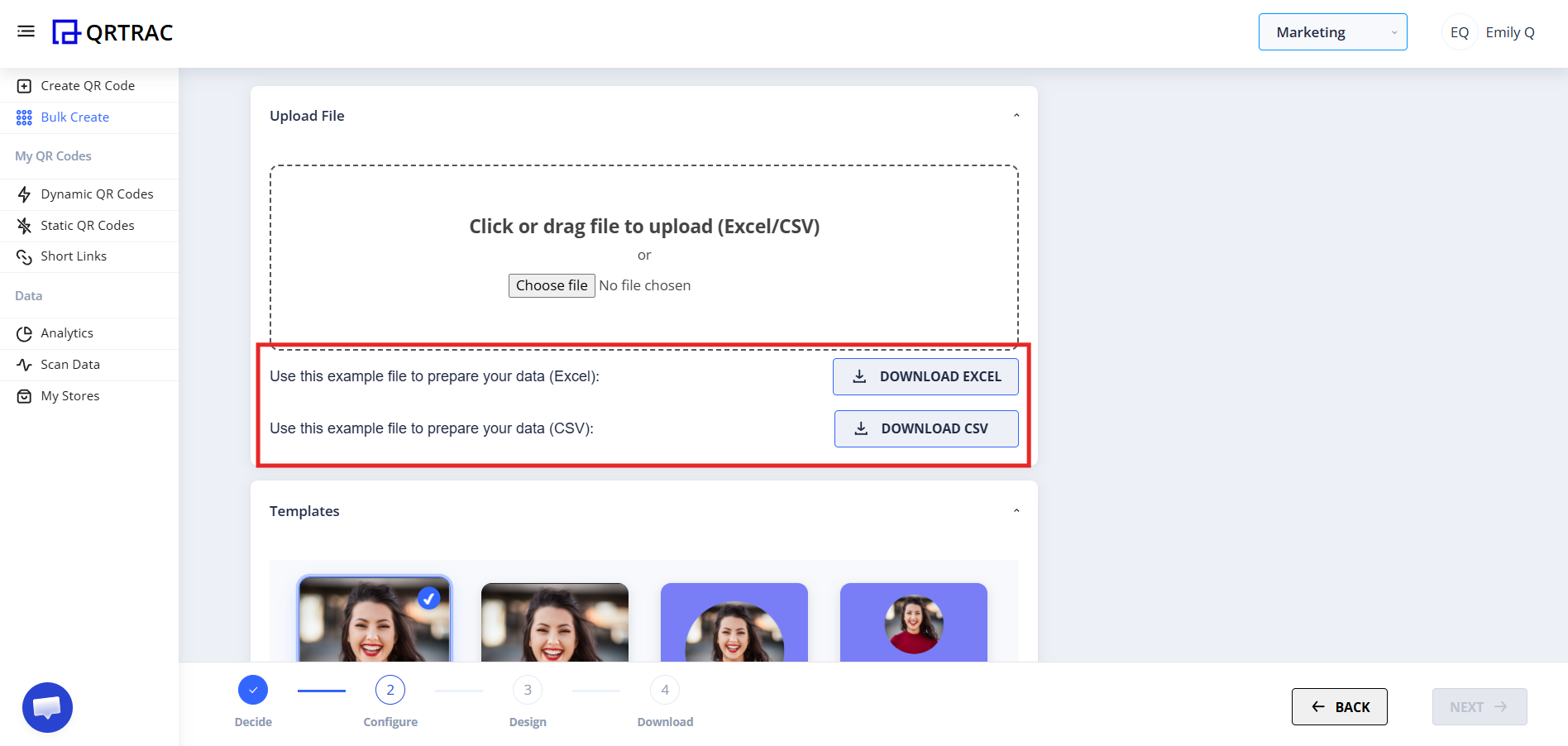
This file shows the correct format required by QRTRAC.
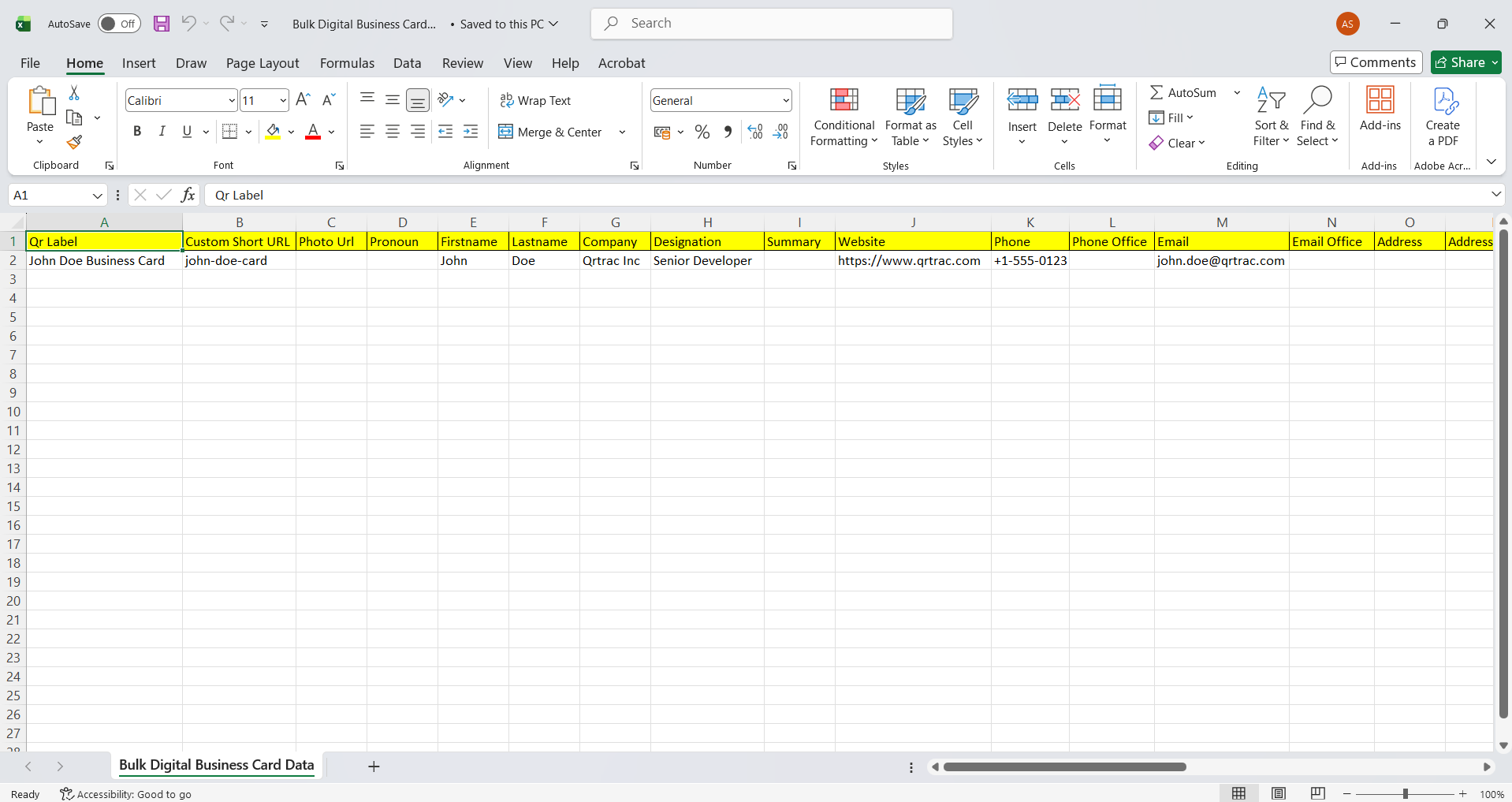
Step 3: Fill Your Digital Business Card Details
Fill the file with contact information, including first name, last name, phone number, email, job title, company name, and any optional fields such as website, address, social links, or a short bio.
Save the file after entering all details.
Step 4: Upload Your Excel or CSV File
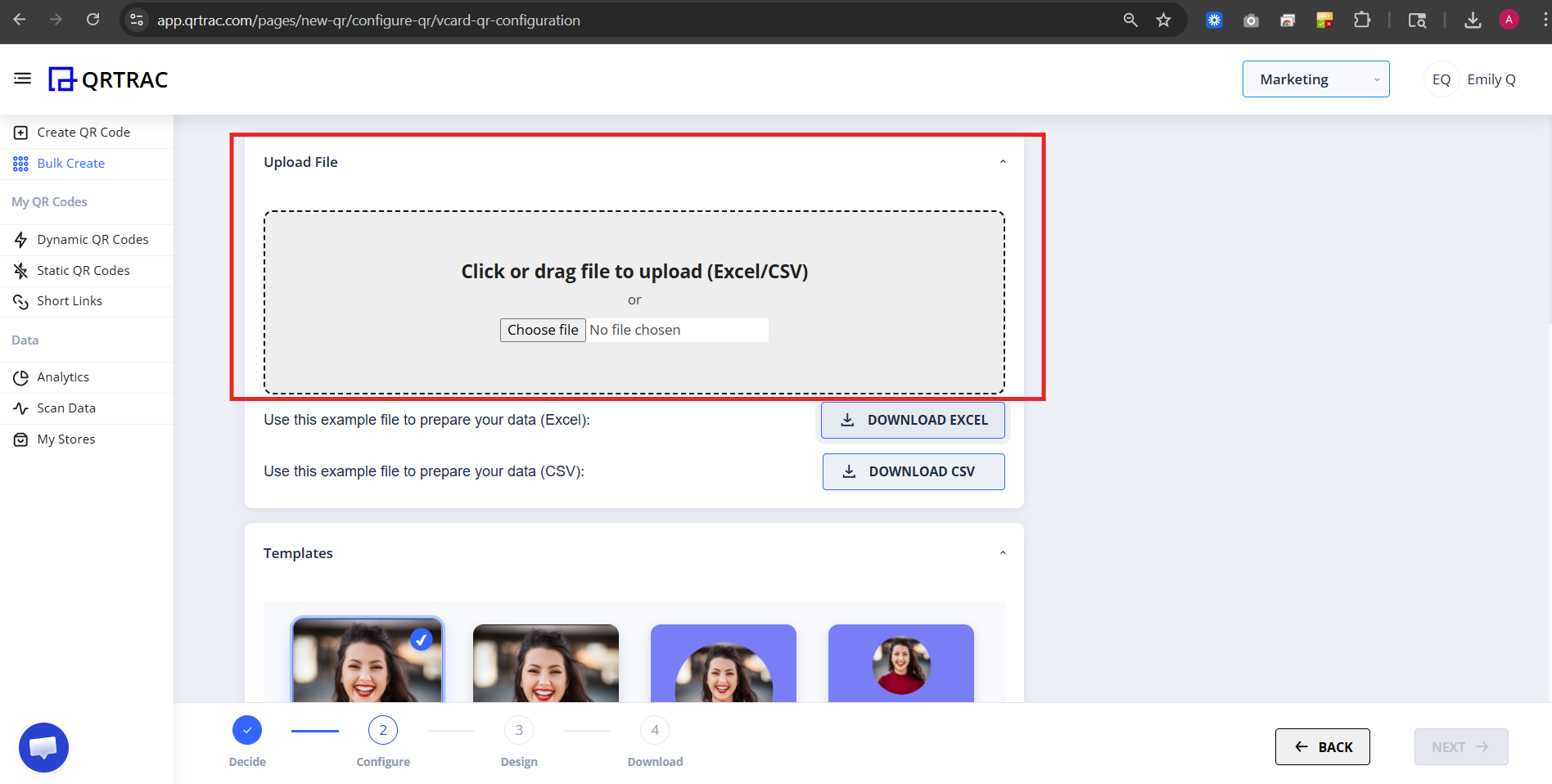
- Return to QRTRAC
- Click Upload File
- Select your Excel or CSV file
- Upload the file
QRTRAC will automatically create Digital Business Card QR Codes for each row.
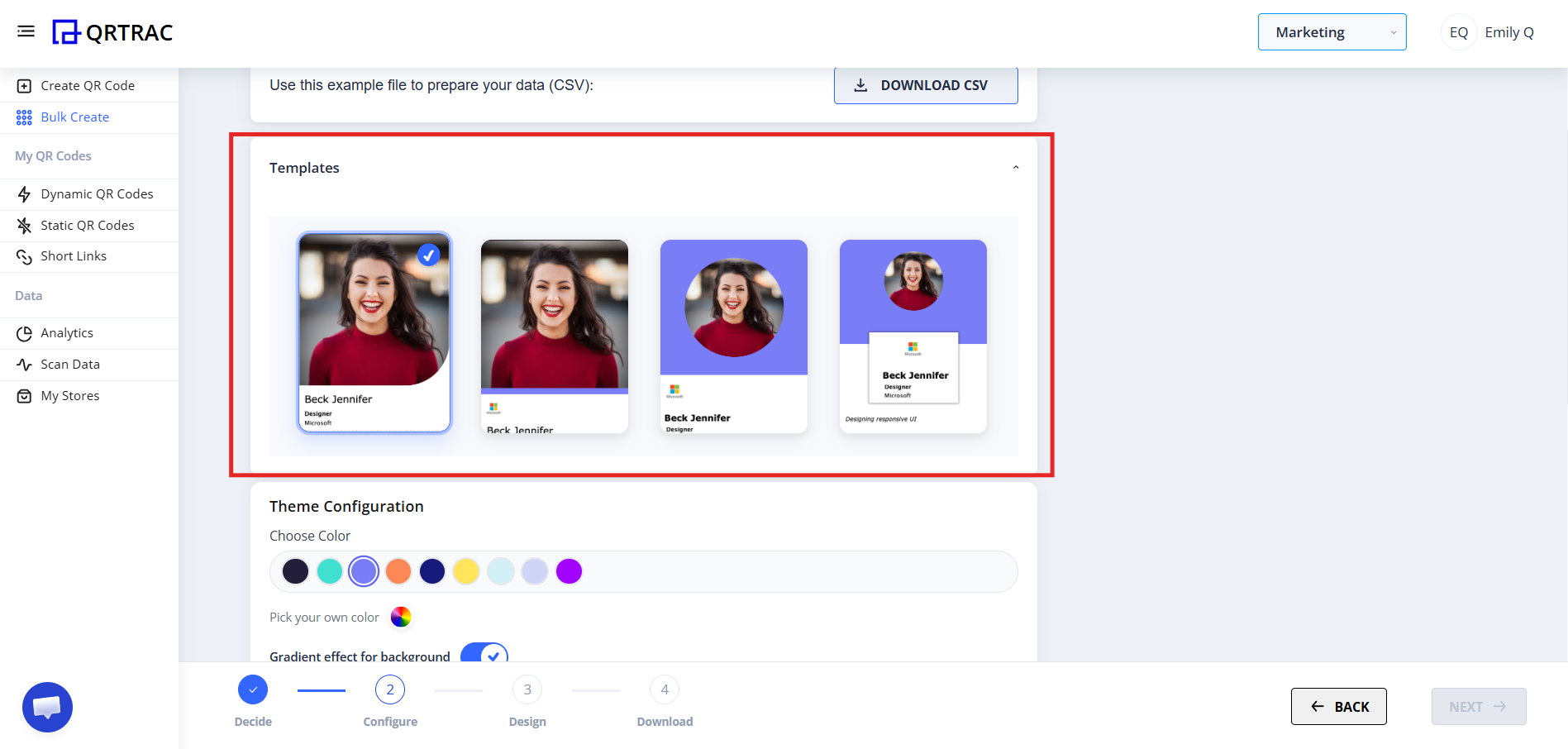
Step 5: Select Domain & Settings
You can choose:
- Default QRTRAC domain
- Custom domain
- Tracking options
Each Digital Business Card will get its own unique link.
Dynamic QR — No Reprinting Needed
Update your bulk QR code destinations at any time from the QRTRAC dashboard without reprinting.
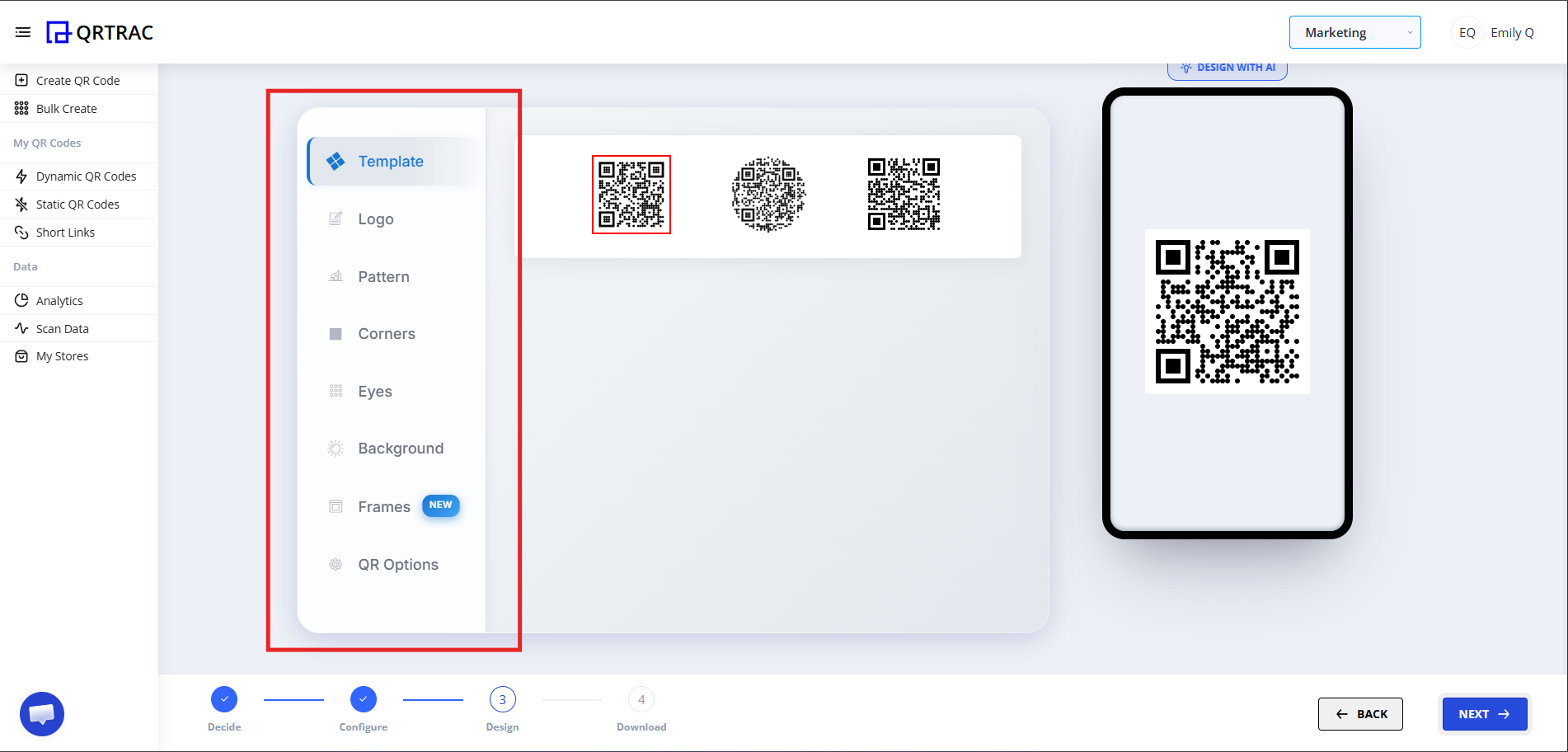
Step 6: Design Your QR Code
Click Next to move to the Design section. You can:
- Change QR color
- Add company logo
- Customize QR shape
- Adjust eye style
- Set branding
This design will apply to all QR codes.
Step 7: Download Your Bulk QR Codes
After generation, QR codes will be ready in your account. Once ready:
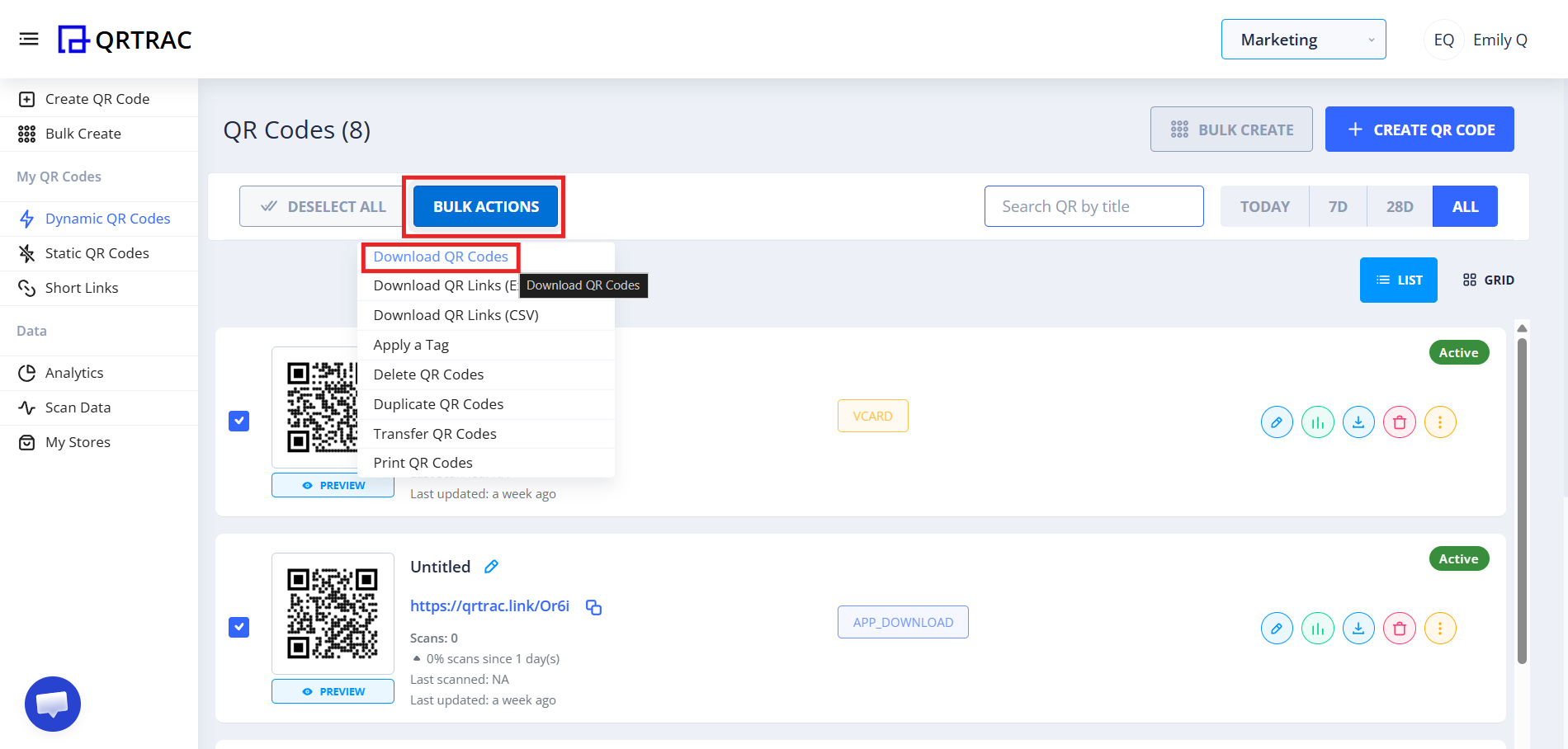
- Go to Dynamic QR Codes
- Select all newly created QR codes using the Select All checkbox
- Click Bulk Actions
- Choose Download QR Codes from the dropdown
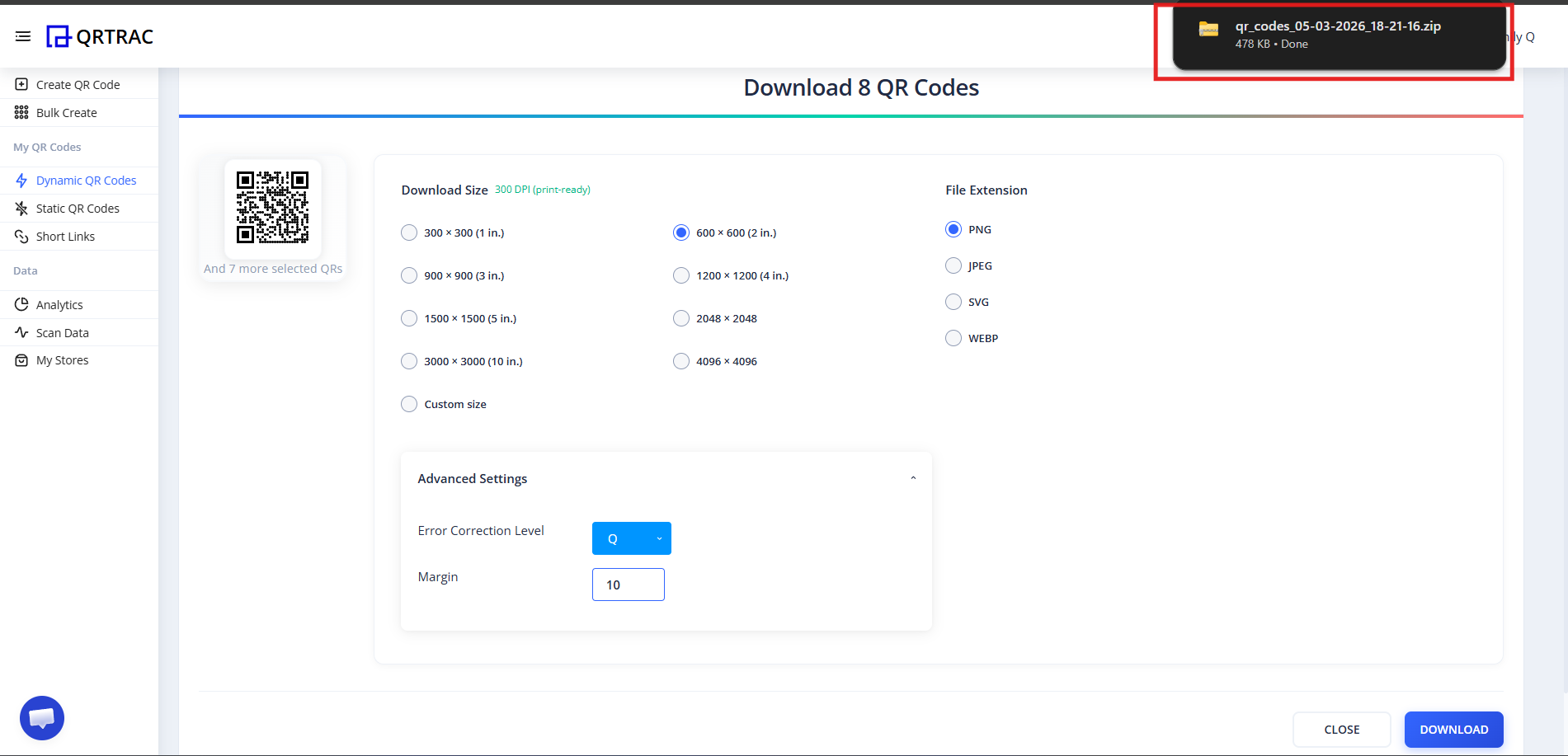
- Select your required format (PNG, SVG, etc.)
- Click Download
All QR codes will download in a ZIP file. Extract the ZIP folder to access your individual QR codes.
Tip: Always test your QR code with a smartphone camera straight from your computer monitor before you download and print it.
Frequently Asked Questions
Can I update my details later?
Yes. Because this is a Dynamic QR Code, you can log into your QRTRAC dashboard and update your destination information at any time without needing to reprint the physical code.
Can I track how many people viewed my code?
Absolutely. The analytics dashboard provides real-time data on scan volume, unique visitors, and geographic locations.
Does it work offline?
No, an internet connection is required for the scanner to load your digital profile and download the destination file.
Common Mistakes
- ❌ Phone numbers missing the country code (e.g. +1 or +44).
- ❌ Changing or deleting required column headers in the template.
- ❌ Skipping the final testing phase before bulk printing.
Launch Checklist
- All phone numbers include country code
- Email addresses verified
- Sample QR codes scanned and verified
Scaling up your bulk generation?
Our Bulk QR Code Generator handles 10,000+ business card QR codes from a single CSV upload — with real-time analytics and custom branding on every code.
Try Bulk QR Code Generator →