How To Create Image Gallery QR Code
An Image Gallery QR Code lets users scan and instantly view multiple images in a clean, mobile-friendly gallery — no app required. This guide walks you step-by-step through the process and covers the most common mistakes.
This is perfect for:
- Product showcases
- Restaurant food galleries
- Event photos
- Real estate property images
- Portfolio displays
- Before/After projects
- Exhibition displays
Before You Start
Before creating your Image Gallery QR code, make sure:
- Your images are final
- Images are high quality but not too large in file size
- Images look good on a mobile screen
- File format is supported (JPG or PNG)
Watch Your File Sizes
Very large image files may load slowly for users, especially on mobile networks. Compress images before uploading to keep the gallery snappy.
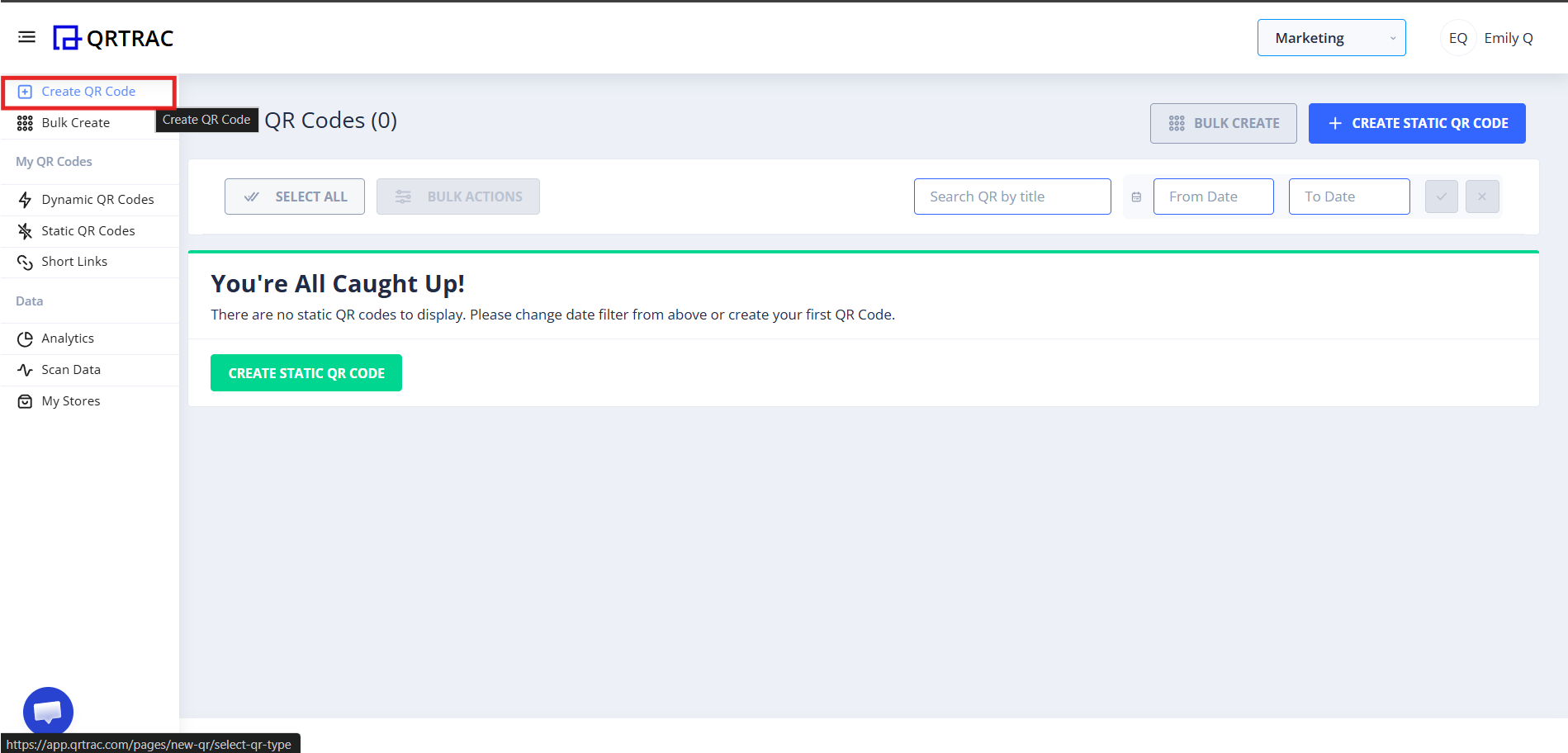
Step 1: Login & Click Create QR Code
- Log in to your QRTRAC dashboard
- Click Create QR Code
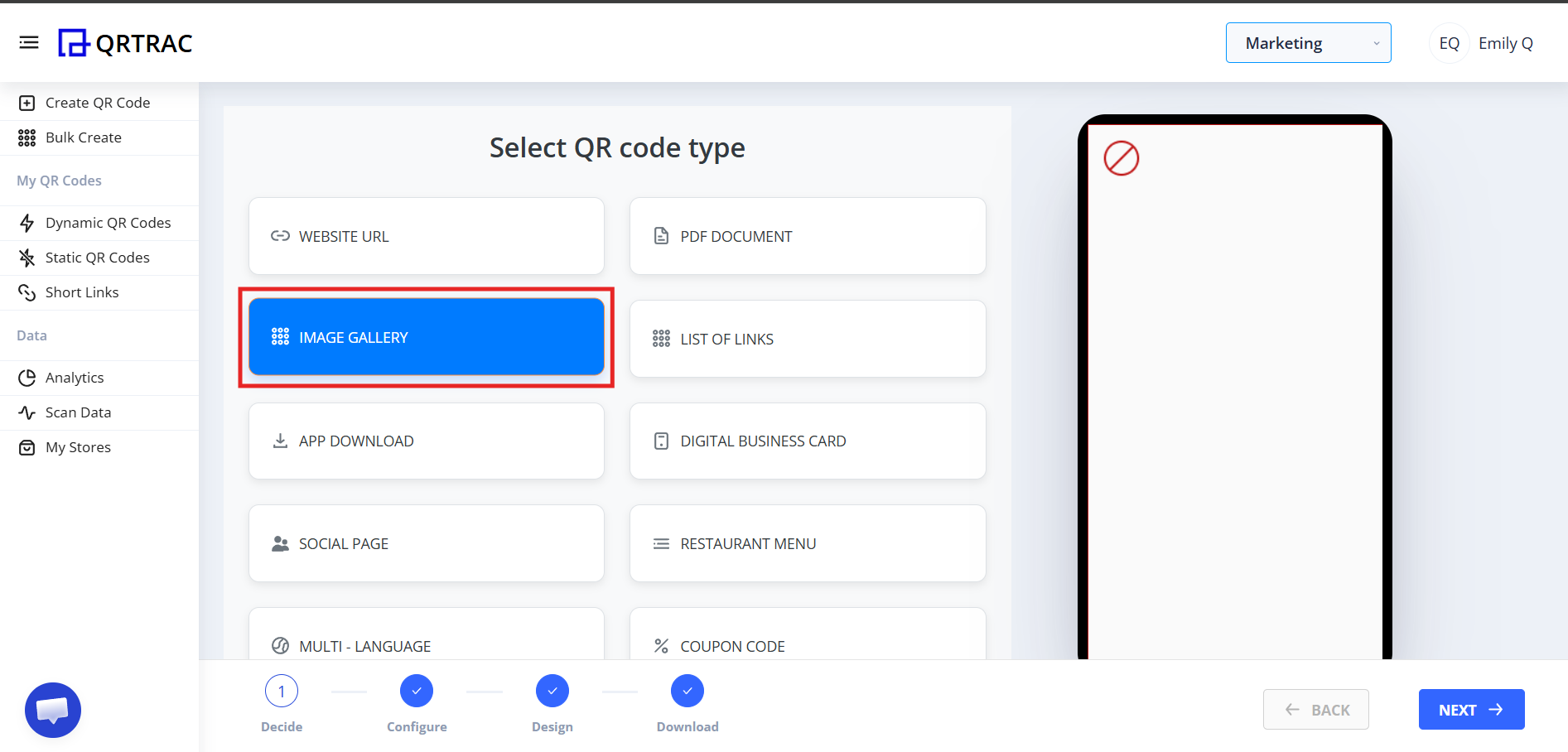
Step 2: Select "Image Gallery"
From the QR types list:
- Choose Image Gallery
- Click Next
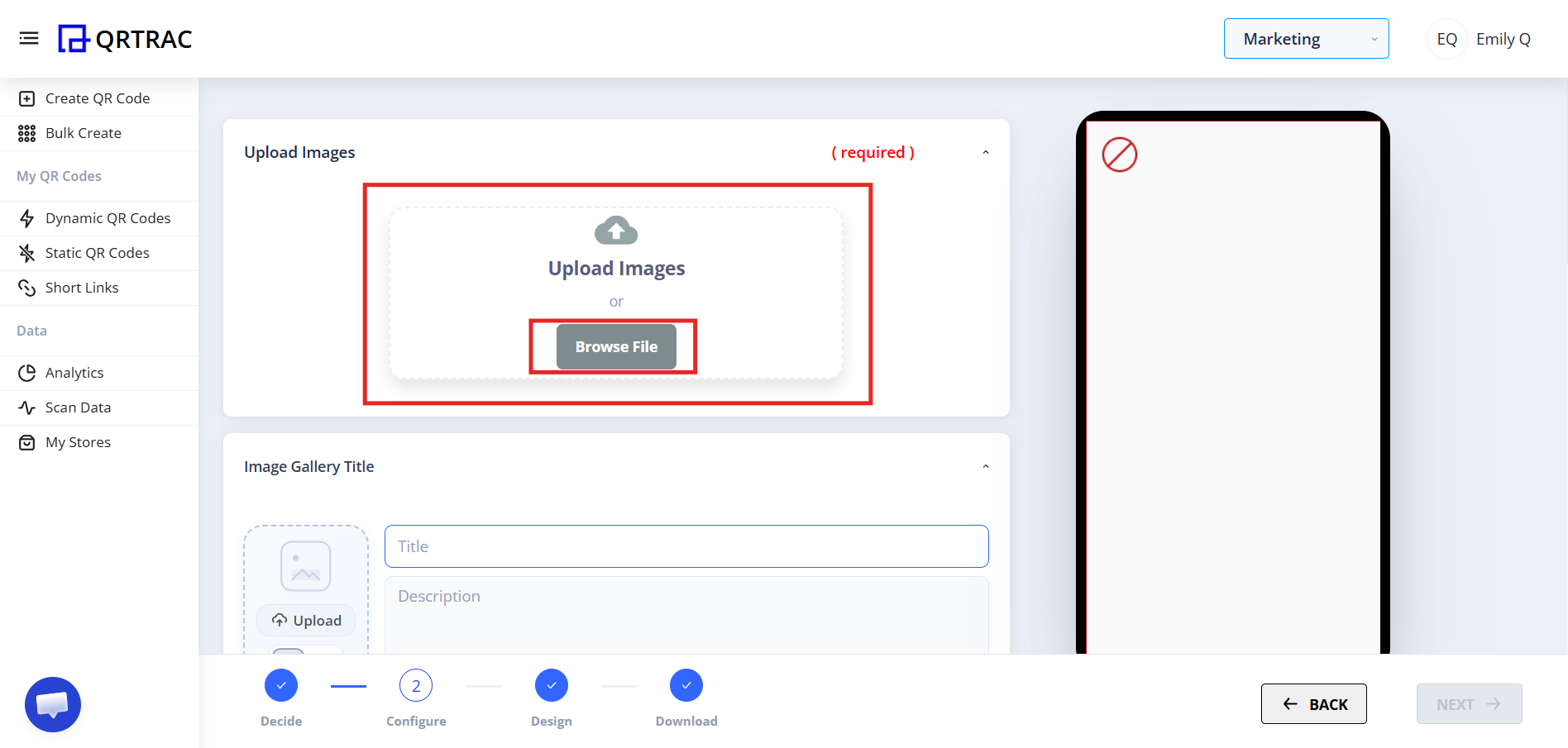
Step 3: Upload Your Images
In the Image Upload section:
- Click Browse File
- Select one or multiple images from your device
- Wait for the upload to complete
Common Problems at This Step
❌ "Images are not uploading"
- File size is too large
- Slow or unstable internet connection
- Unsupported file format
Fix: Compress the images, check your connection, and confirm you are using JPG or PNG format.
❌ "Gallery opens slowly"
- Images are high-resolution and have large file sizes
Fix: Resize or compress images before uploading to reduce load time.
❌ "Images look blurry"
- Low-quality or heavily compressed images were uploaded
Fix: Use clear, original-resolution images for the best visual result.
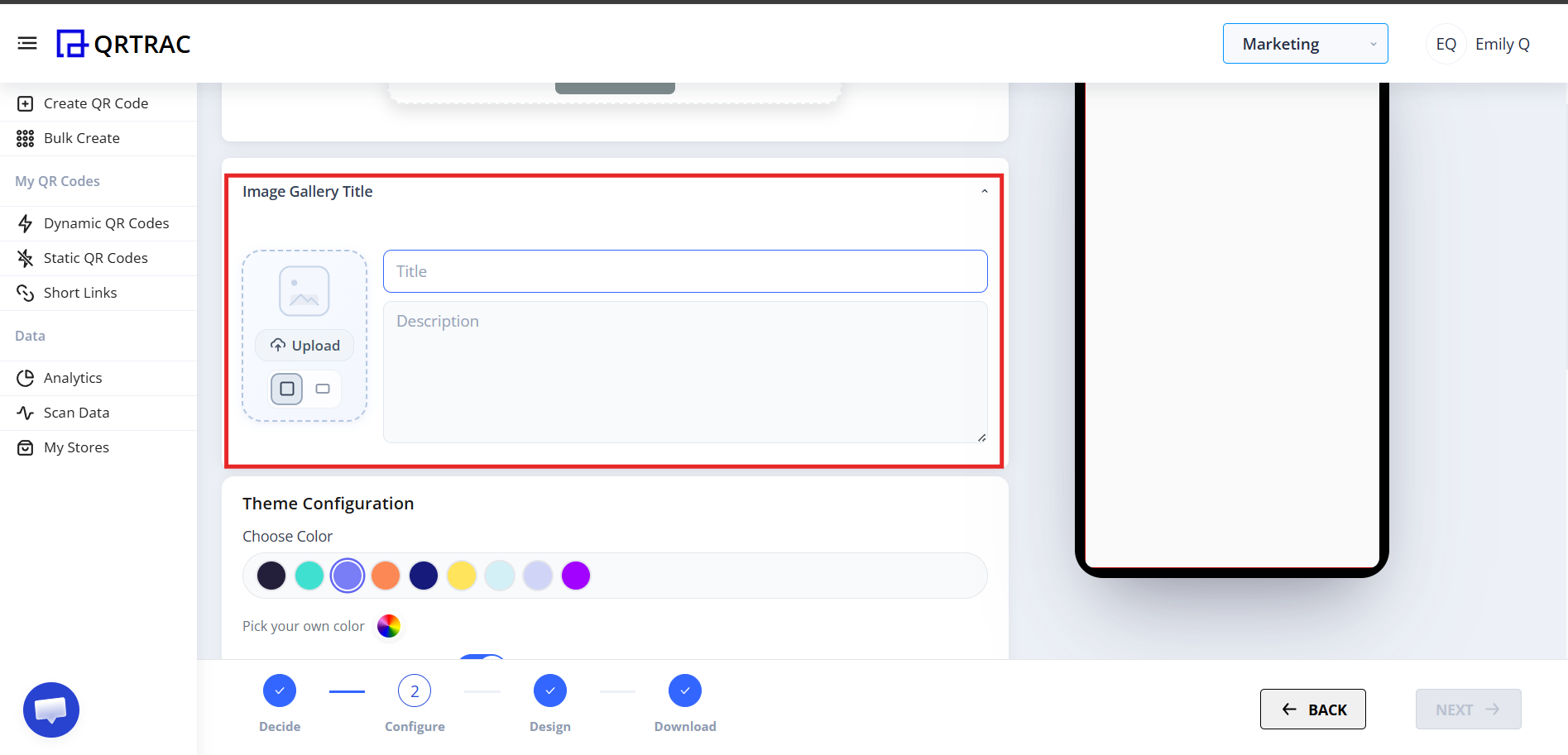
Step 4: Add Gallery Details
After uploading images, you can:
- Add a Gallery Title
- Add a Description
- Upload a Thumbnail (optional cover image)
This helps users understand what the gallery is about before they start browsing.
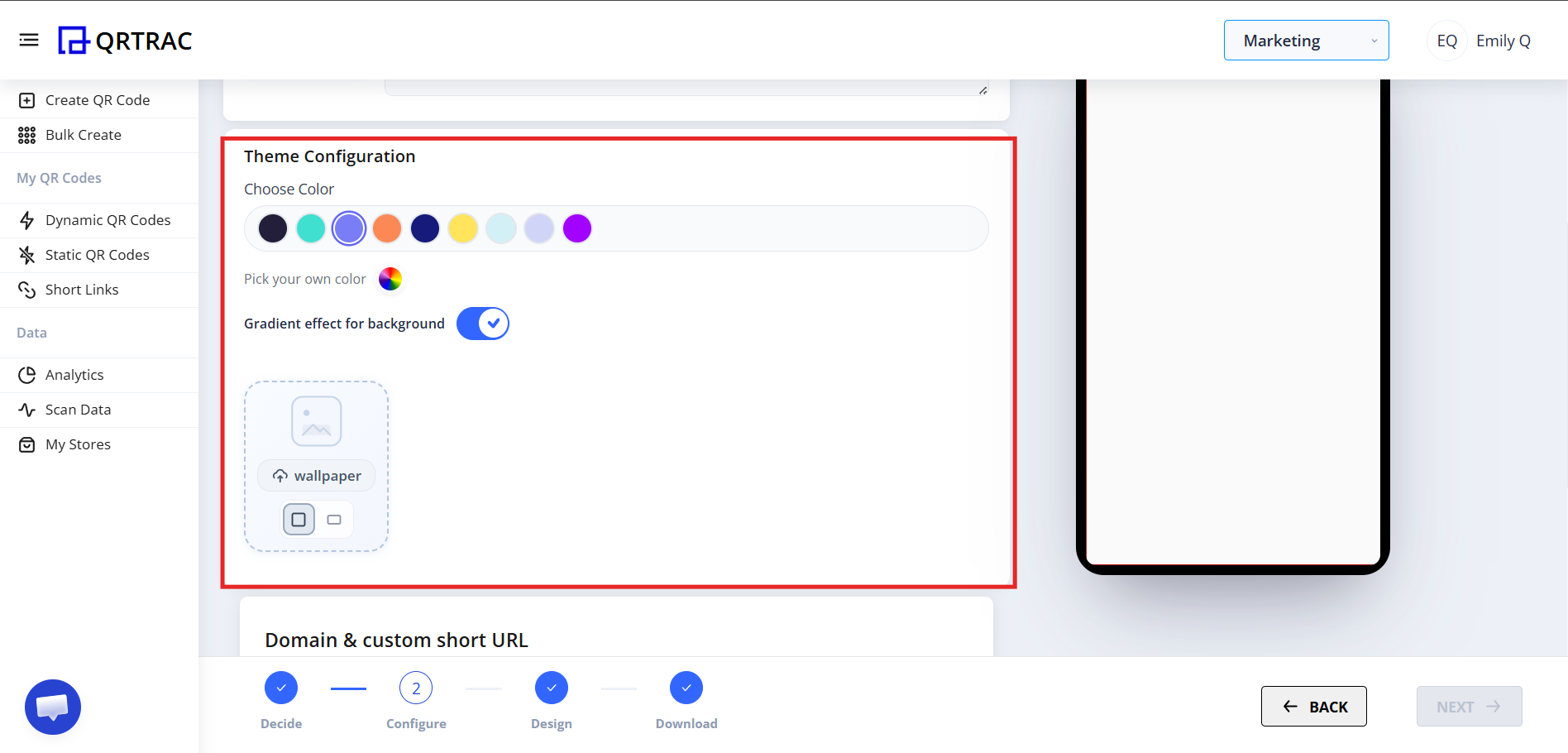
Step 5: Customize Gallery Appearance
Personalize the gallery landing page to match your brand:
- Select a theme color
- Choose a custom color
- Enable gradient background
- Upload a background image
Step 6: Design Your QR Code
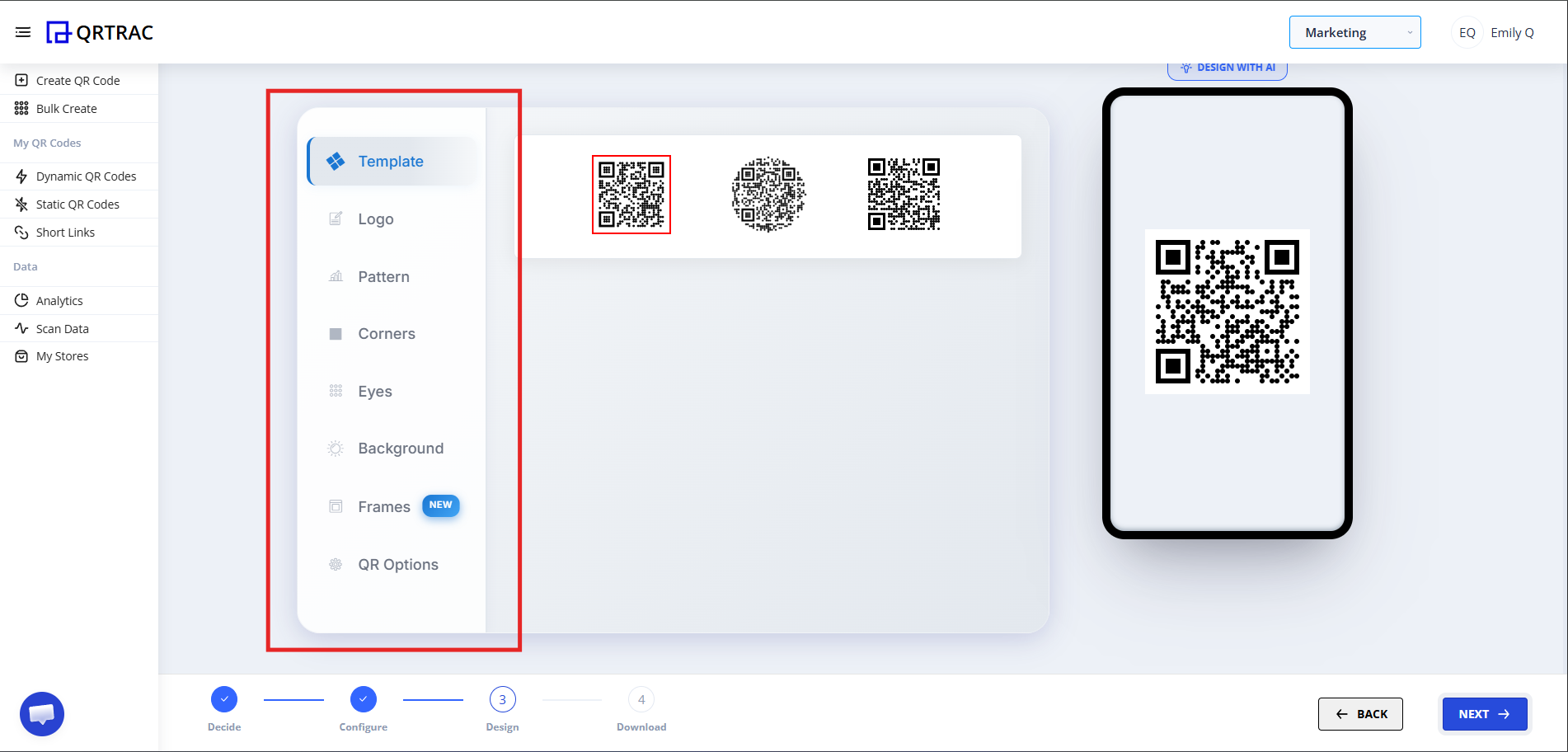
Now customize the QR code itself:
- Change QR color
- Add your logo
- Modify the dot pattern
- Adjust eye style
- Change background color
Dynamic QR — No Reprinting Needed
Add, remove, or swap gallery images at any time from the QRTRAC dashboard without reprinting your QR code.
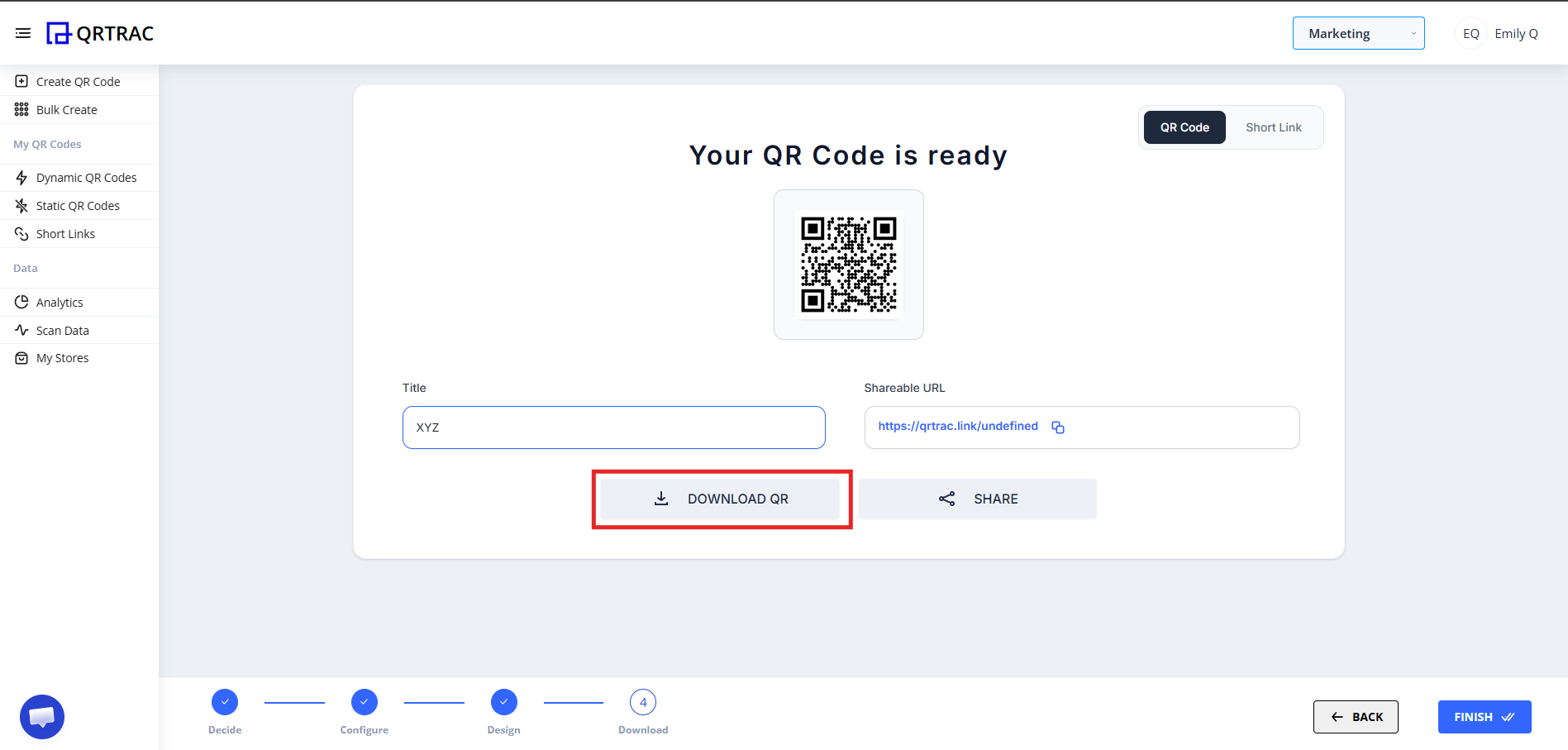
Step 7: Review & Download
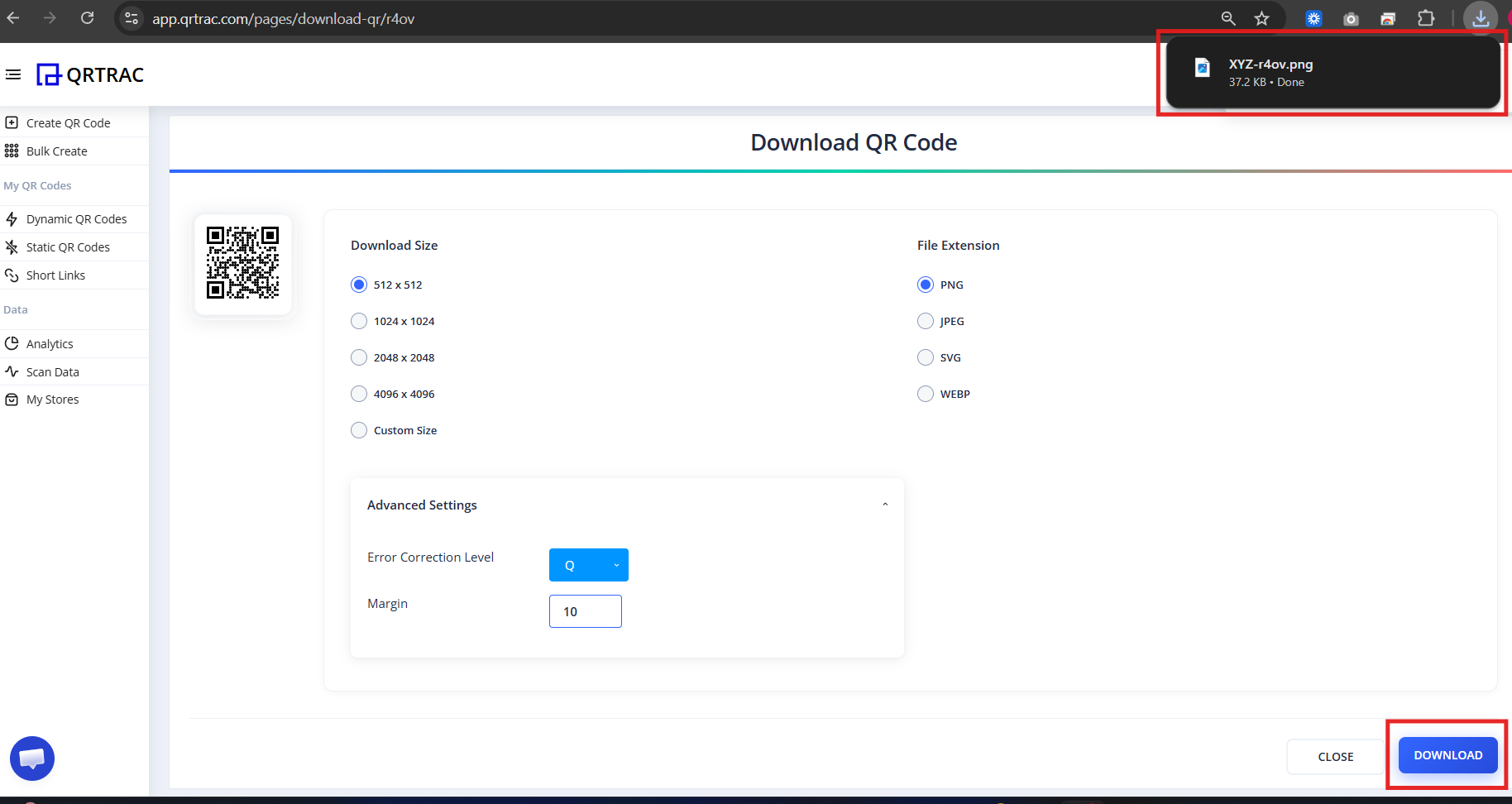
After finishing your design:
- Click Next
- Preview your QR code
- Select your file format (PNG, SVG, etc.)
- Click Download
Tip: Always test your QR code with a smartphone camera straight from your computer monitor before you download and print it.
Before Printing or Sharing
Don't skip this step. Run through each item before committing to a print run:
- Scan the QR code from your phone
- Scroll through all images to confirm they loaded
- Check gallery loading speed on a mobile connection
- Test on a second device to rule out device-specific issues
- Confirm the gallery title and description are accurate
Real-Life Use Cases
Image Gallery QR Codes are commonly used for:
- Restaurant menu photos
- Product collections
- Fashion lookbooks
- Property listings
- Wedding albums
- Event highlights
- Art portfolios
- Before/After projects
- Exhibition displays
Frequently Asked Questions
Can I add or remove images later?
Yes. Because this is a Dynamic QR Code, you can log in to your QRTRAC dashboard and add, remove, or reorder images at any time. Your printed QR code keeps working without any changes.
What file formats are supported?
QRTRAC supports JPG and PNG image formats. For best results, use high-quality originals and compress them to keep file sizes reasonable before uploading.
Can I track how many people viewed my gallery?
Yes. The analytics dashboard shows real-time scan counts, unique visitors, device types, and geographic locations so you can measure engagement.
Does the gallery work without internet?
No. The scanner needs an active internet connection to load the gallery page. This applies to all dynamic QR codes.
Common Mistakes
- ❌ Uploading uncompressed, oversized images that slow load time
- ❌ Using low-quality or blurry images that look bad on mobile
- ❌ Skipping the gallery test scan before bulk printing
- ❌ Uploading images in unsupported formats (e.g. HEIC, WEBP)
Launch Checklist
- All images uploaded and loading correctly
- Gallery title and description are accurate
- Gallery loads quickly on a mobile connection
- QR code scanned and tested before printing