How To Create a Multi-Language QR Code
If you want your QR code to open different website links based on the user's language, this guide is for you.
You might be:
- Serving customers in multiple countries
- Running international marketing campaigns
- Showing your website in the visitor's local language automatically
- Printing one QR code for a global audience
- Improving user experience across different regions
Before You Create the QR Code
Before starting, make sure:
- You have a working website URL for each language
- Each link opens correctly in a browser
- All language pages are mobile-friendly
- Language versions are publicly accessible
Land users on the right page from the start
Users should arrive directly on the correct language page. Avoid sending all visitors to a single default language — this defeats the purpose of multi-language routing.
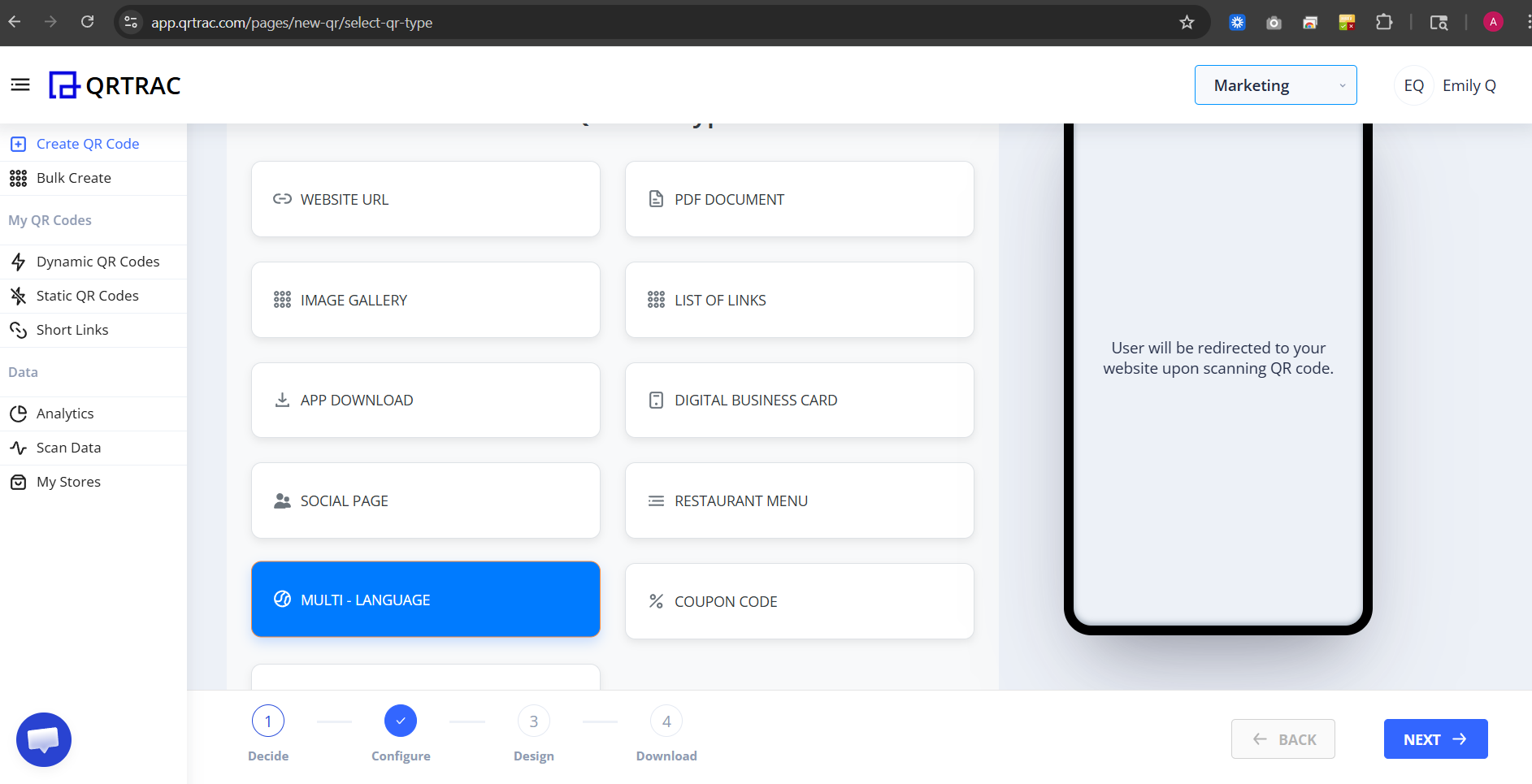
Step 1: Login & Start
- Login to your QRTRAC dashboard
- Click Create QR Code
- Select Multi-Language QR Code
Step 2: Enter Default Language URL
You will see the Website URL section. This is the fallback URL that opens when no language match is detected.
- Select your primary language (for example: English)
- Paste your website link for that language
- Enable Set Default URL
✅ Correct
https://yourwebsite.com/en ❌ Wrong
yourwebsite.com 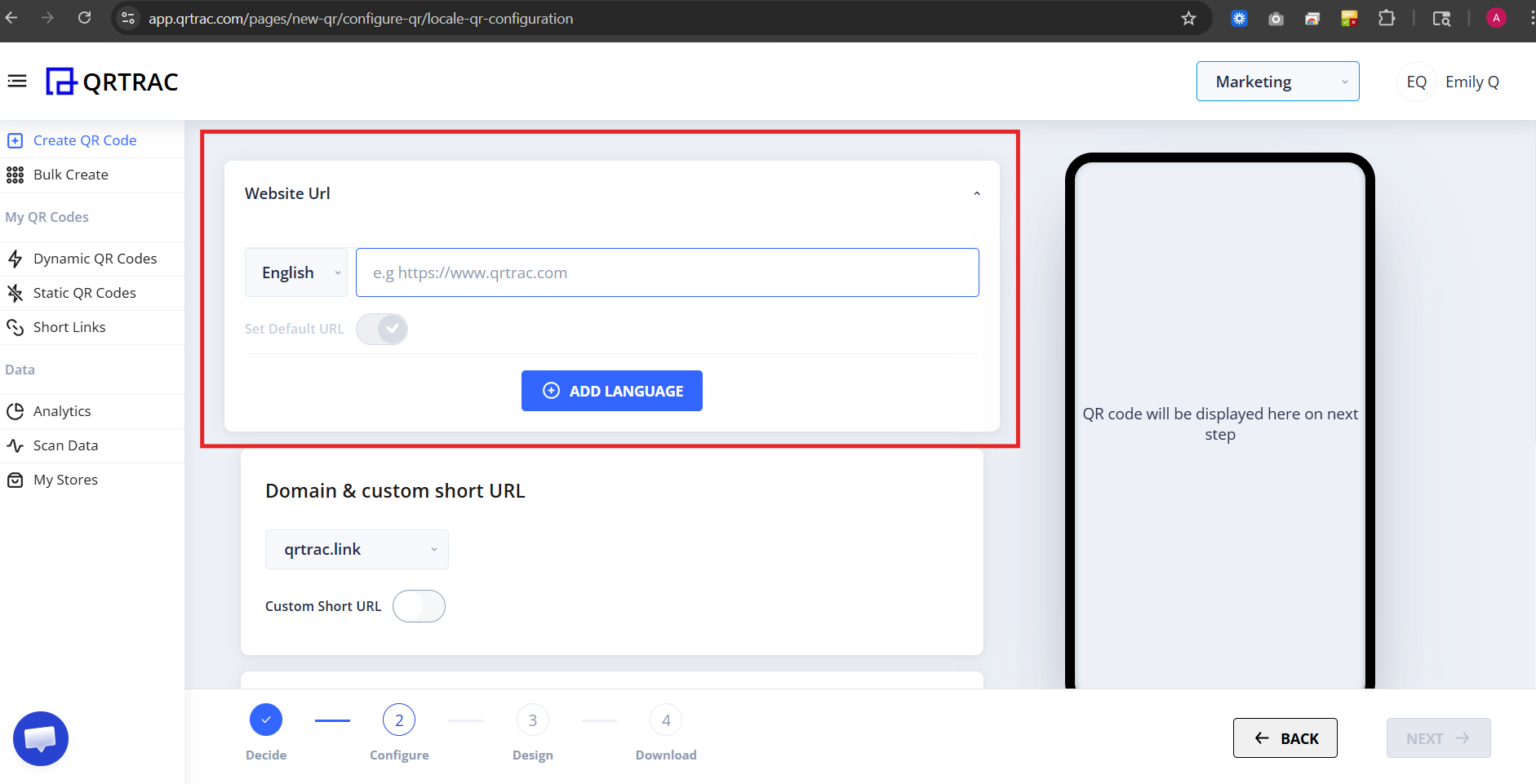
Step 3: Add Additional Languages
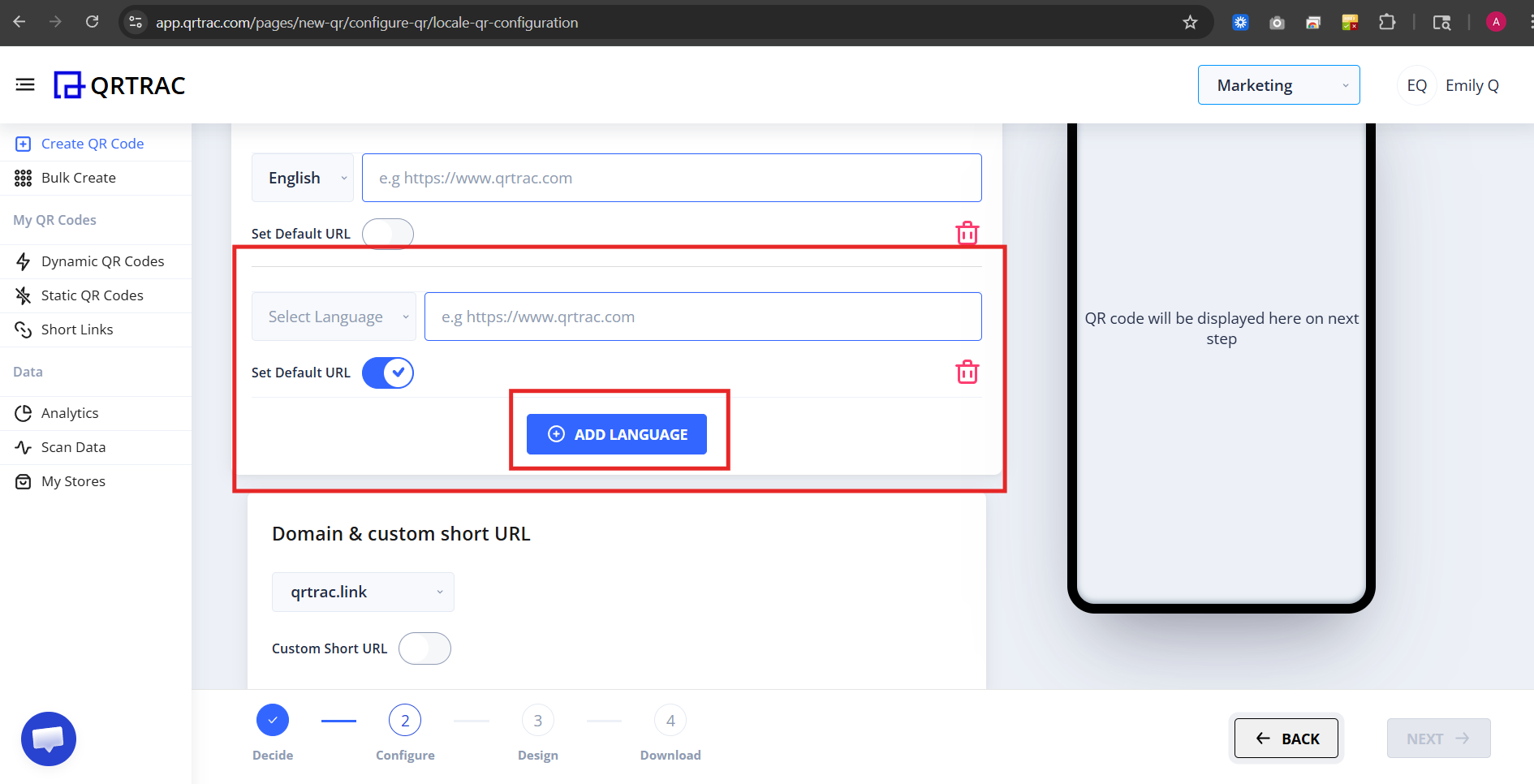
Now add URL mappings for each additional language you want to support.
- Click Add Language
- Select a language from the dropdown (for example: Hindi, Arabic, French)
- Paste the URL for that language's page
- Repeat for each additional language
Example language-to-URL mapping:
Common Problems
❌ "QR always opens the same language"
- Only the default URL was added — other languages not configured
- Wrong language selected when adding each URL
- Incorrect or mismatched URLs pasted
Fix: Add each language manually with its correct, fully-qualified URL.
❌ "Language page shows an error"
- The URL is misspelled or points to a deleted page
- The page is behind a login or not publicly accessible
Fix: Test each language URL directly in a browser before saving.
❌ "Wrong language opens for the user"
- Incorrect language selected from the dropdown
- URL pasted into the wrong language slot
Fix: Review each language entry and confirm the language label matches the destination URL.
Step 4: Configure Domain & Short URL (Optional)
You can:
- Select a custom domain
- Create a short branded link
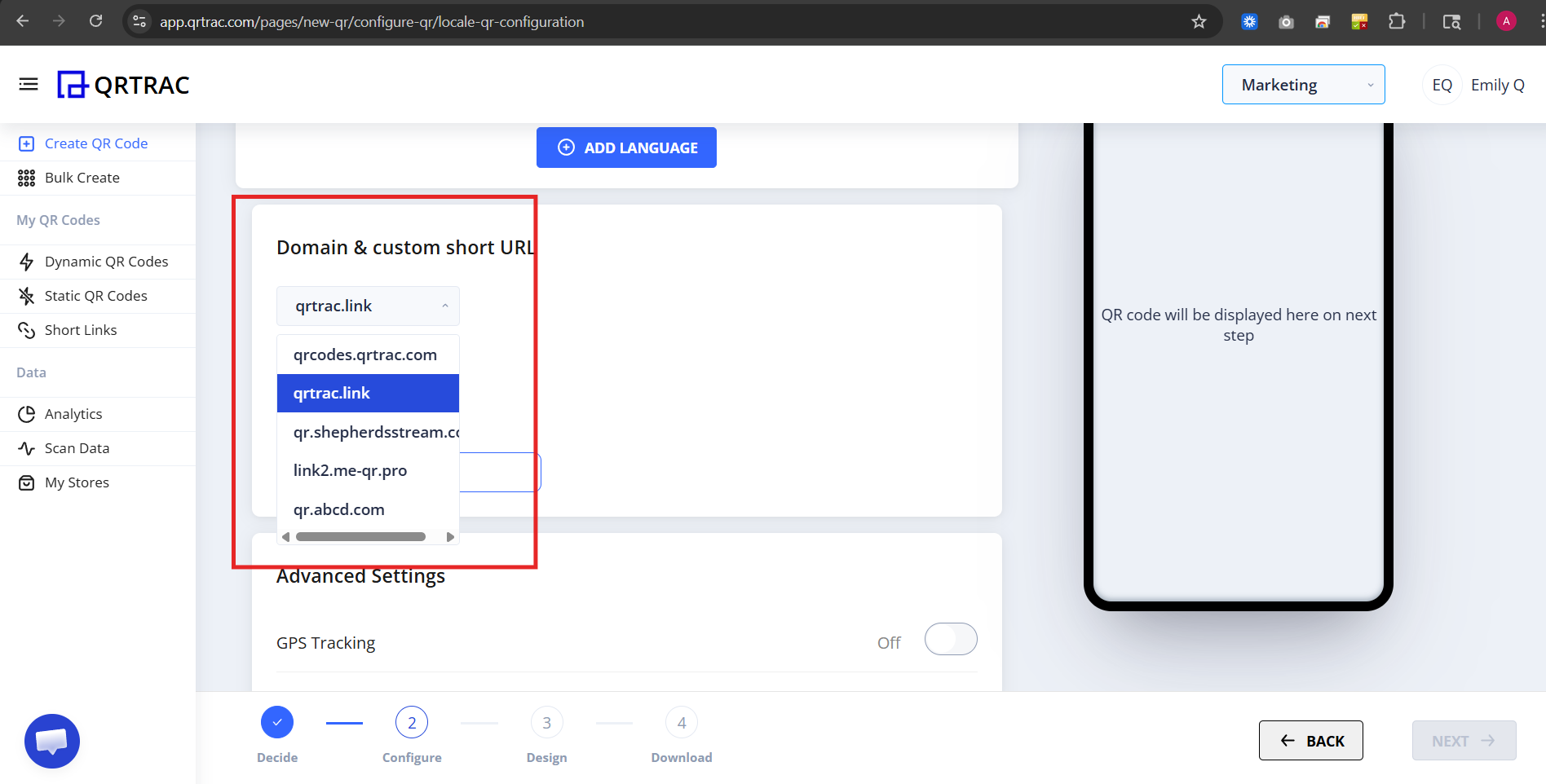
This helps with branding and builds trust with international audiences.
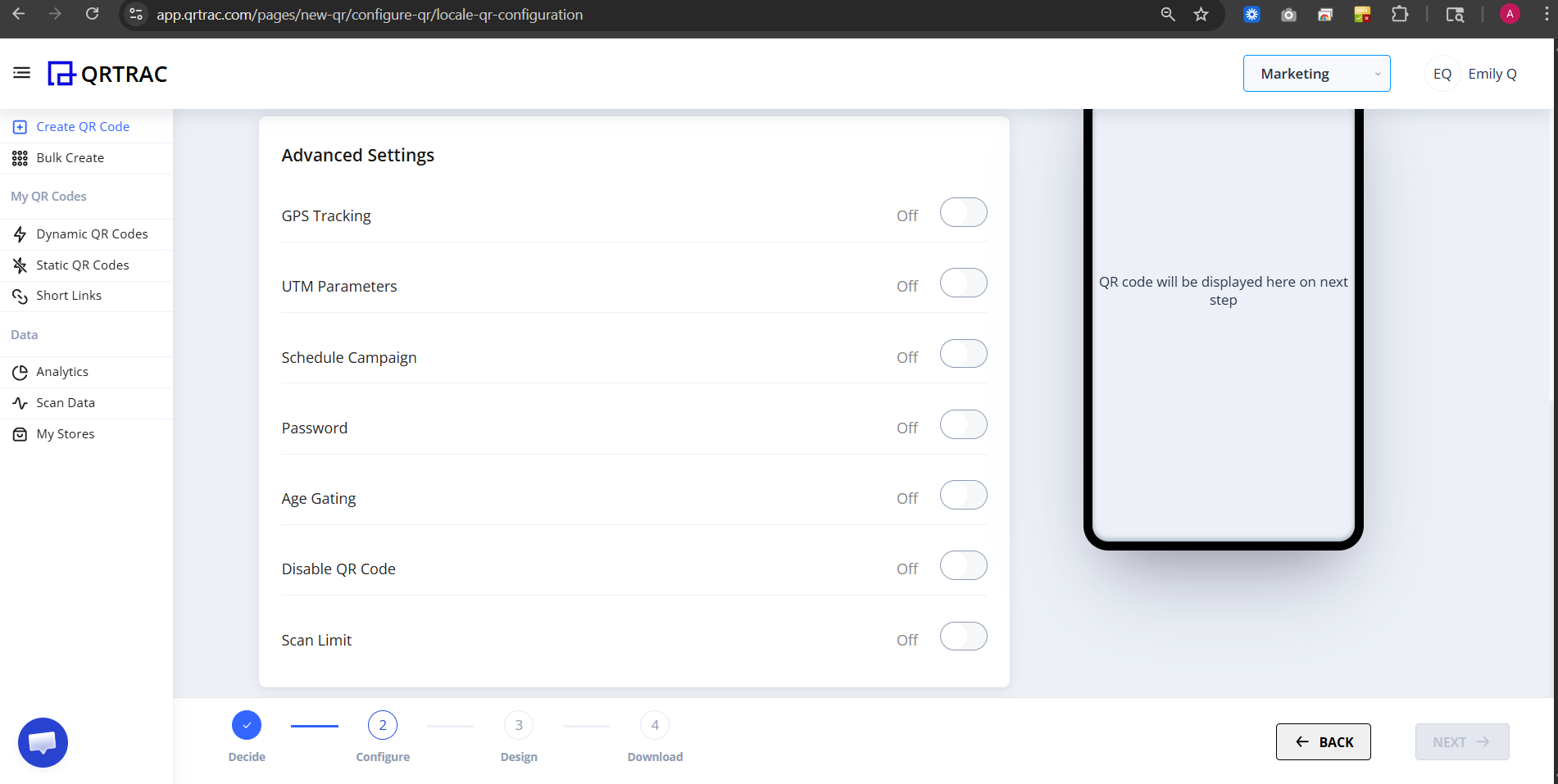
Step 5: Configure Advanced Settings (Optional)
You can enable:
- GPS tracking
- Schedule campaign
- Password protection
- QR expiry
- Access control
Step 6: Click Next → Design Your QR
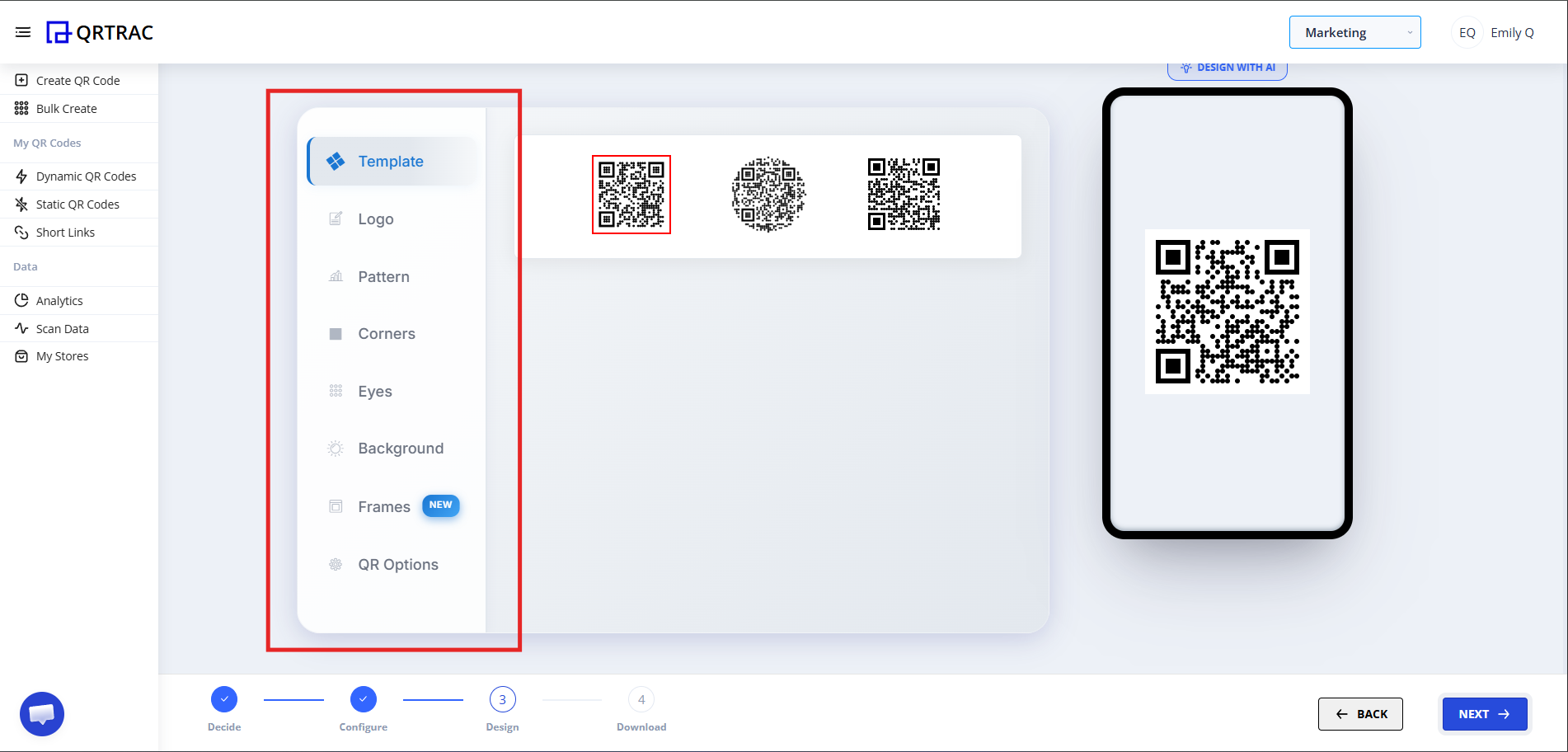
Click Next to open the Design section. You can:
- Change QR color
- Add a logo
- Customize the shape
- Match your brand identity
Dynamic QR — No Reprinting Needed
One Multi-Language QR Code automatically routes users to the correct language based on their device settings. Add new languages or update URLs at any time from the QRTRAC dashboard — no reprinting required.
Step 7: Review & Download
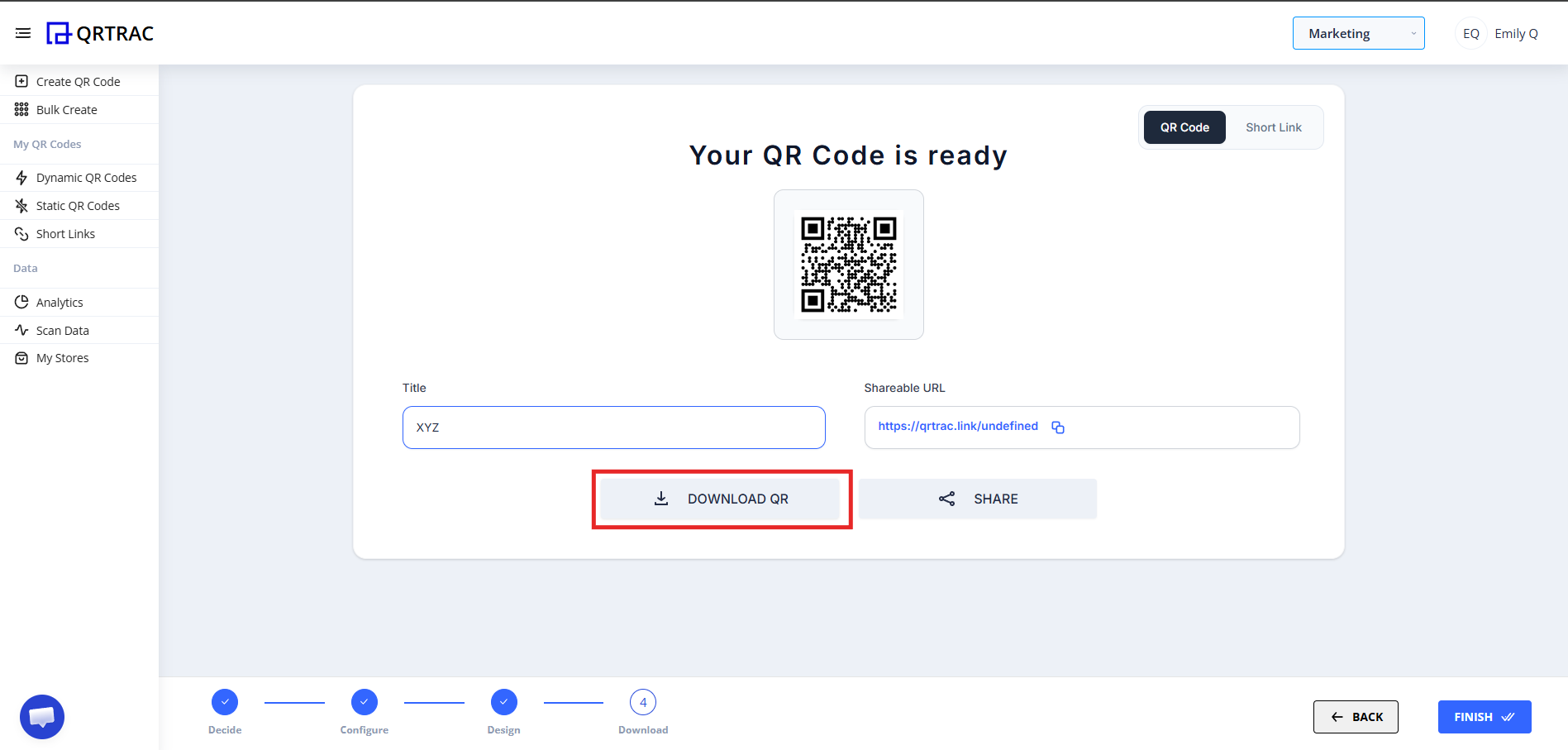
- Click Next to proceed to the download screen
- Preview your QR code
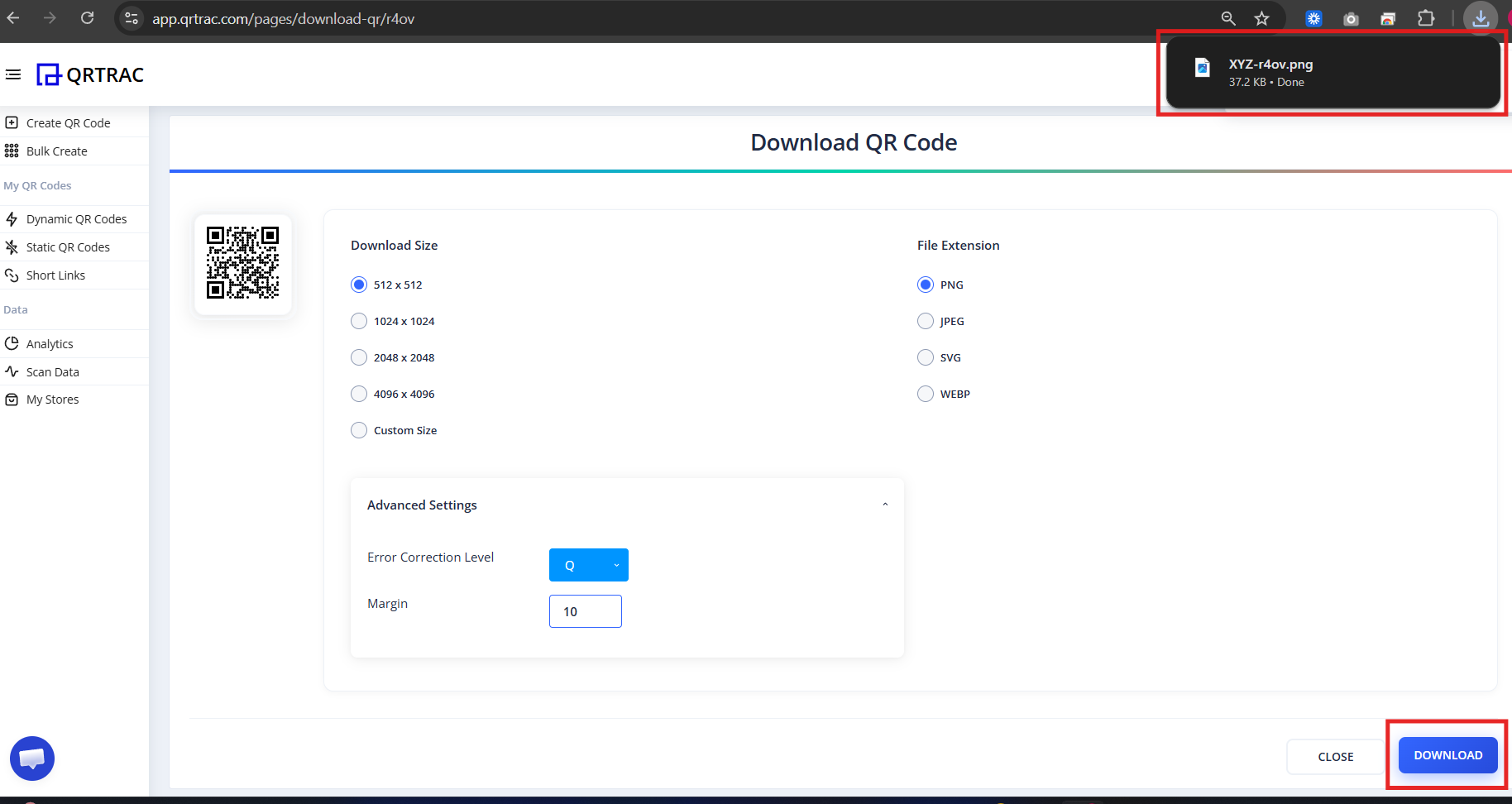
- Select your preferred download format:
- PNG — best for digital use
- SVG — best for print (scalable)
- PDF — best for sharing or print-ready files
- Click Download
Tip: Always test your QR code with a smartphone camera straight from your computer monitor before you download and print it.
Popular Use Cases
Multi-Language QR Codes are ideal anywhere your audience speaks more than one language:
- International Marketing
- Global Product Labels
- Tourism Materials
- Multi-Country Campaigns
- Multilingual Events
- Export Markets
Frequently Asked Questions
Do I need separate QR codes per language?
No. One Multi-Language QR Code automatically routes users to the correct language version based on their device's language settings.
What happens if the user's language isn't configured?
The QR code falls back to your Default URL. That's why it's important to choose a sensible default — typically your most widely spoken language or an international English version.
Can I add more languages after printing?
Yes. Because this is a Dynamic QR Code, you can add, remove, or update language URLs at any time from your QRTRAC dashboard without reprinting the physical code.
Can I track scans by language or country?
Yes. The QRTRAC analytics dashboard shows scan volume, geographic location, device type, and timing — so you can see which markets are engaging most.
Common Mistakes
- ❌ Only adding the default URL and skipping all other languages.
- ❌ Pasting non-HTTPS or incomplete URLs that fail to load.
- ❌ Linking to pages behind a login or geo-restricted content.
- ❌ Printing without testing each language route on a real device.
Launch Checklist
- Default URL set and tested
- All language URLs added and verified
- Each language route tested on a real device
- QR design matches brand
- Scan analytics confirmed active