How To Create PDF Document QR Code
If you want users to open or download a PDF file instantly by scanning a QR code, this guide is for you. Follow these steps to create a PDF QR Code and avoid the most common setup mistakes.
This is useful for:
- Product catalogs
- Restaurant menus
- Brochures
- Price lists
- Event schedules
- Study materials
- Real estate documents
- Instruction manuals
Before You Start
Before creating your PDF QR code, make sure:
- Your PDF file is final with no pending edits
- The file opens properly on your device
- File size is reasonable — very large files load slowly on mobile
- The PDF is readable on a mobile screen
Mobile First
Most people scan from a smartphone. Open your PDF on your phone before uploading to check that the text is legible and the layout holds up on a small screen.
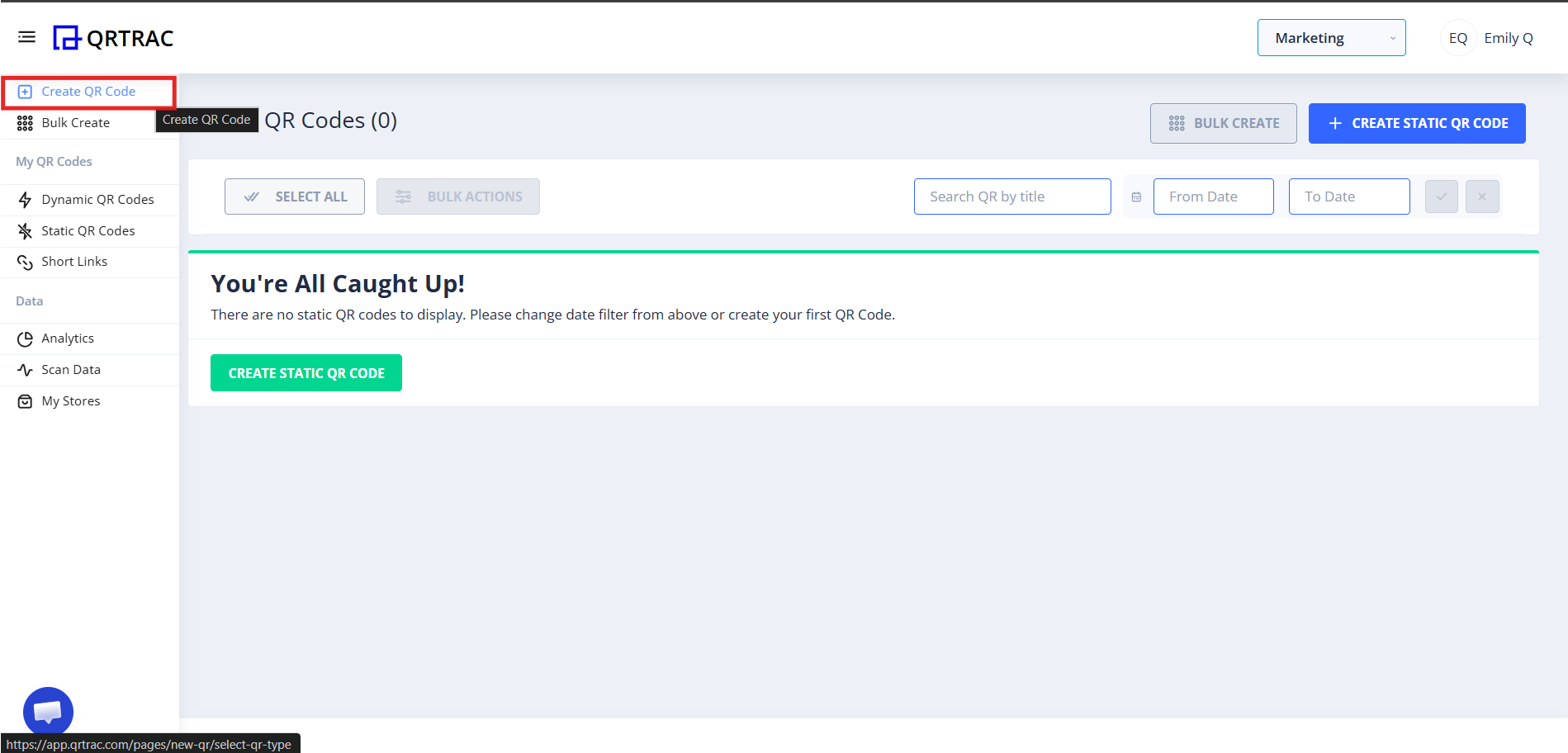
Step 1: Login & Click Create QR Code
- Log in to your QRTRAC dashboard
- Click Create QR Code
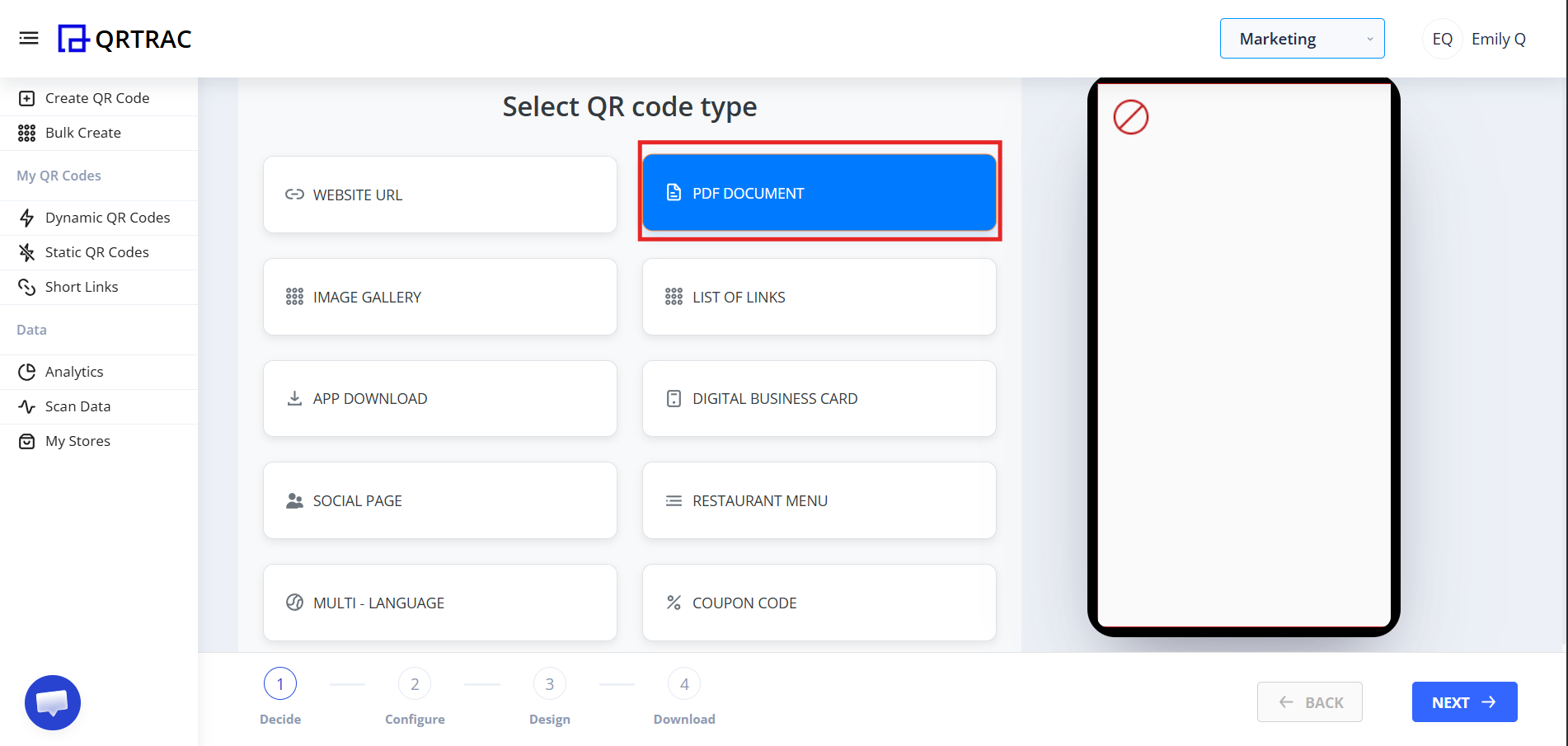
Step 2: Select "PDF Document"
From the QR types list:
- Choose PDF Document
- Click Next
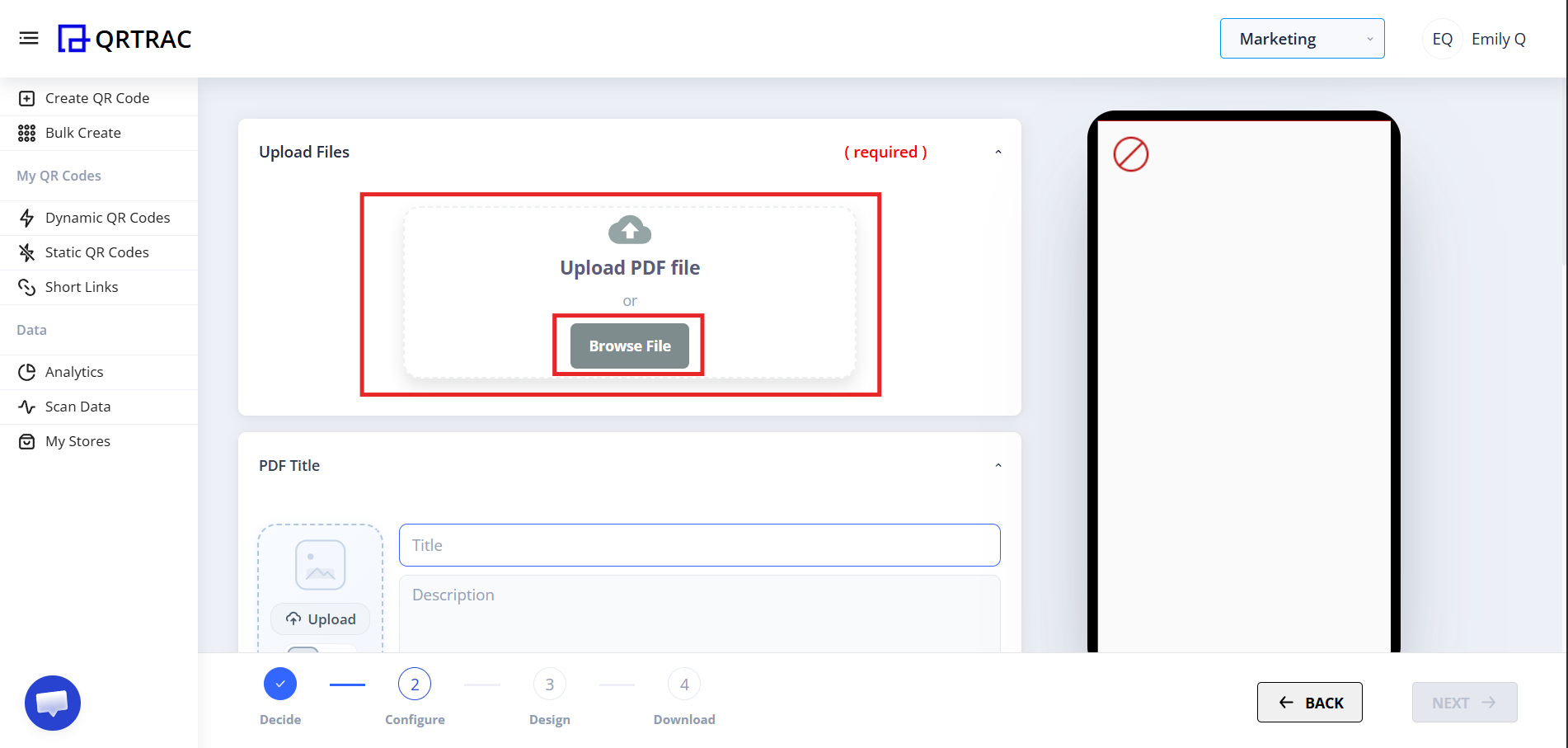
Step 3: Upload Your PDF File
In the PDF upload section:
- Click Browse File
- Select your PDF from your device
- Wait until the upload completes
Common Problems at This Step
❌ "Upload is not working"
- File size is too large
- Slow or unstable internet connection
- Unsupported file format (must be .pdf)
Fix: Compress your PDF, check your internet connection, and confirm the file extension is .pdf before retrying.
❌ "PDF opens but loads very slowly"
- PDF contains high-resolution images or many pages, resulting in a large file size
Fix: Compress the PDF using a tool like Smallpdf or Adobe Acrobat before uploading.
❌ "PDF opens but text is too small on mobile"
- The document was designed for print or desktop and has not been optimized for small screens
Fix: Open the PDF on your phone before uploading and confirm it is readable without zooming in.
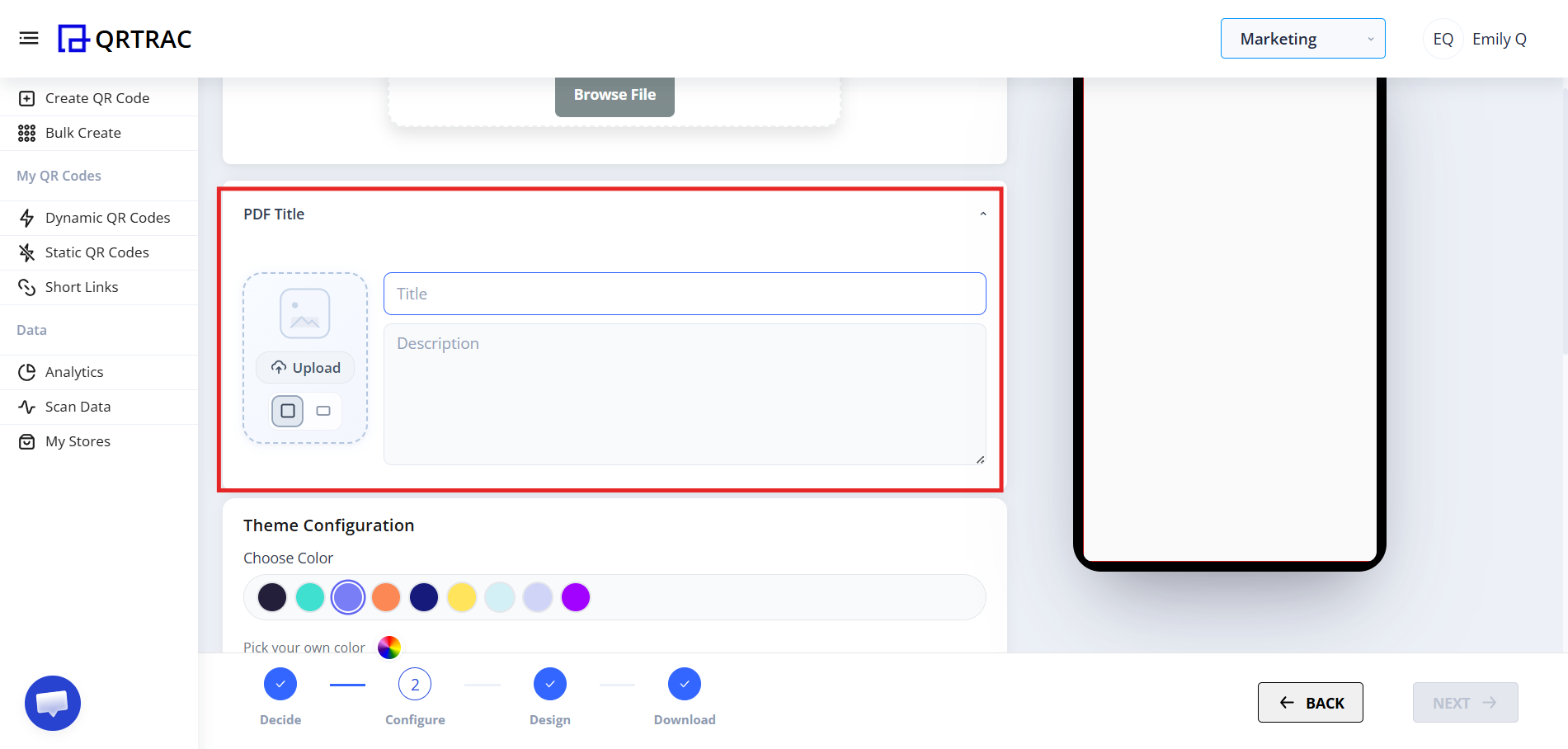
Step 4: Add PDF Details
After uploading, you can:
- Add a Title
- Add a Description
- Upload a Thumbnail (optional cover image)
This helps users understand what the document is about before they open it.
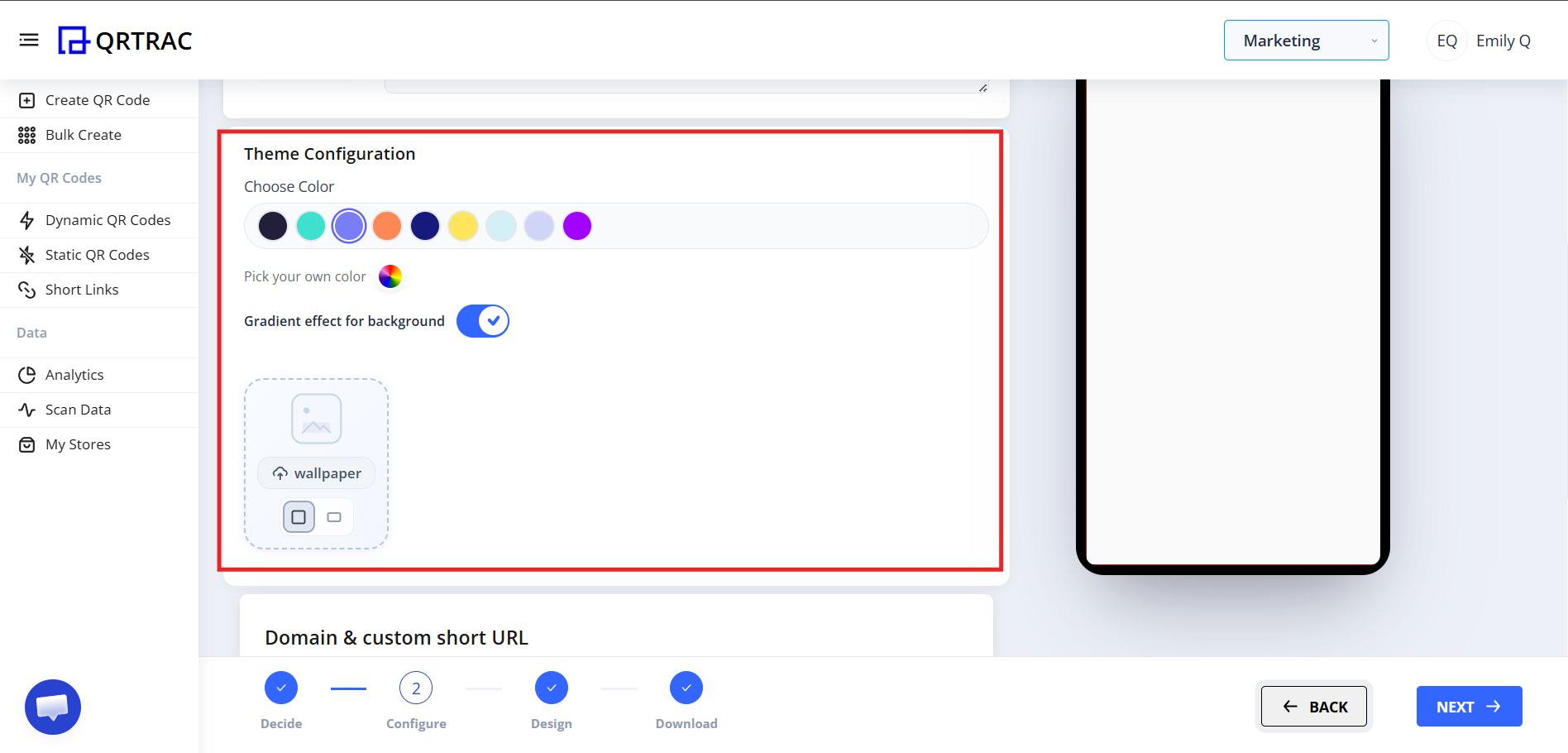
Step 5: Customize Landing Page Appearance
Personalize the landing page that users see before opening the PDF:
- Select a theme color
- Choose a custom color
- Enable gradient background
- Upload a background image
Step 6: Design Your QR Code
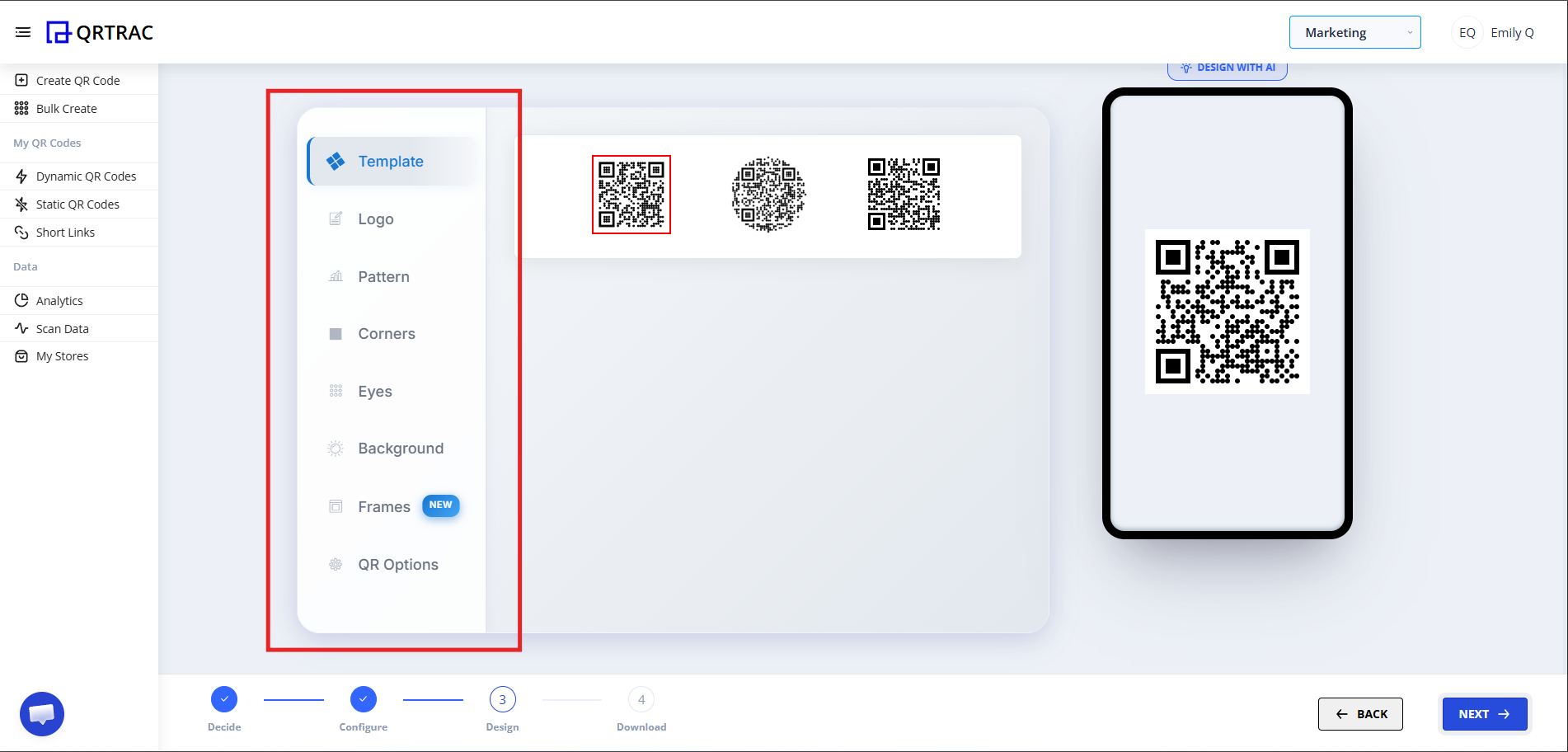
Now customize the QR code itself:
- Change QR color
- Add your logo
- Modify the dot style
- Adjust the pattern and eye style
- Change background color
Dynamic QR — No Reprinting Needed
Replace your PDF file at any time from the QRTRAC dashboard. Scanners will always get the latest version — no reprinting required.
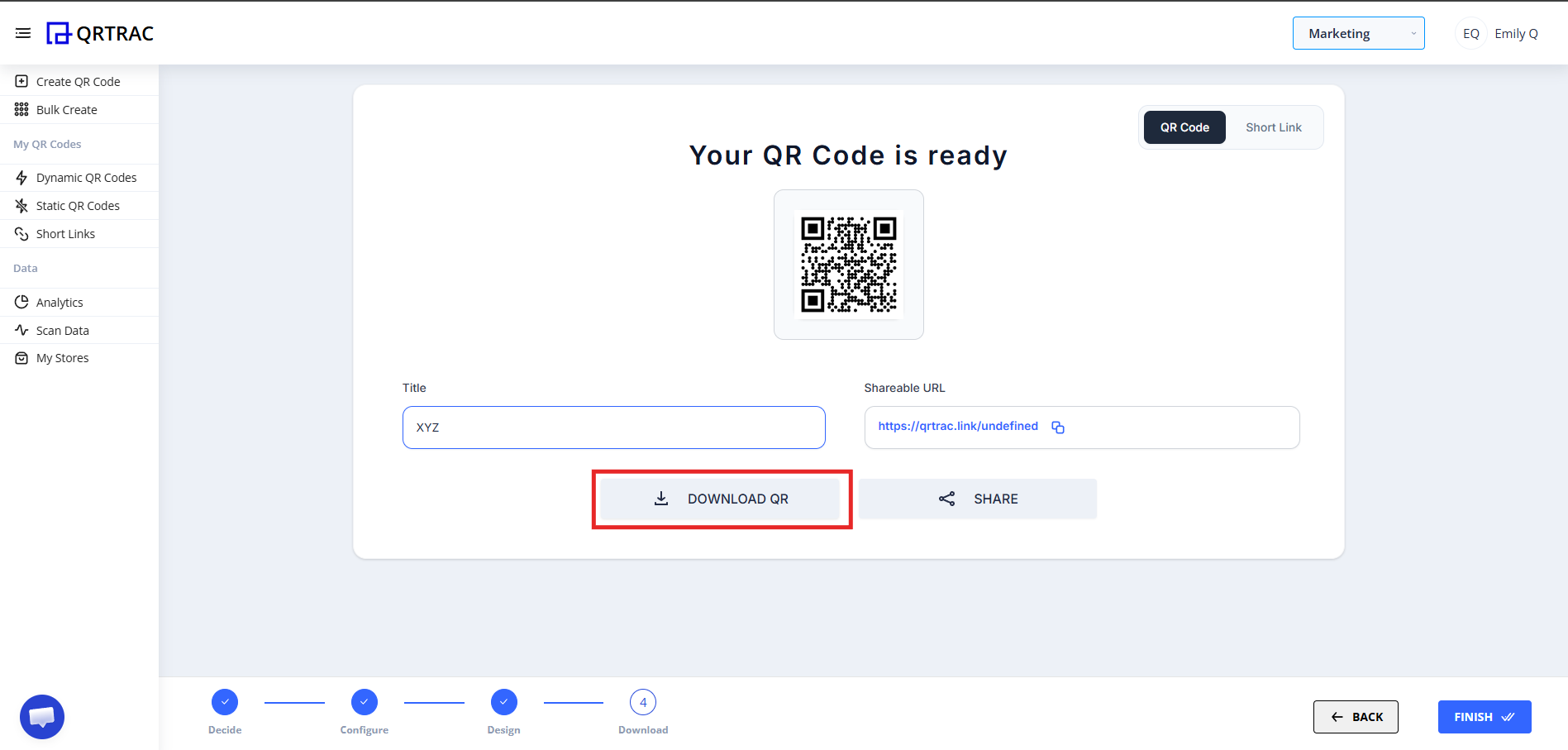
Step 7: Review & Download
After finishing your design:
- Click Next
- Preview your QR code
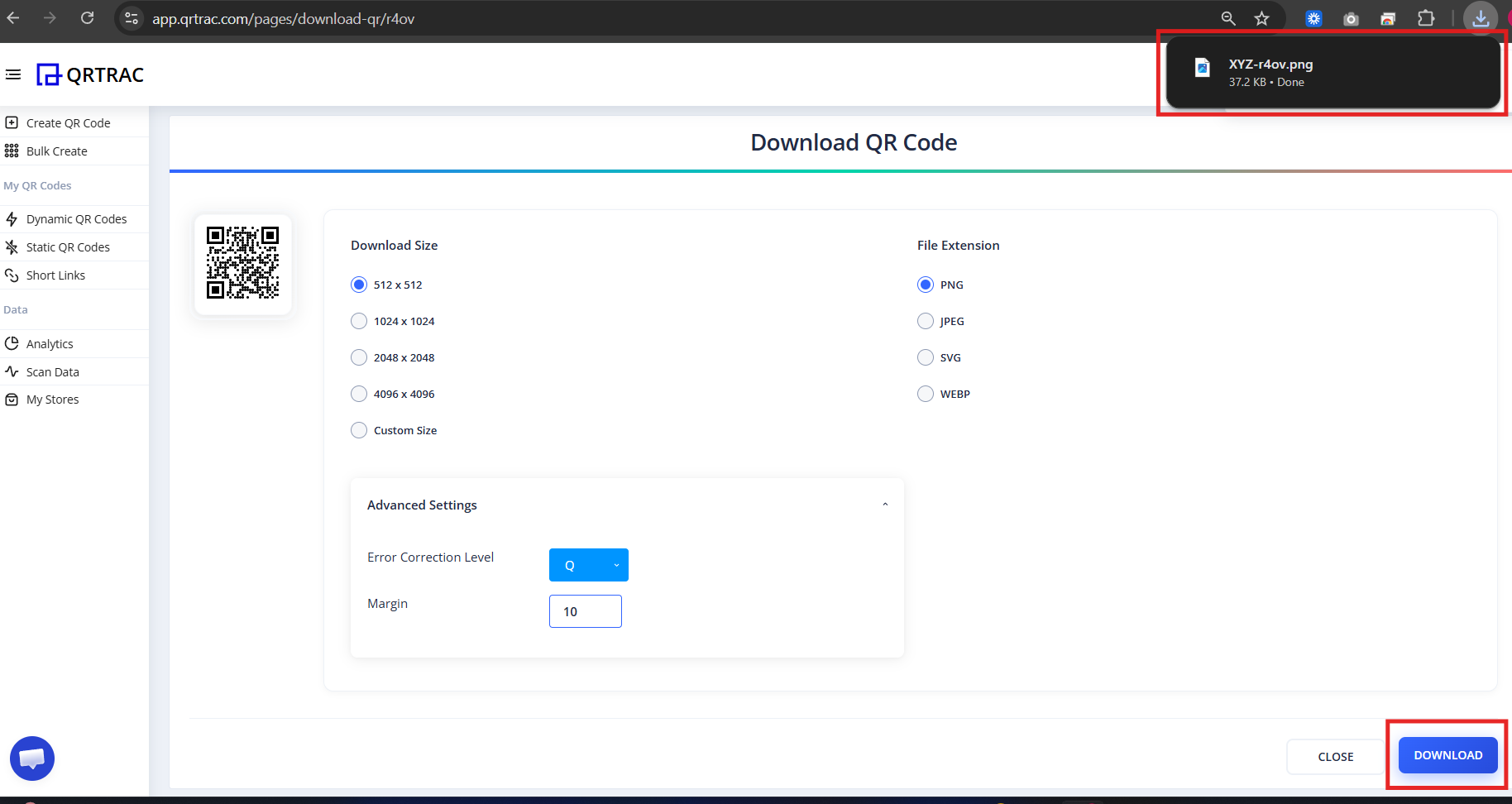
- Select your file format (PNG, SVG, etc.)
- Click Download
Tip: Always test your QR code with a smartphone camera straight from your computer monitor before you download and print it.
Before Printing or Sharing
Do not skip this step. Verify each item before committing to a print run:
- Scan the QR code from your own phone
- Confirm the correct PDF opens
- Check loading speed on a mobile connection
- Scroll through the entire document to verify content
- Test on a second device to rule out device-specific issues
Real-Life Use Cases
PDF QR Codes are perfect for:
- Restaurant digital menus
- Product catalogs
- Property brochures
- Training manuals
- College notes
- Event programs
- Warranty documents
- Price lists
- Instruction guides
Frequently Asked Questions
Can I replace the PDF file after printing?
Yes. Because this is a Dynamic QR Code, you can upload a new PDF at any time from your QRTRAC dashboard. Your printed QR code will automatically serve the updated file — no reprinting required.
What is the maximum file size for a PDF upload?
Keep your PDF as small as practical. Very large files load slowly on mobile networks and increase the chance that users will give up before the document opens. Compress your PDF before uploading whenever possible.
Can users download the PDF to their device?
Yes. When the PDF opens in a mobile browser, users can save or share it using their device's standard options. The landing page also makes it easy for users to access the document directly.
Can I track how many people opened my PDF?
Yes. The analytics dashboard shows real-time scan counts, unique visitors, device types, and geographic locations for every QR code you create.
Common Mistakes
- ❌ Uploading an uncompressed PDF that loads too slowly on mobile
- ❌ Uploading a draft with errors instead of the final version
- ❌ Not checking PDF readability on a small mobile screen before printing
- ❌ Skipping the test scan before bulk printing
Launch Checklist
- Final PDF uploaded and opens correctly
- PDF is readable on a mobile screen
- Landing page title and description are accurate
- QR code scanned and tested before printing