App Download
How To Create an App Download QR Code
Let users download your mobile app instantly — for any platform — by scanning a single QR code. This guide walks you through the full setup in QRTRAC.
Step 1: Login & Start
Sign in to your QRTRAC account and navigate to the dashboard to begin.
- Login to your QRTRAC dashboard
- Click Create QR Code
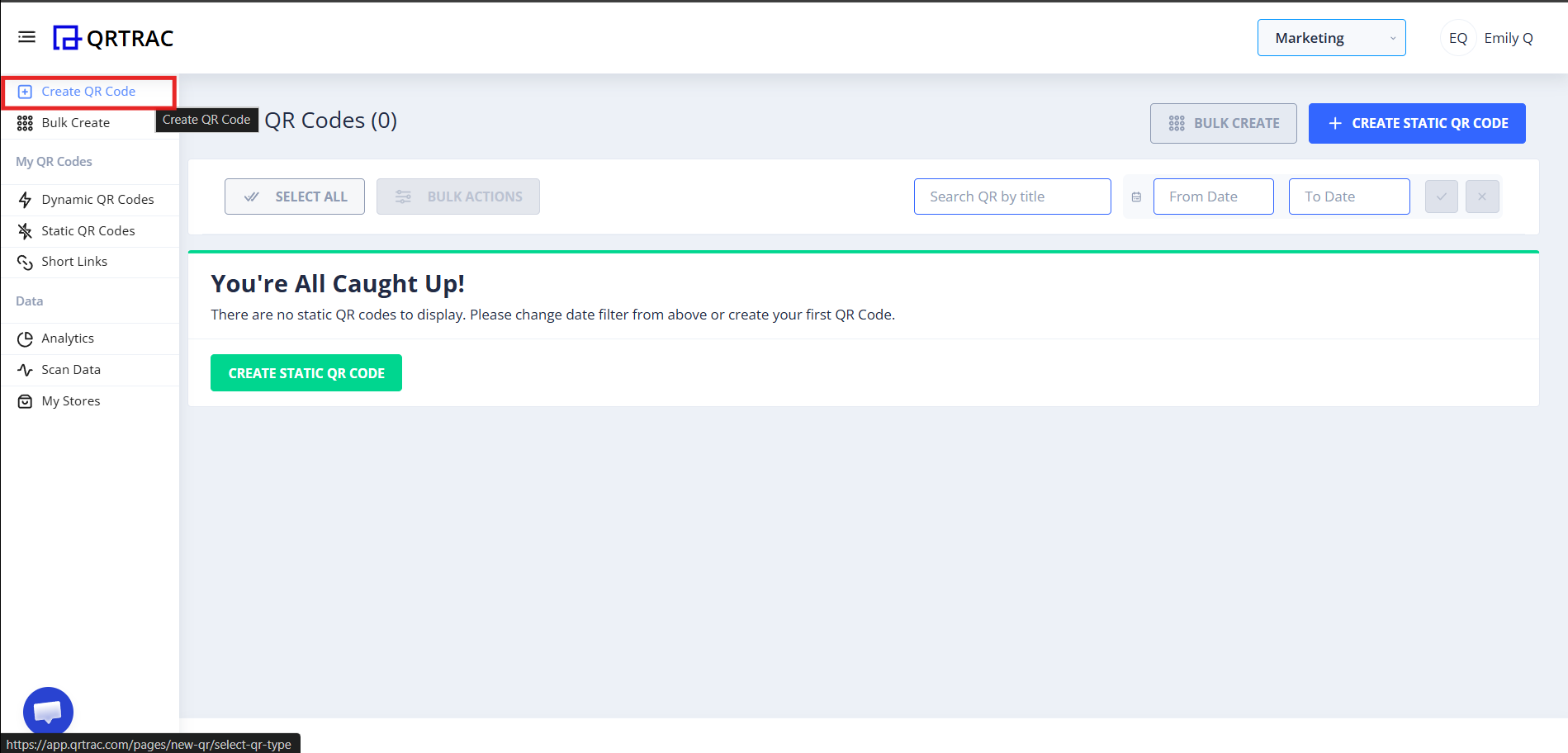
Step 2: Select "App Download QR Code"
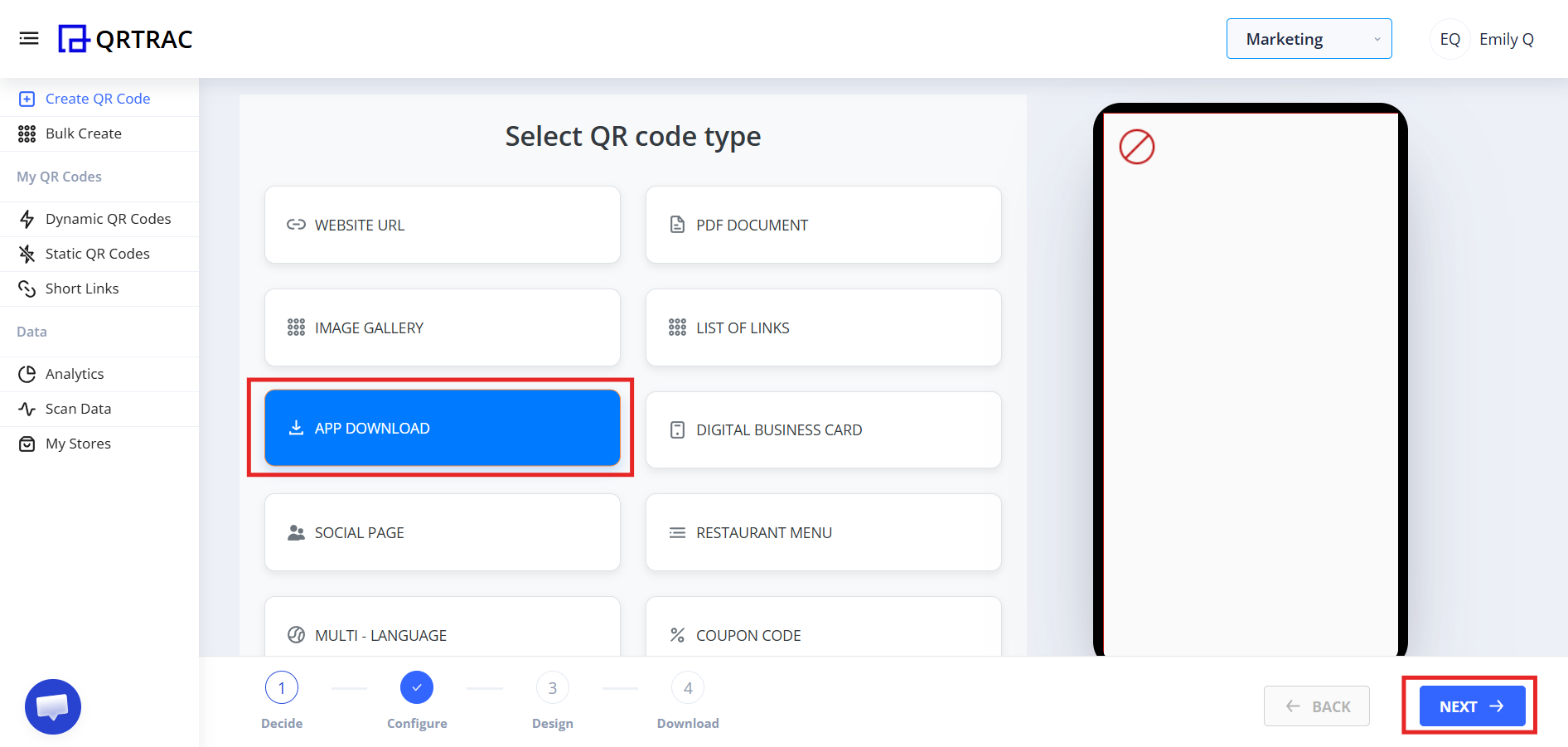
From the QR types list, choose the right type to continue.
- Choose App Download QR Code from the type list
- Click Next
Step 3: Add Your App Store Links
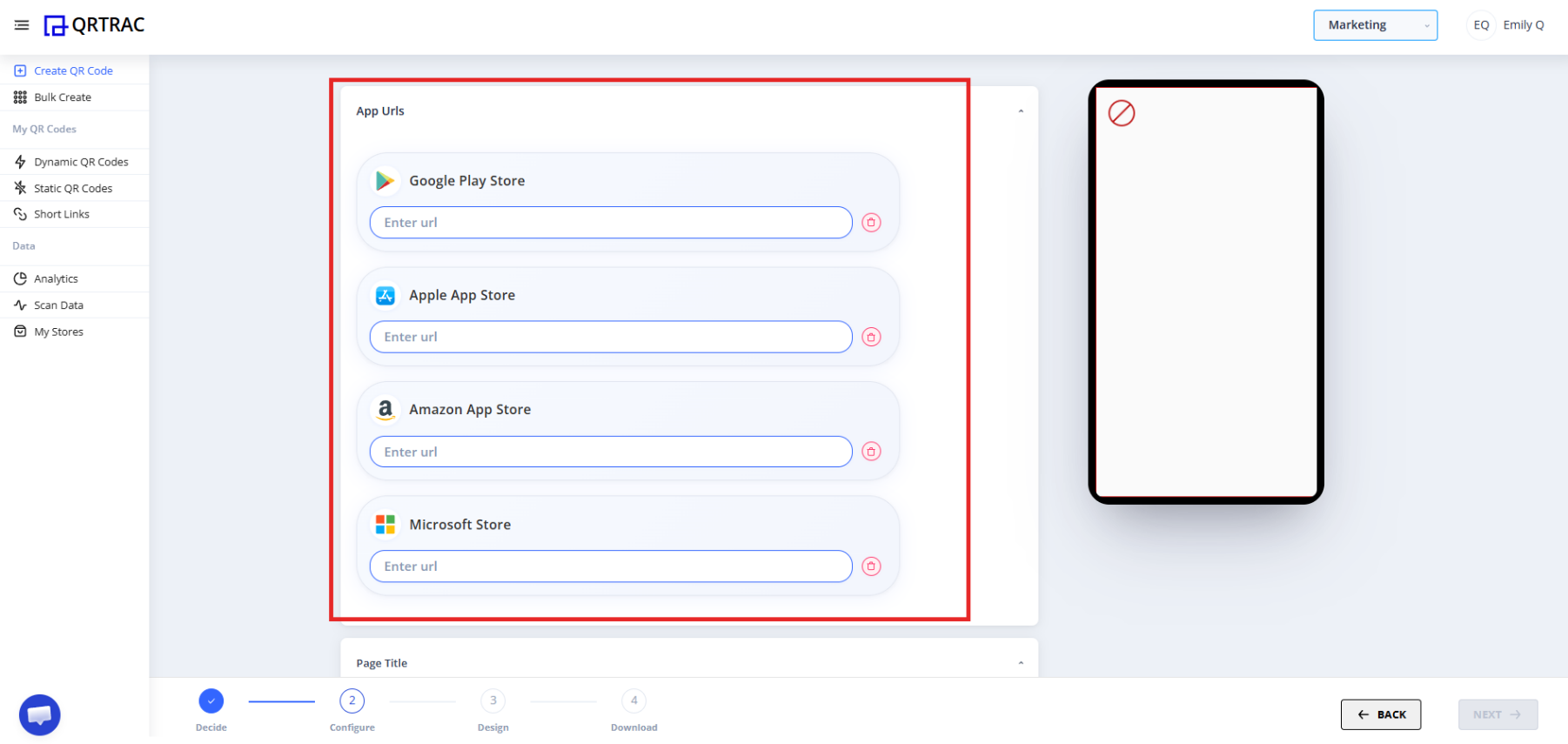
You will see fields for each major app store. Paste the correct URL for every platform you support.
| Platform | Store |
|---|---|
| Android | Google Play Store |
| iPhone / iPad | Apple App Store |
| Amazon devices | Amazon App Store |
| Windows | Microsoft Store |
Correct URL examples:
You can:
- Add only one store
- Add multiple stores
- Leave unused store fields empty
Common Mistakes — What Users Usually Do Wrong
✗ "QR scanned but wrong store opened"
- Smart Download option is disabled
- Wrong store link was pasted
- App link copied incorrectly
✓ Fix: Always copy the link directly from the store in your browser, not from a third-party site.
✗ "QR scanned but page not loading"
- App may have been removed from the store
- Link is broken or outdated
- Extra space in the URL
✓ Fix: Verify your app is still published and the URL opens correctly in a browser first.
✗ "It opens a website instead of the app store"
- Website URL was pasted instead of the store listing URL
✓ Fix: Make sure you paste the actual store URL (e.g. play.google.com/...), not your marketing website.
Step 4: Configure Smart Download
Smart Download automatically detects a user's device and sends them to the right store — no manual selection needed.
| Smart Download ON ✓ (Recommended) | Smart Download OFF |
|---|---|
| Android → Google Play opens automatically | User sees a store selection page |
| iPhone → App Store opens automatically | User must tap their preferred store |
| Windows → Microsoft Store opens | Extra step in the download flow |
Tip
Keep Smart Download enabled for the smoothest experience and fewer drop-offs.
Step 5: Customize Your Landing Page (Optional)
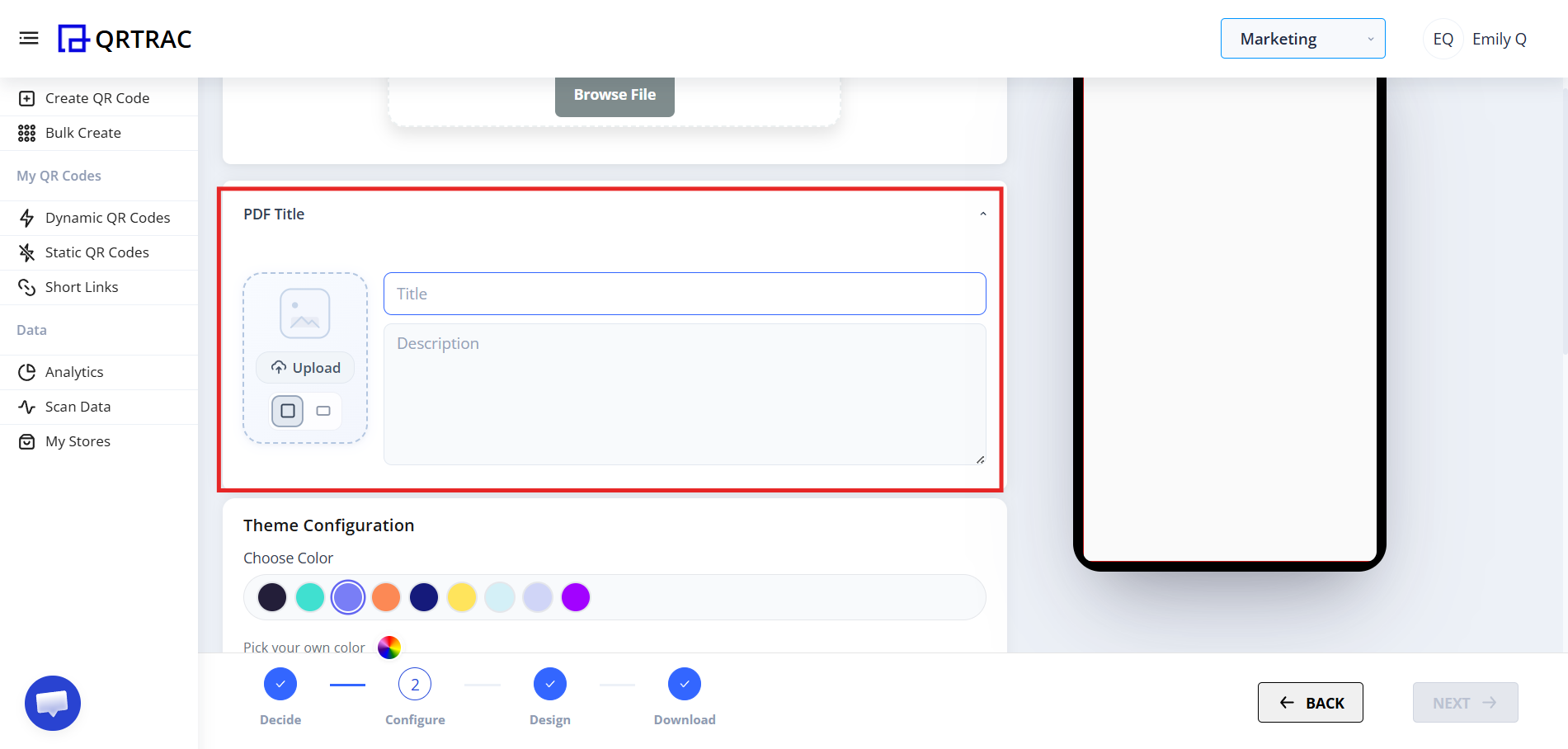
When Smart Download is off — or as a fallback — users see a landing page. Customize it to match your brand.
- Add a Page Title
- Write a short App Description
- Upload your App Logo
- Pick a Theme Color
- Set a Background or Gradient
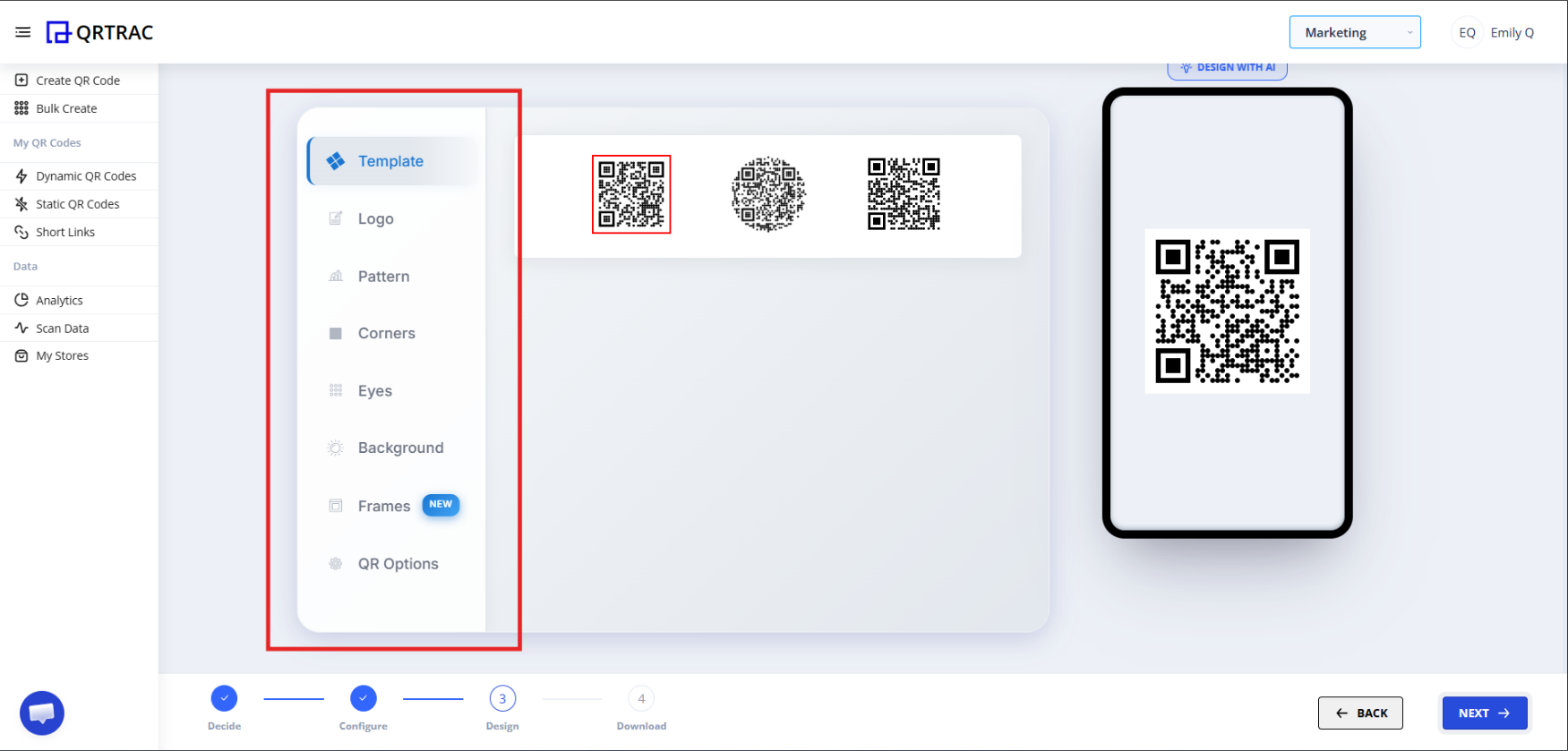
Step 6: Design Your QR Code
Click Next to enter the Design section where you can make the QR code fully on-brand.
- Change QR color
- Add a logo in the center
- Customize the eye style (corner squares)
- Adjust the dot pattern
- Change the background color
Dynamic QR — No Reprinting Needed
If you are using a Dynamic QR Code, you can update store links at any time from your dashboard without reprinting or redistributing the QR code.
Step 7: Review & Download
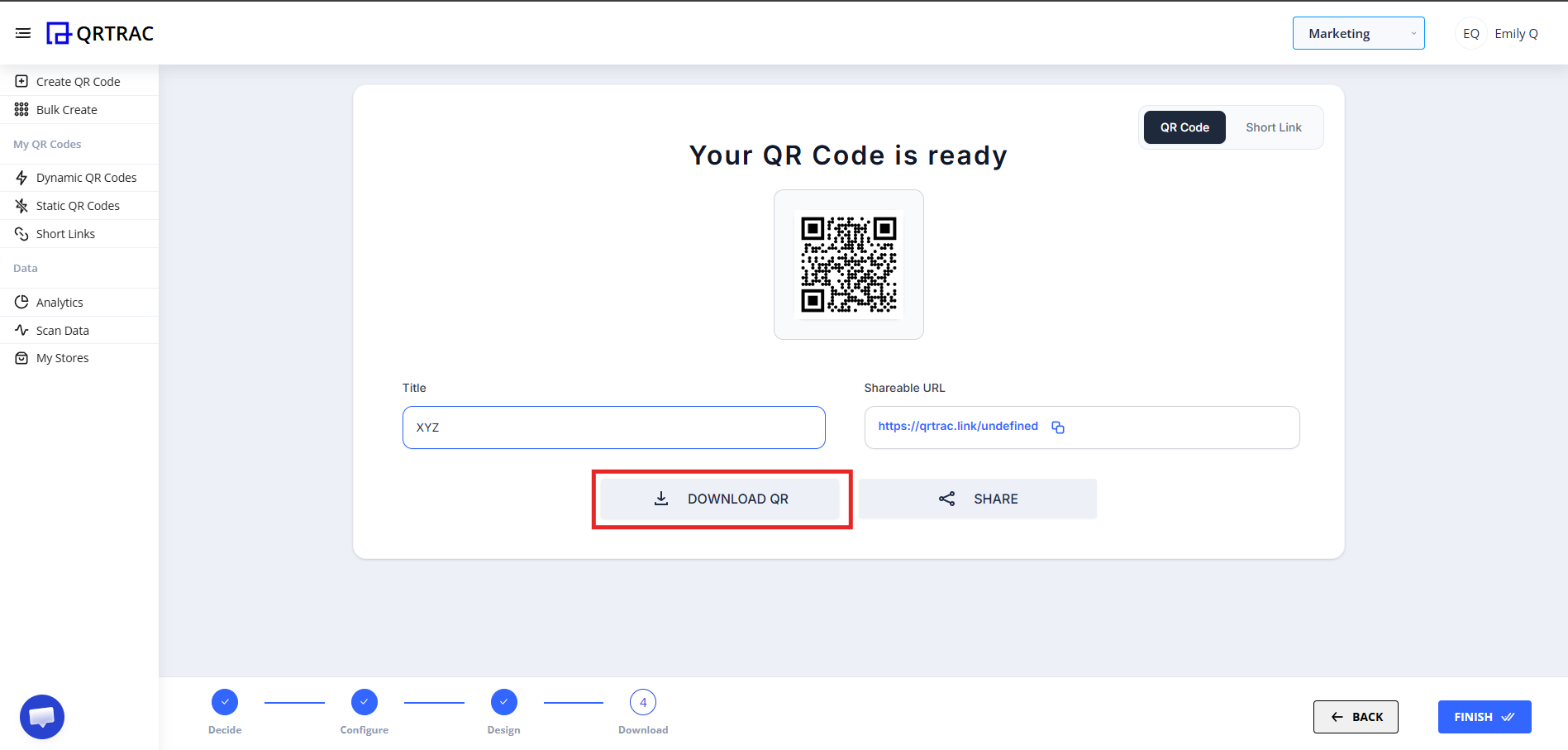
Before downloading, preview your QR on the screen and test it on real devices.
- Click Next to go to the Preview screen
- Preview your QR code
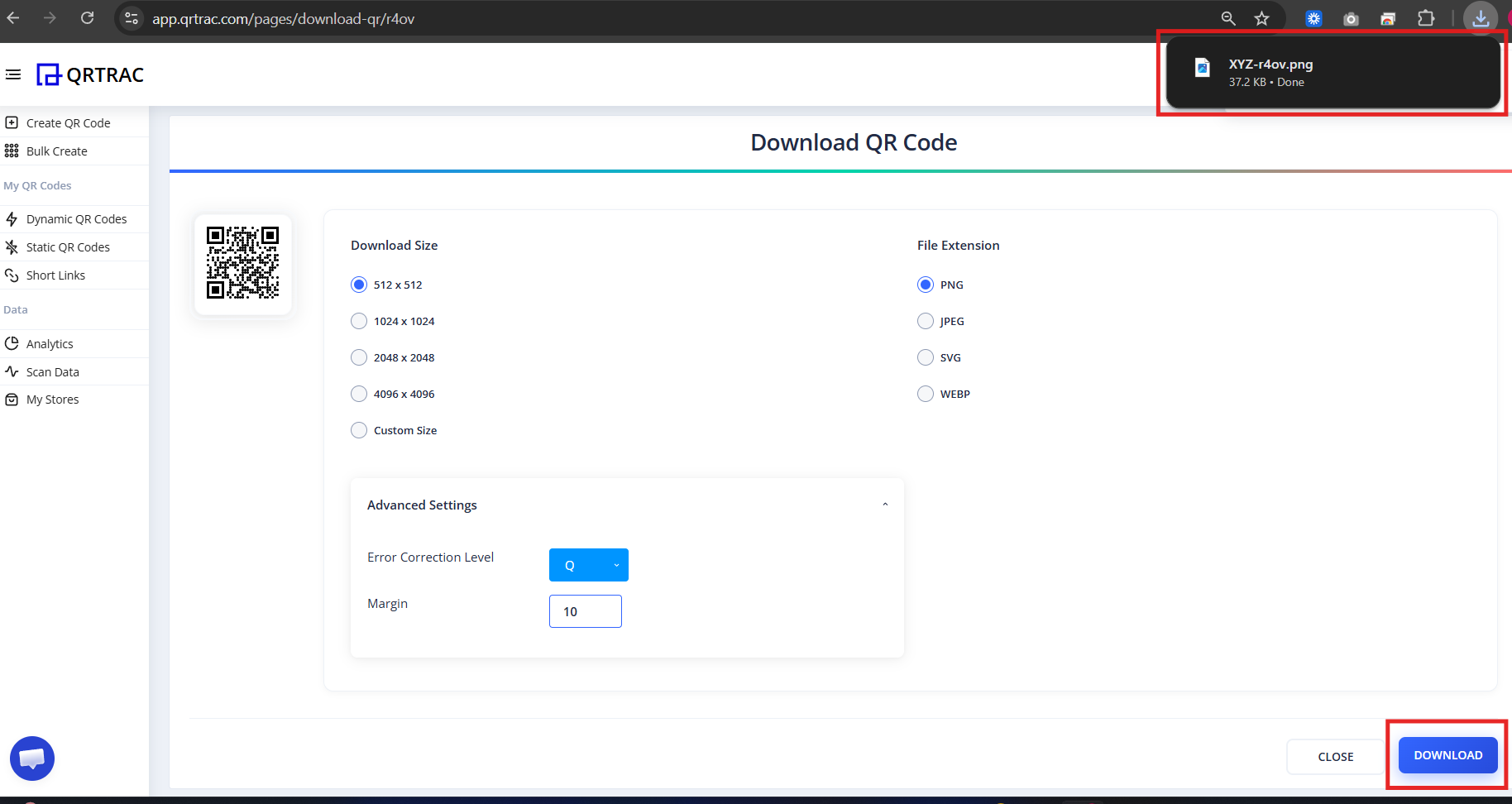
- Click Download and choose your format (PNG, SVG, etc.)
Before You Print or Share
This is where many users make costly mistakes. Always test on real devices before mass printing.
Never print at scale without testing
Printing thousands of copies with an unverified QR wastes budget and time. A quick 2-minute scan test can save significant rework.
Test checklist:
- Scan from an Android phone
- Scan from an iPhone
- Confirm the correct store opens on each
- Verify the app page loads correctly
- Check on a stable internet connection
What Users Will See After Scanning
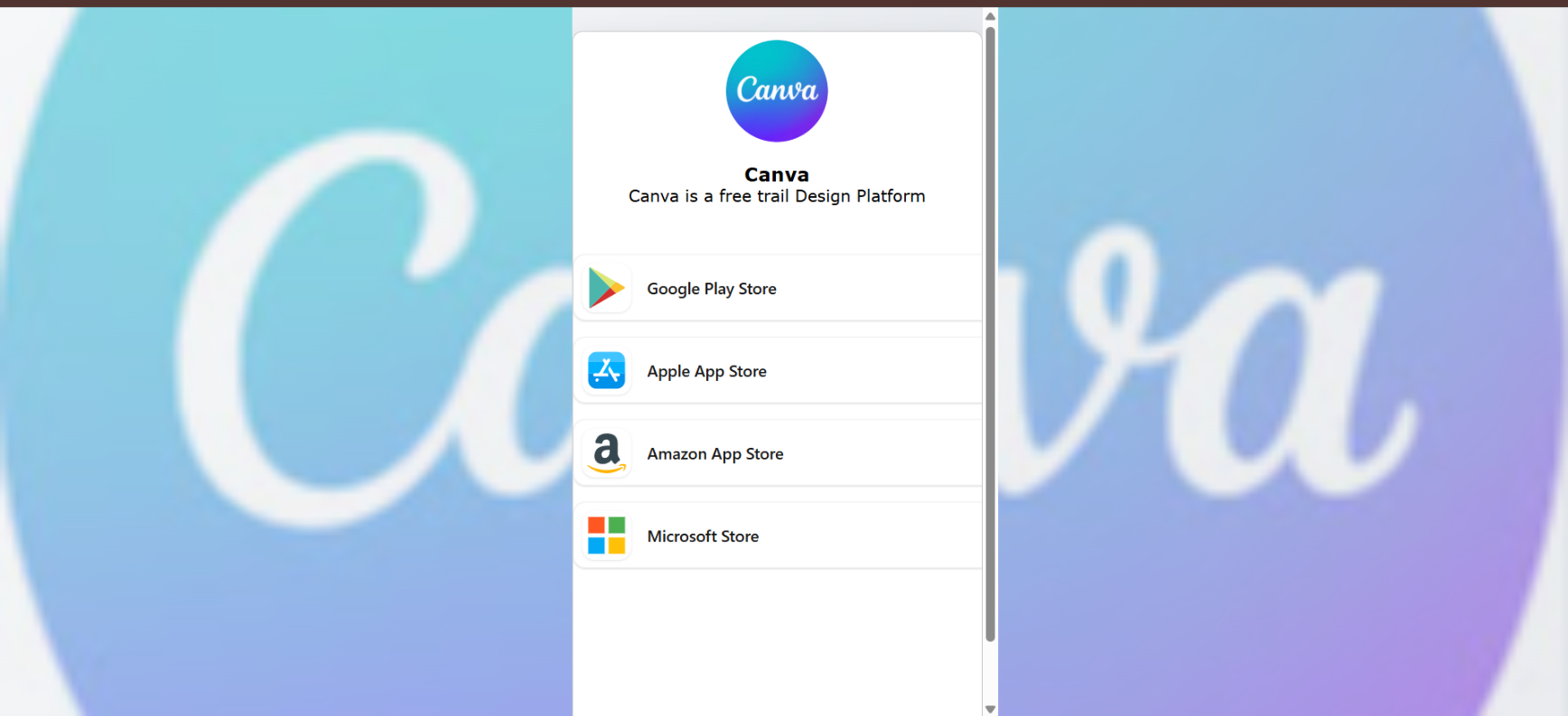
After scanning, users are redirected to a smart app download page that guides them to the right store for their device.
On this page users will see:
- App logo and name
- Short app description
- Store download buttons for their platform
- Easy one-tap download
How Smart App Store Detection Works
When Smart Download is enabled, the system automatically detects the user's device type and opens the correct store — no manual choice needed.
| Device | Store Opened |
|---|---|
| Android phone / tablet | Google Play Store |
| iPhone / iPad | Apple App Store |
| Windows PC / tablet | Microsoft Store |
Why This Page Is Useful
The app download page helps when:
- You support multiple platforms
- Users scan QR from different devices
- You want a professional download experience
- You want to track installs and scans
Frequently Asked Questions
Q Can I edit store links later?
A Yes — if you created a Dynamic QR, you can update store links at any time from your dashboard without reprinting.
Q Can I track how many people scanned?
A Yes. Analytics are available inside your QRTRAC dashboard, including scan counts, device types, and locations.
Q Does the QR code expire automatically?
A Only if you manually configure an expiry date in your QR settings. By default, QR codes remain active indefinitely.
Q Why is my QR code not scanning?
A Common causes: printed too small, low contrast between QR and background, blurry print, or poor lighting. Try increasing the size and ensuring high contrast (dark QR on a light background).
🎉 You're Done!
Your App Download QR Code is ready to share.