How To Create Bulk Website URL QR Codes
If you want to create multiple Website URL QR Codes at once using a spreadsheet, this guide is for you — perfect for product catalogs, franchise stores, or any large-scale QR rollout.
- Creating QR codes for multiple products
- Generating QR codes for many locations
- Printing QR codes for marketing campaigns
- Creating QR codes for franchise stores
- Managing QR codes at scale
- Wanting to track scans separately per code
Before You Start
Before uploading your file, make sure:
- All website links are ready and working
- Each link opens correctly on mobile
- Your Excel or CSV file uses the QRTRAC template format
One Row = One QR Code
Each row in your spreadsheet creates a separate, individually trackable QR code. Review your data carefully before uploading.
Step 1: Login & Start
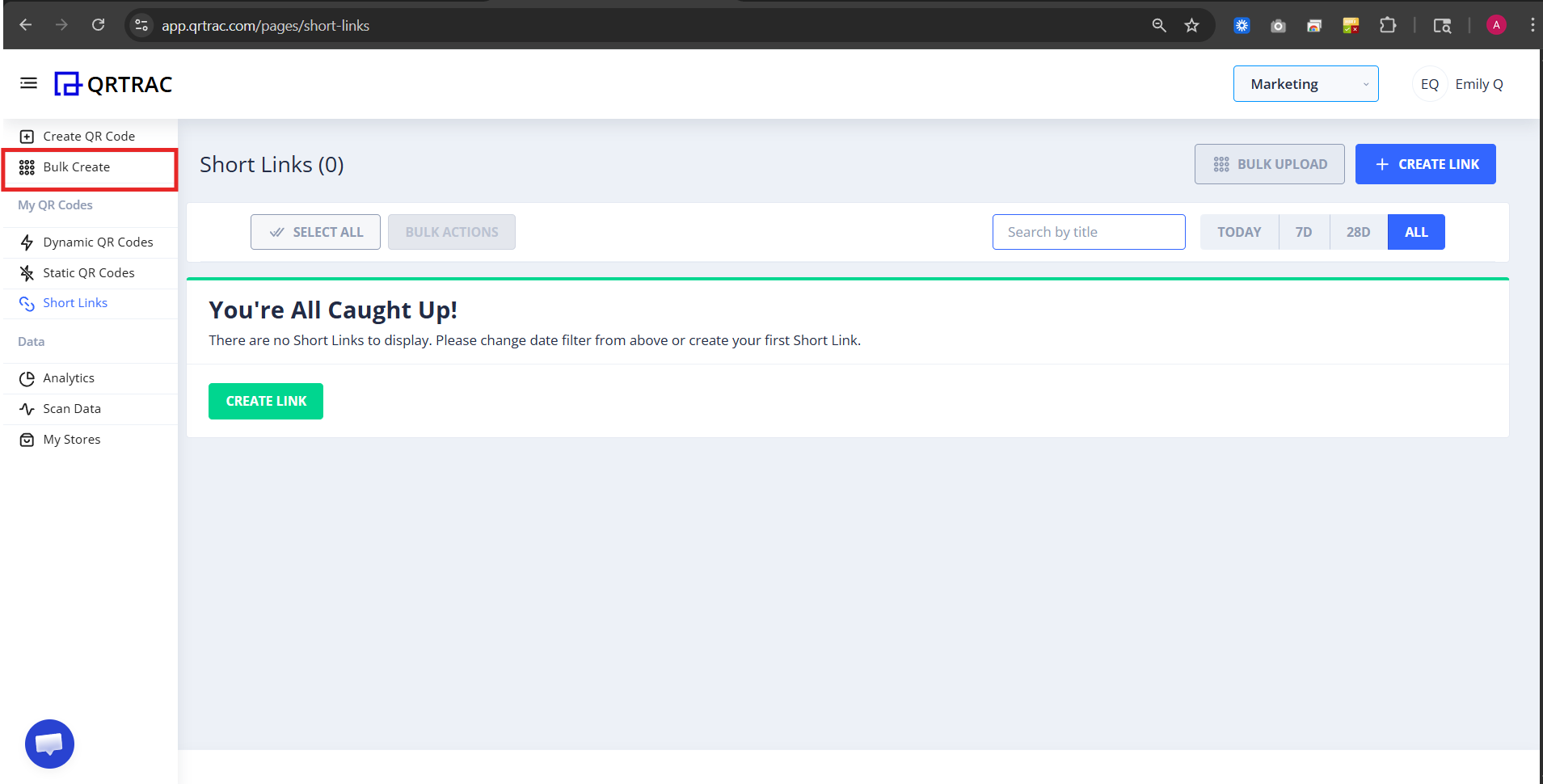
- Login to your QRTRAC dashboard
- Click Bulk Create
Step 2: Select "Website URL"
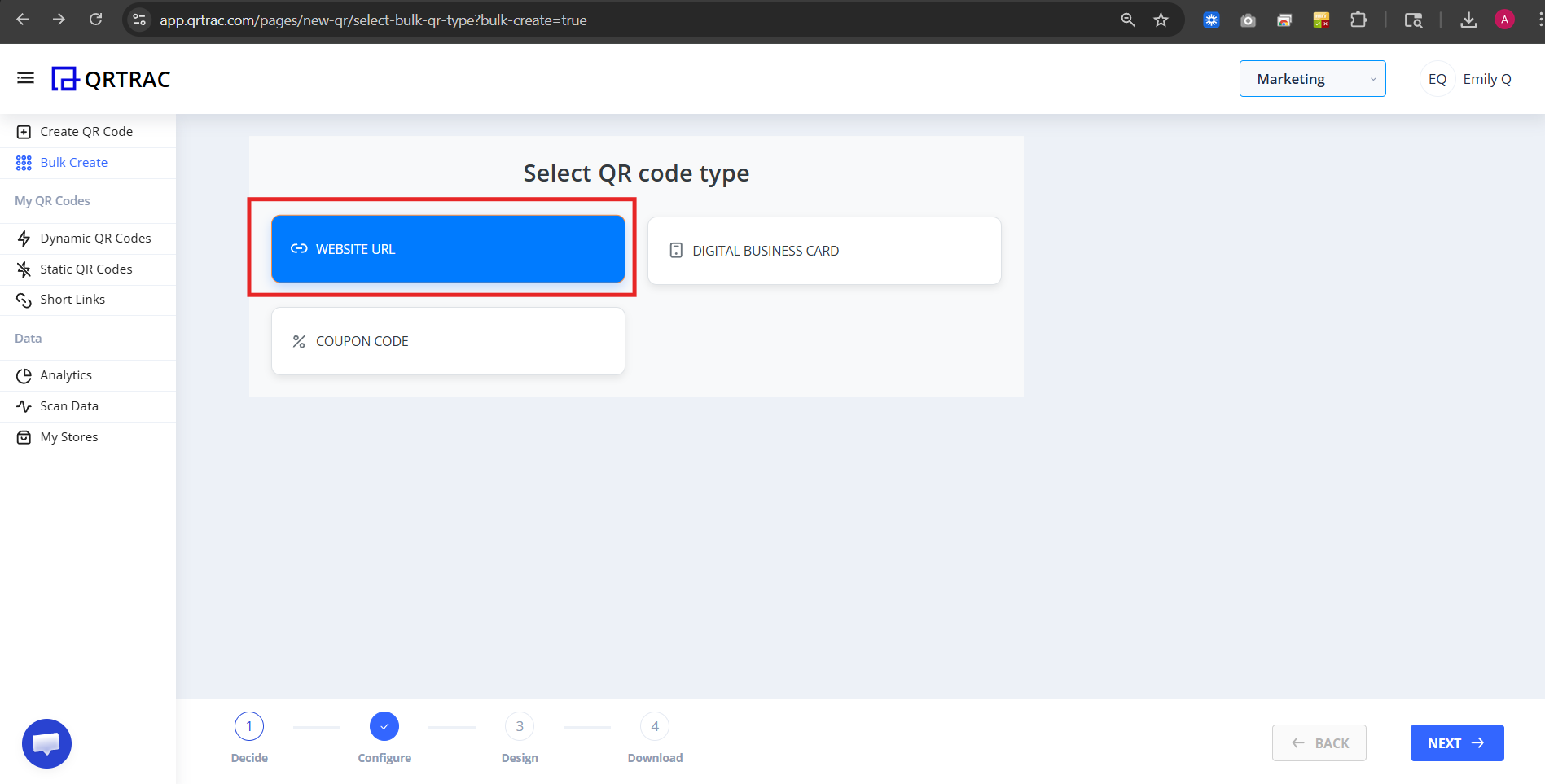
- From the QR types list, choose Website URL
- Click Next
Step 3: Download the Sample File
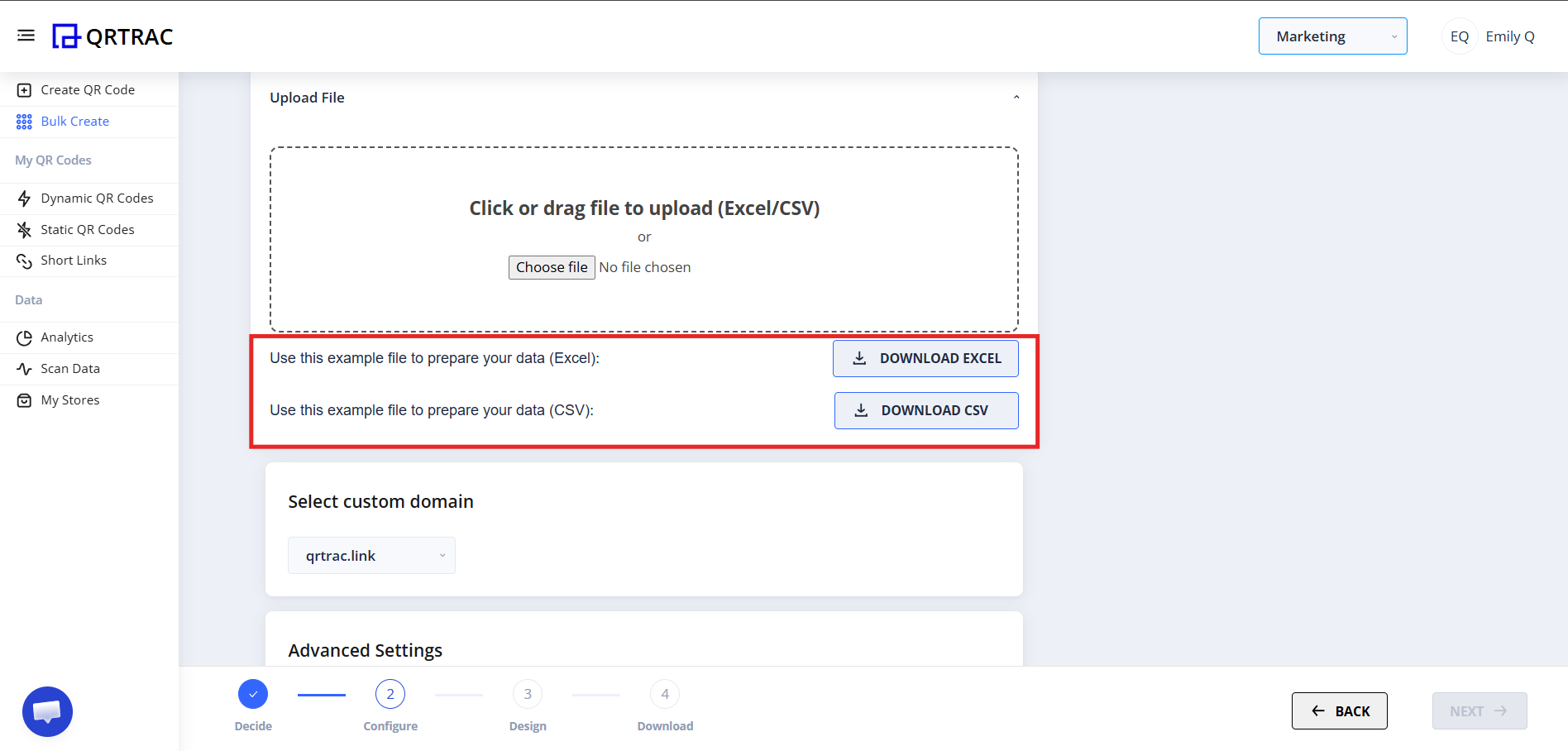
Before uploading, download the template:
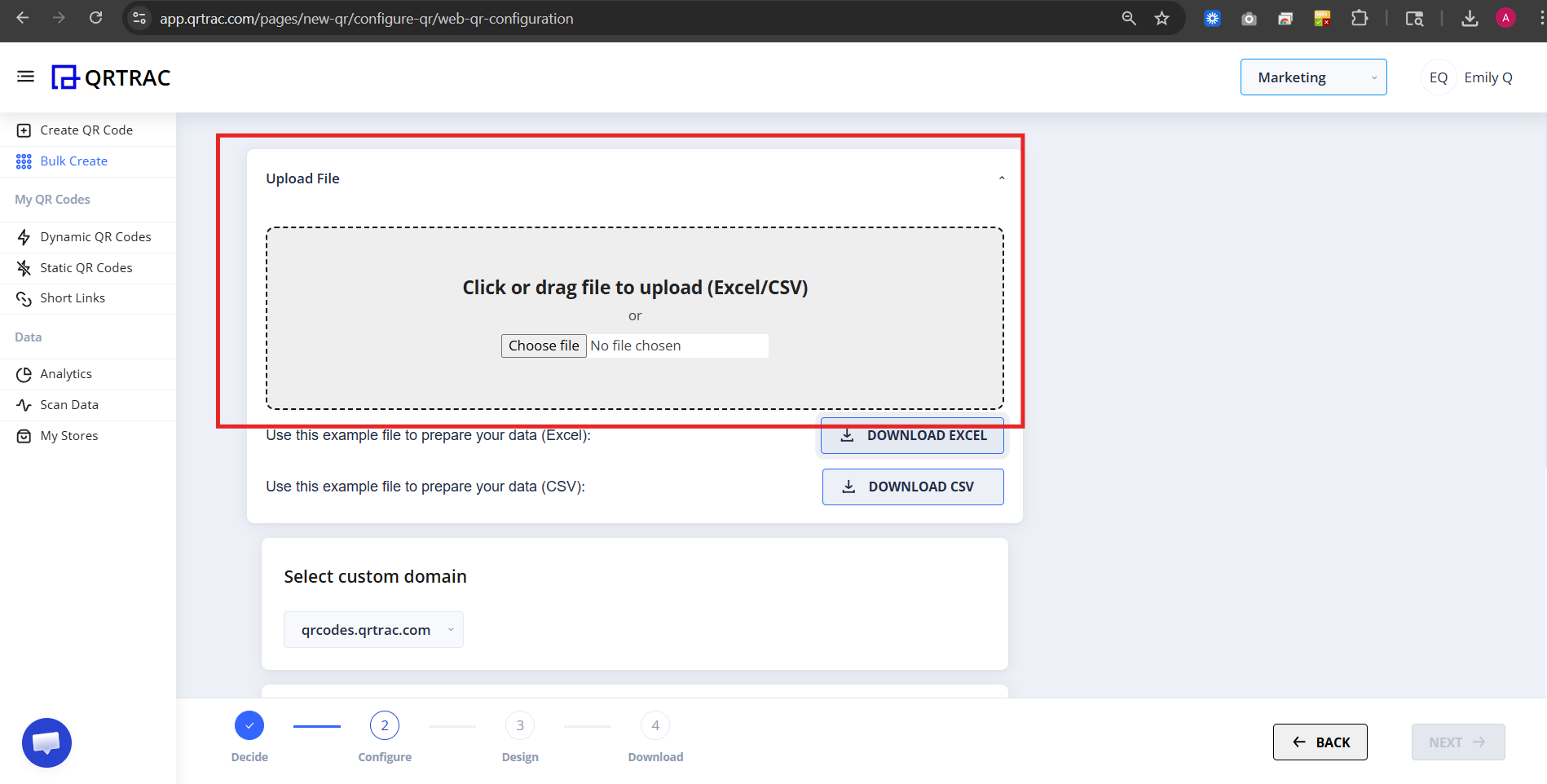
- Click Download Excel or Download CSV
- Open the file
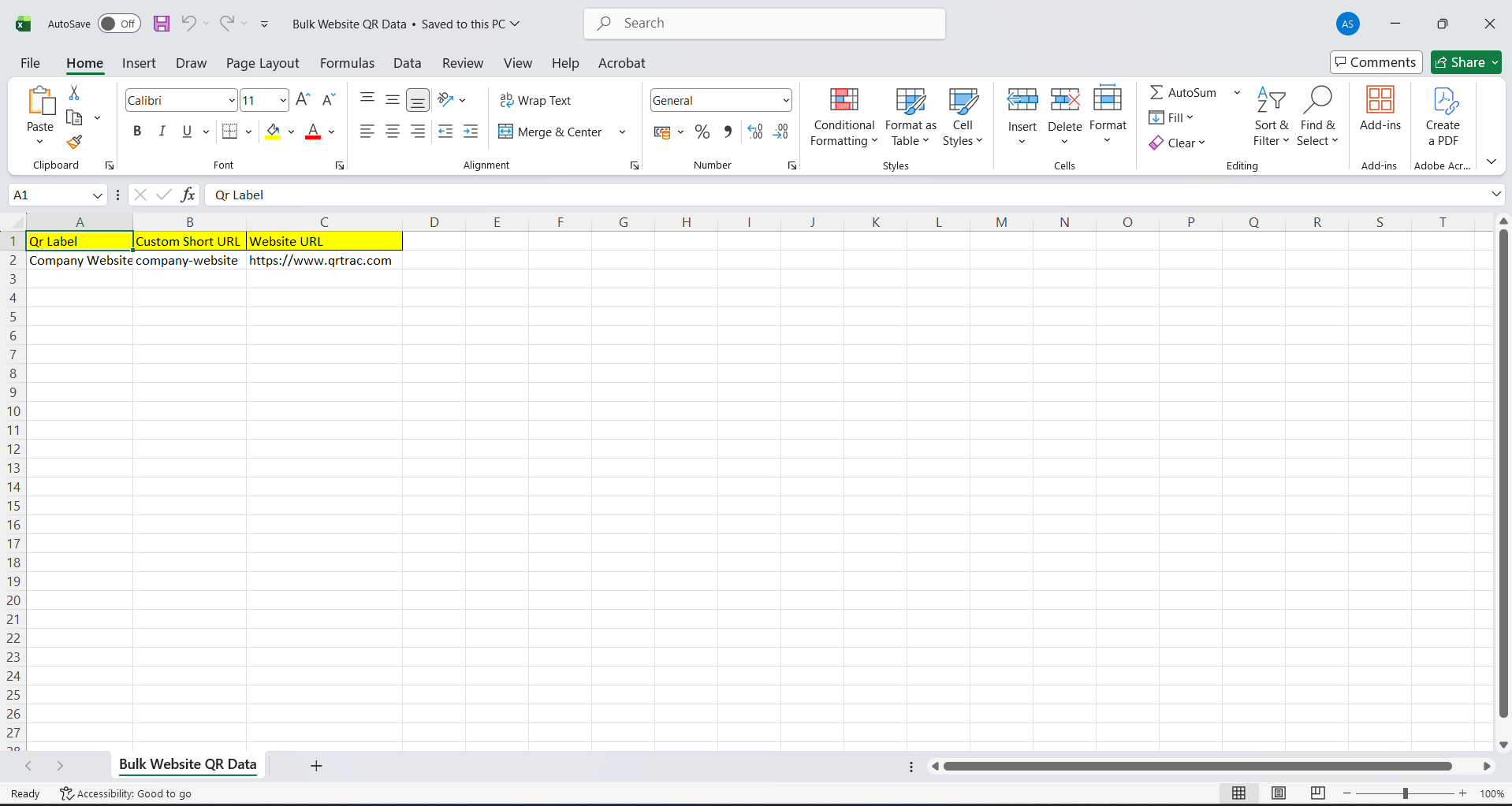
This file shows the correct format.
Step 4: Add Your Website Links
Now enter your data into the template. Each row should include a name and a URL. Make sure all URLs begin with https:// — for example https://yourwebsite.com/page.
Save the file after editing.
Step 5: Upload Your Excel or CSV File
- Return to QRTRAC
- Click Upload File
- Select your Excel or CSV
- Upload the file
QRTRAC will automatically generate QR codes.
Step 6: Select Domain & Settings
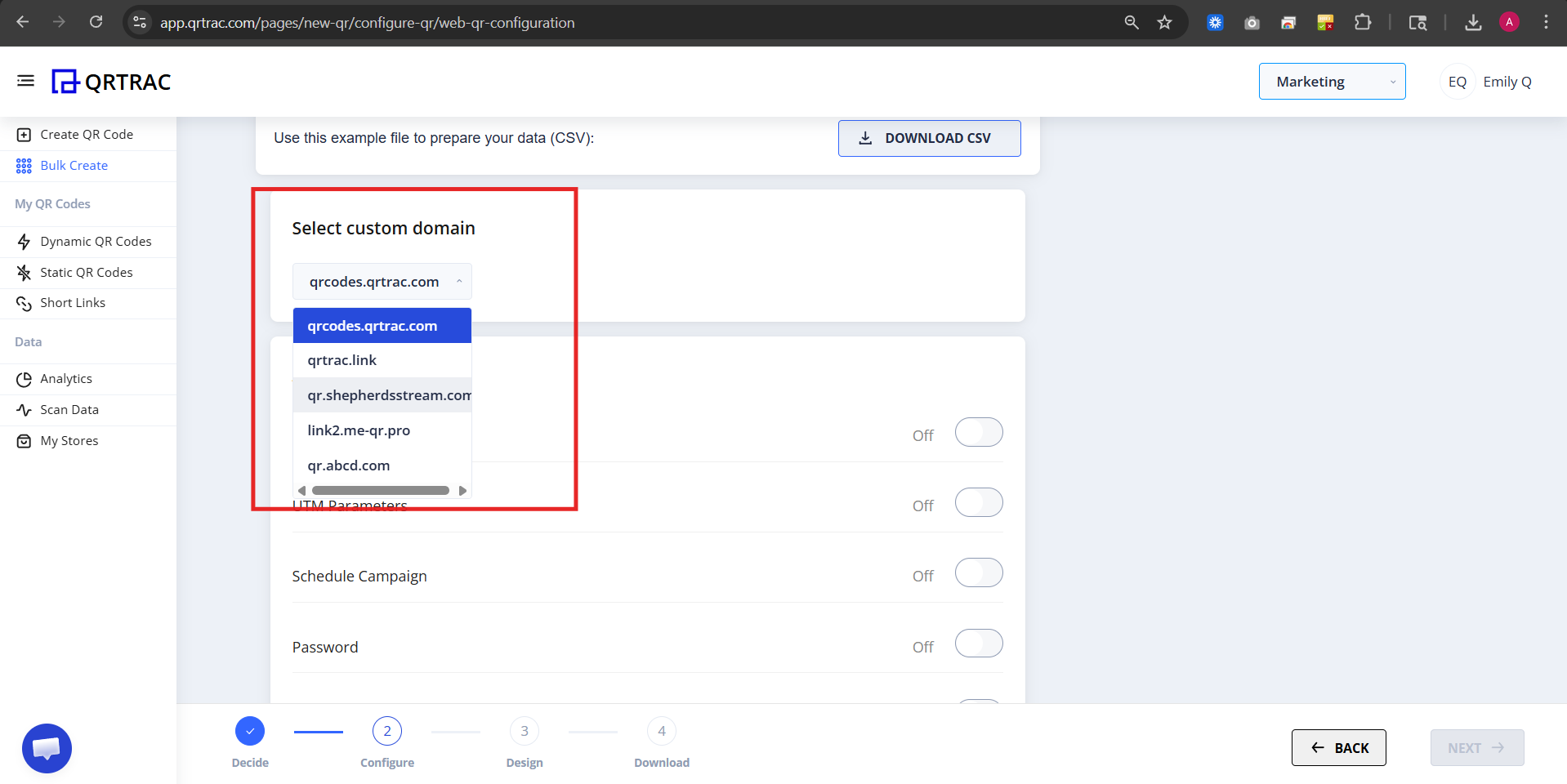
You can choose:
- Default QRTRAC domain
- Custom domain
- Tracking settings
Each QR will get its own unique short link.
Dynamic QR — No Reprinting Needed
Update your bulk QR code destinations at any time from the QRTRAC dashboard without reprinting.
Step 7: Click Next → Design Your QR
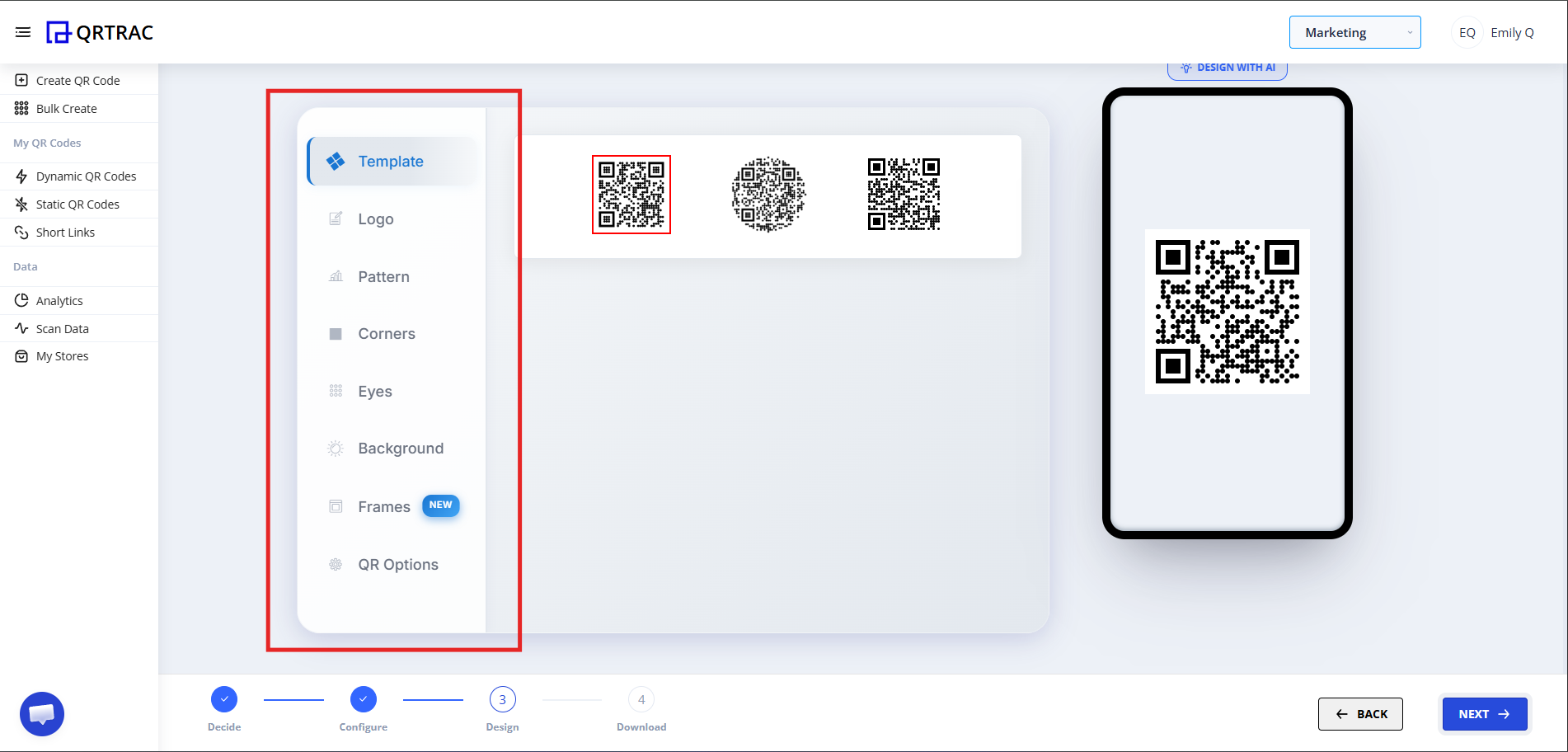
Now move to the Design section. You can:
- Add logo
- Change colors
- Customize shape
- Set branding
This design will apply to all QR codes.
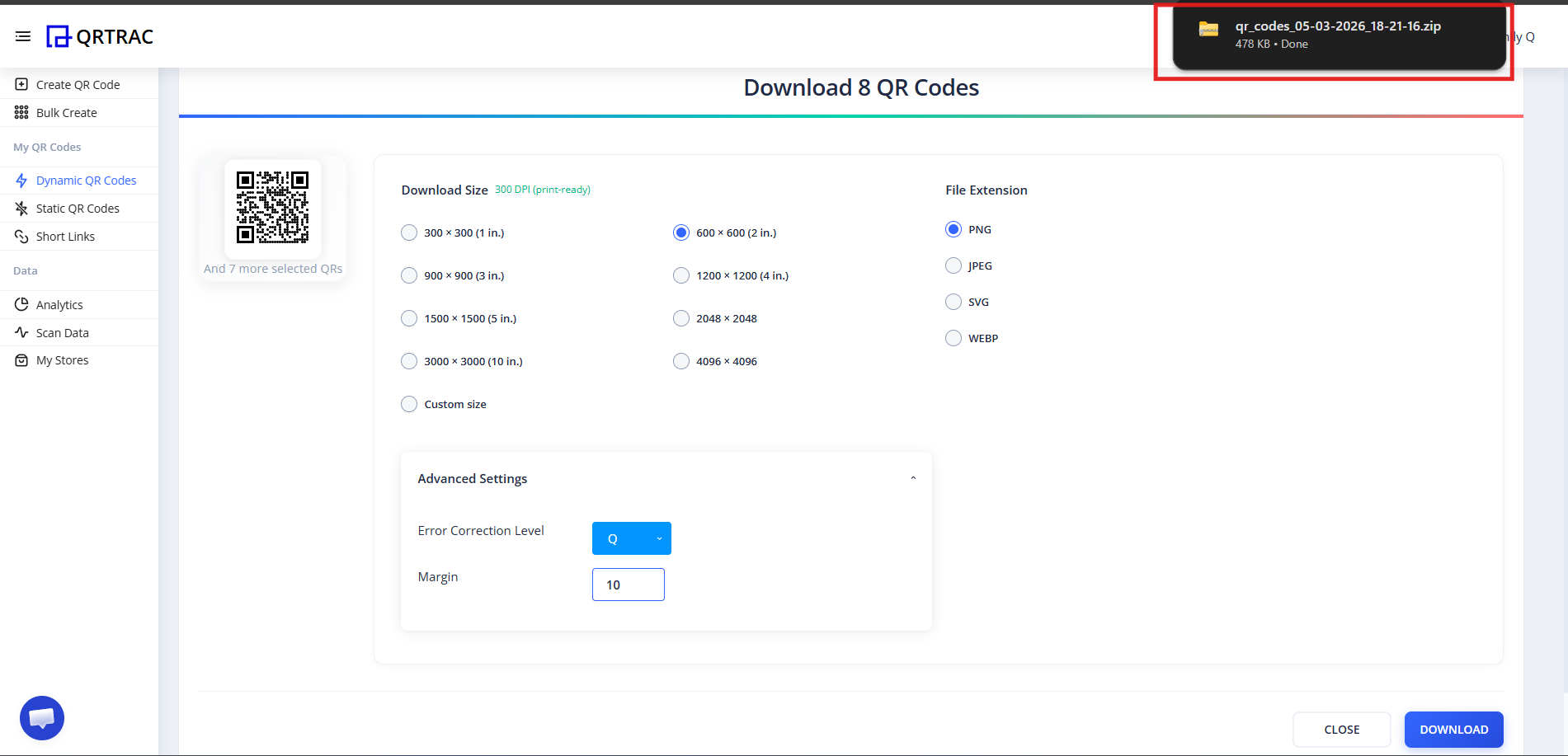
Step 8: Review & Download
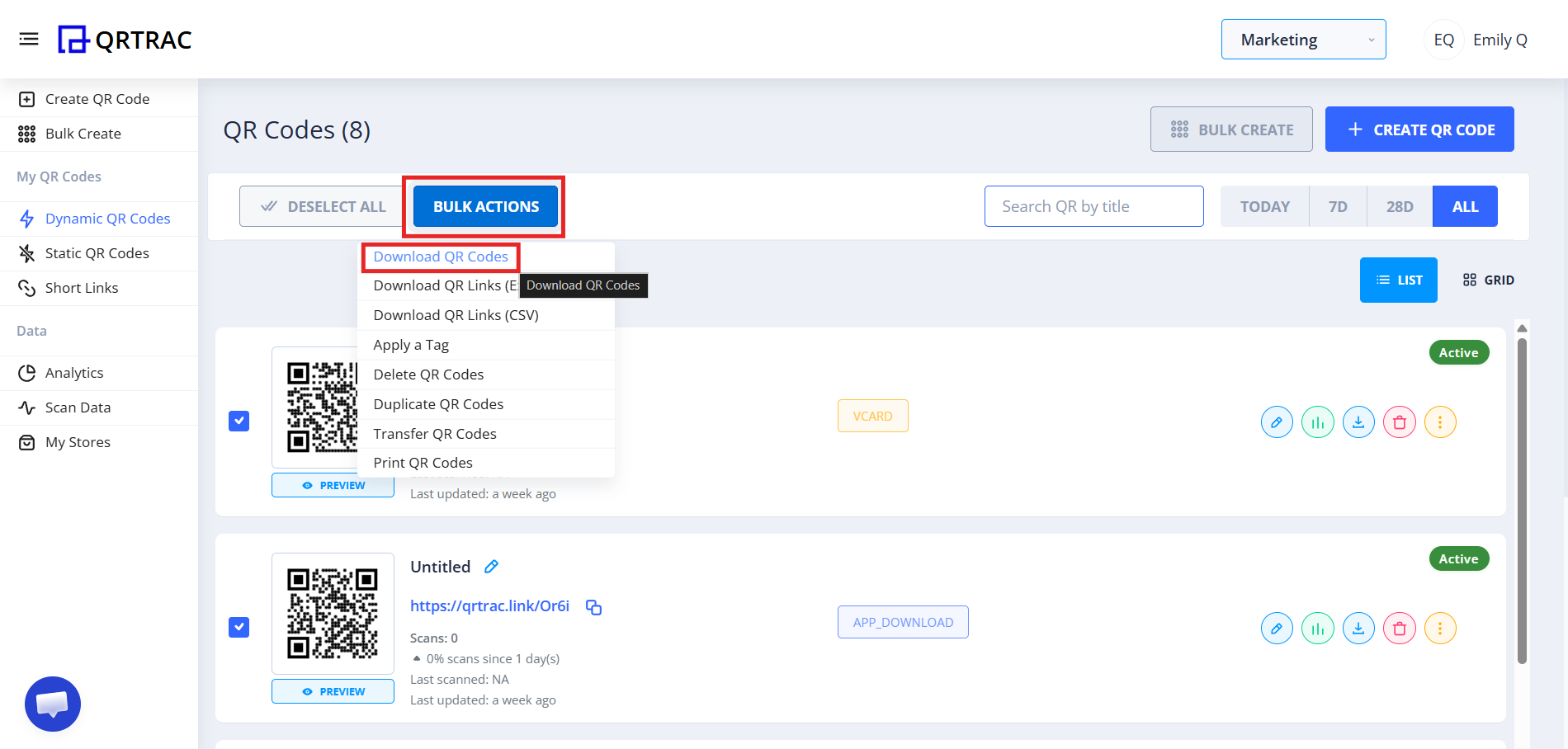
- Click Next
- Preview QR codes
- Click Download
You may get a ZIP file containing all QR codes in PNG or SVG format.
Tip: Always test your QR code with a smartphone camera straight from your computer monitor before you download and print it.
Frequently Asked Questions
Can I update my details later?
Yes. Because this is a Dynamic QR Code, you can log into your QRTRAC dashboard and update your destination information at any time without needing to reprint the physical code.
Can I track how many people viewed my code?
Absolutely. The analytics dashboard provides real-time data on scan volume, unique visitors, and geographic locations.
Does it work offline?
No, an internet connection is required for the scanner to load your digital profile and download the destination file.
Common Mistakes
- ❌ Using URLs without https:// — the QR code won't redirect correctly.
- ❌ Changing or deleting column headers in the template file.
- ❌ Skipping the final testing phase before bulk printing.
Launch Checklist
- All URLs include https://
- Template file columns unchanged
- Sample QR codes scanned and verified