How To Create Bulk Coupon Code QR Codes
If you want to generate multiple Coupon QR Codes at once using an Excel or CSV file, this guide is for you — ideal for retail promotions, festival campaigns, or distributing unique discount codes at scale.
- Running a retail store
- Managing promotional campaigns
- Creating festival discount coupons
- Printing bulk scratch coupons
- Distributing unique codes to customers
- Running offline marketing campaigns
Before You Start
Before uploading your file, confirm:
- All coupon codes are unique — no duplicates
- Discount values and expiry dates are correct
- Offer details are accurate
- Your file uses the QRTRAC template format
One Row = One Coupon QR Code
Each row creates a separate coupon QR code. Do not change or delete the column headers in the template or your upload will fail.
Step 1: Login & Start
- Login to your QRTRAC dashboard
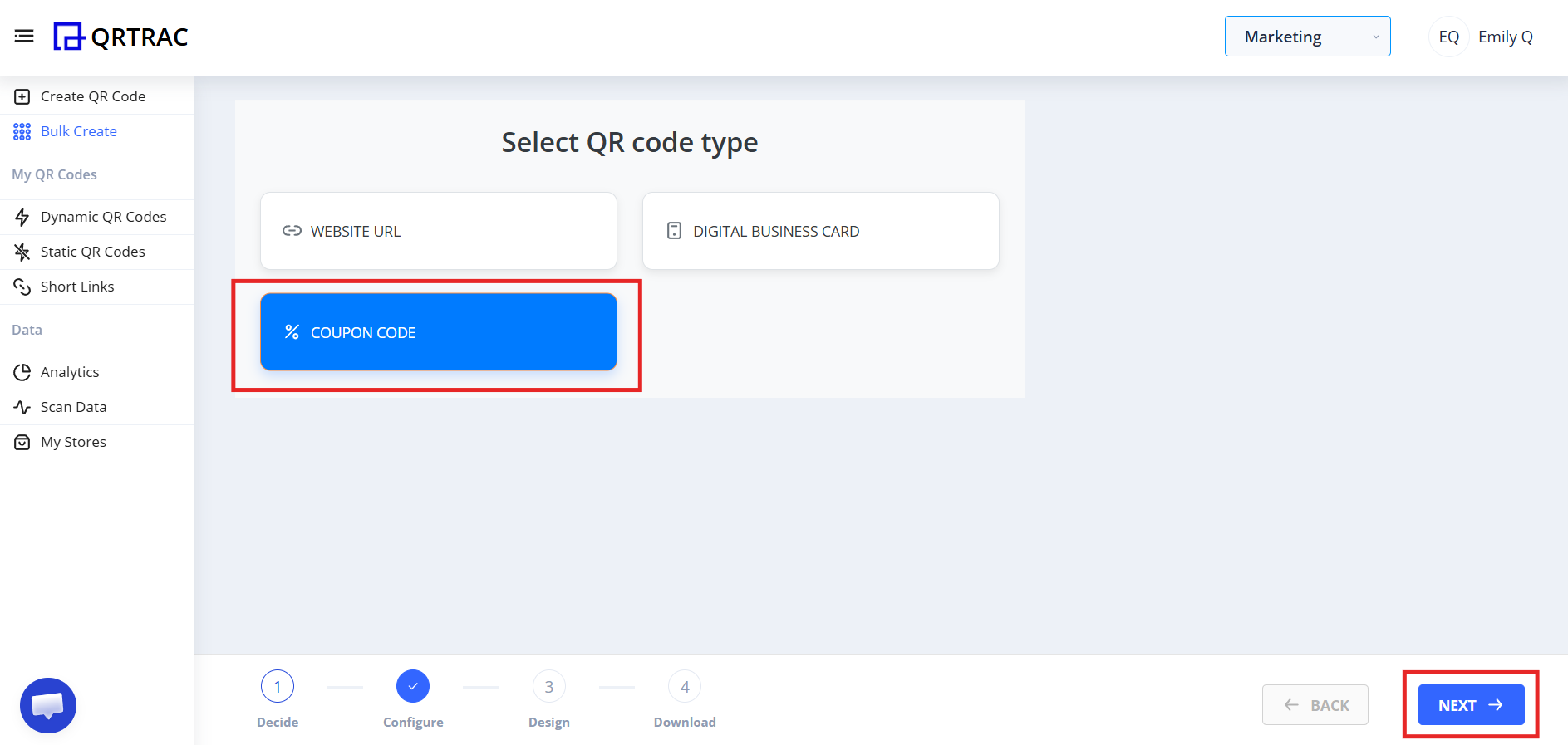
- Click Bulk Create
- Select Coupon Code QR
- Click Next
Step 2: Download the Sample File
Before uploading your data, you must download the sample format. Inside the Configure section you will see Download Excel and Download CSV options.
- Click Download Excel (Recommended) or Download CSV
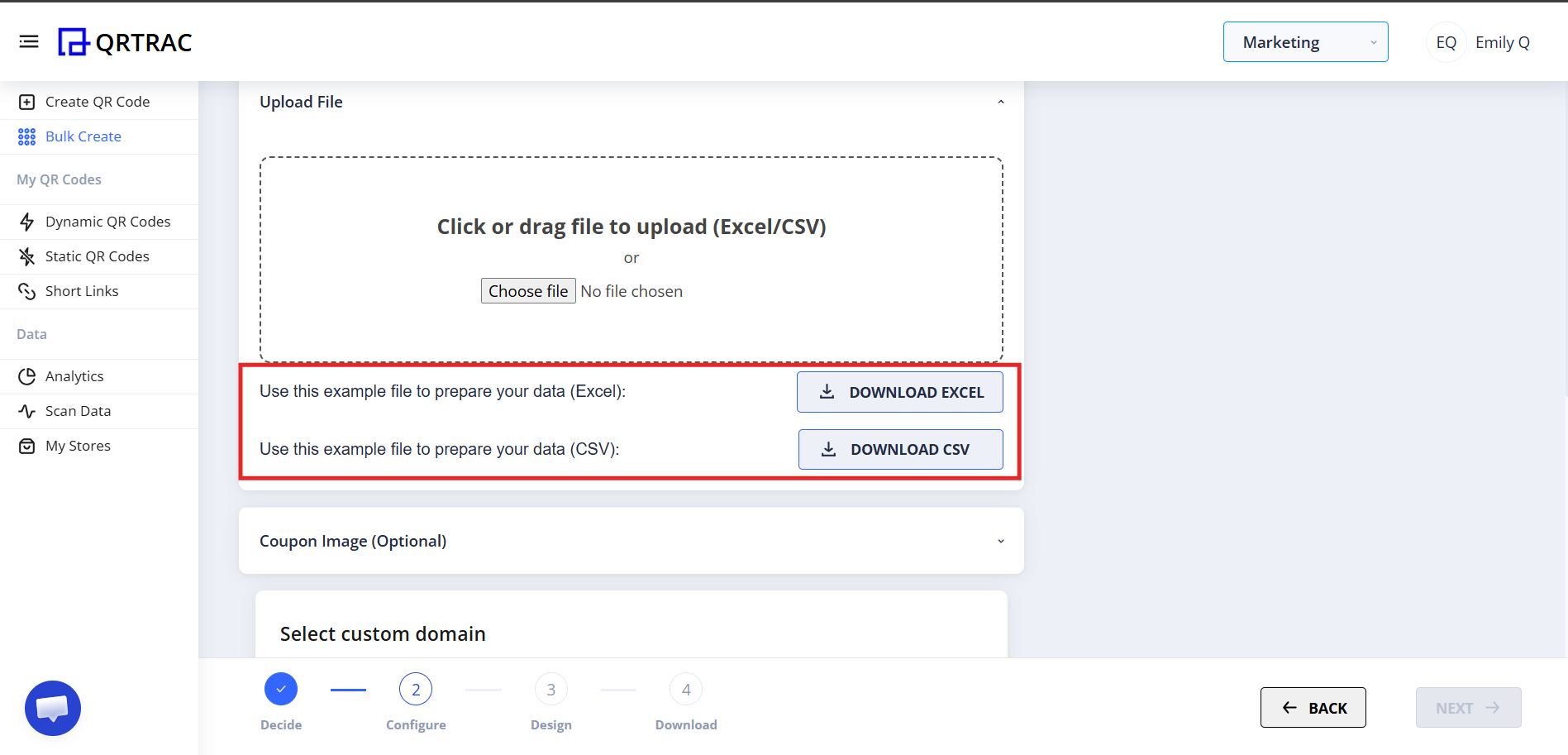
This sample file shows the correct column format required for bulk creation.
Step 3: Fill the Sample File Correctly
Open the downloaded file and fill in the required fields:
- Coupon Code
- Discount Type
- Discount Value
- Expiry Date
- Description (Optional)
- Any additional required fields
Do not change column names or delete required columns. Save the file after filling all rows.
Step 4: Upload Your File
- Return to the QRTRAC Configure page
- Click Choose File
- Select your filled Excel or CSV file
- Upload it
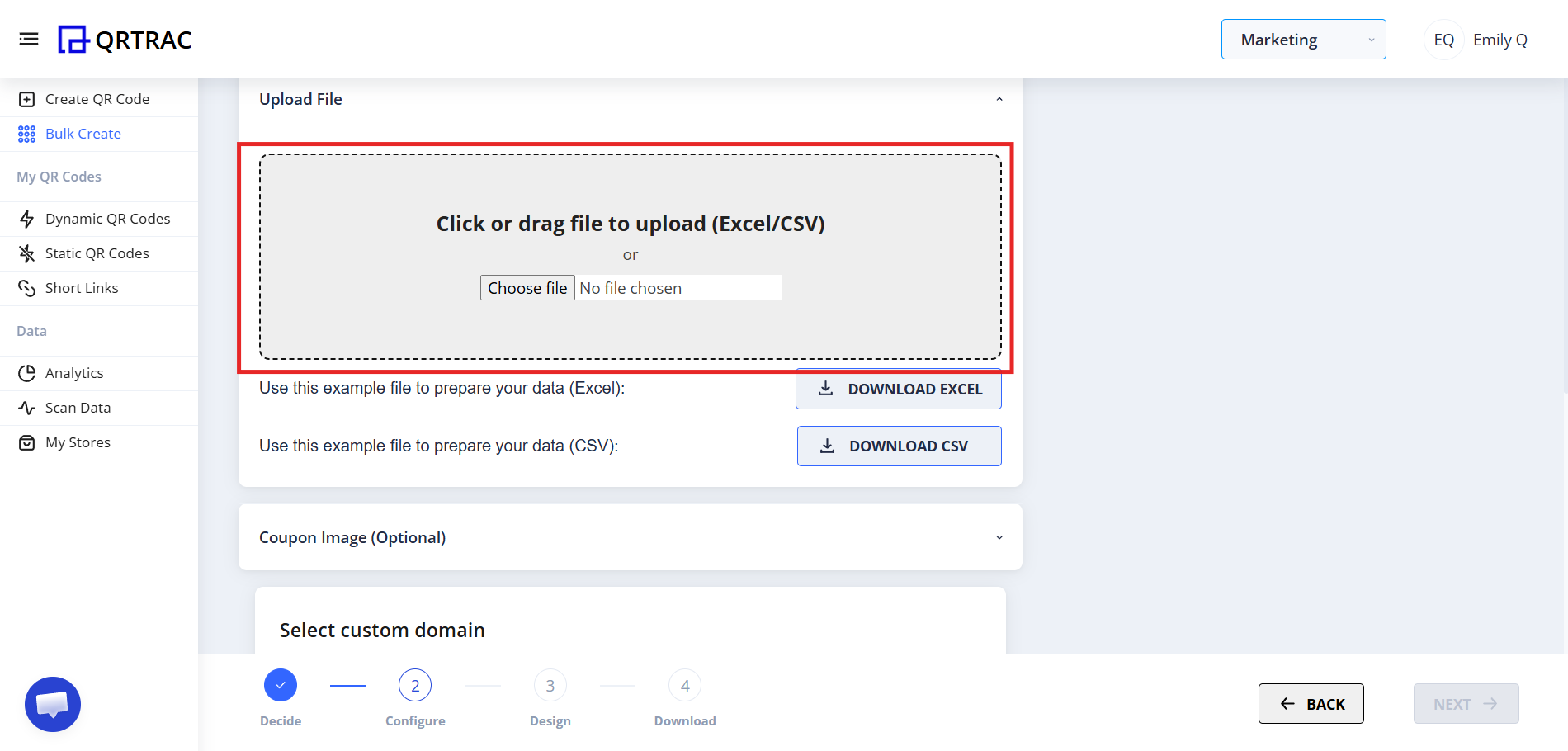
After upload, the system will process your data.
Step 5: Optional Settings
Below the upload section you may optionally:
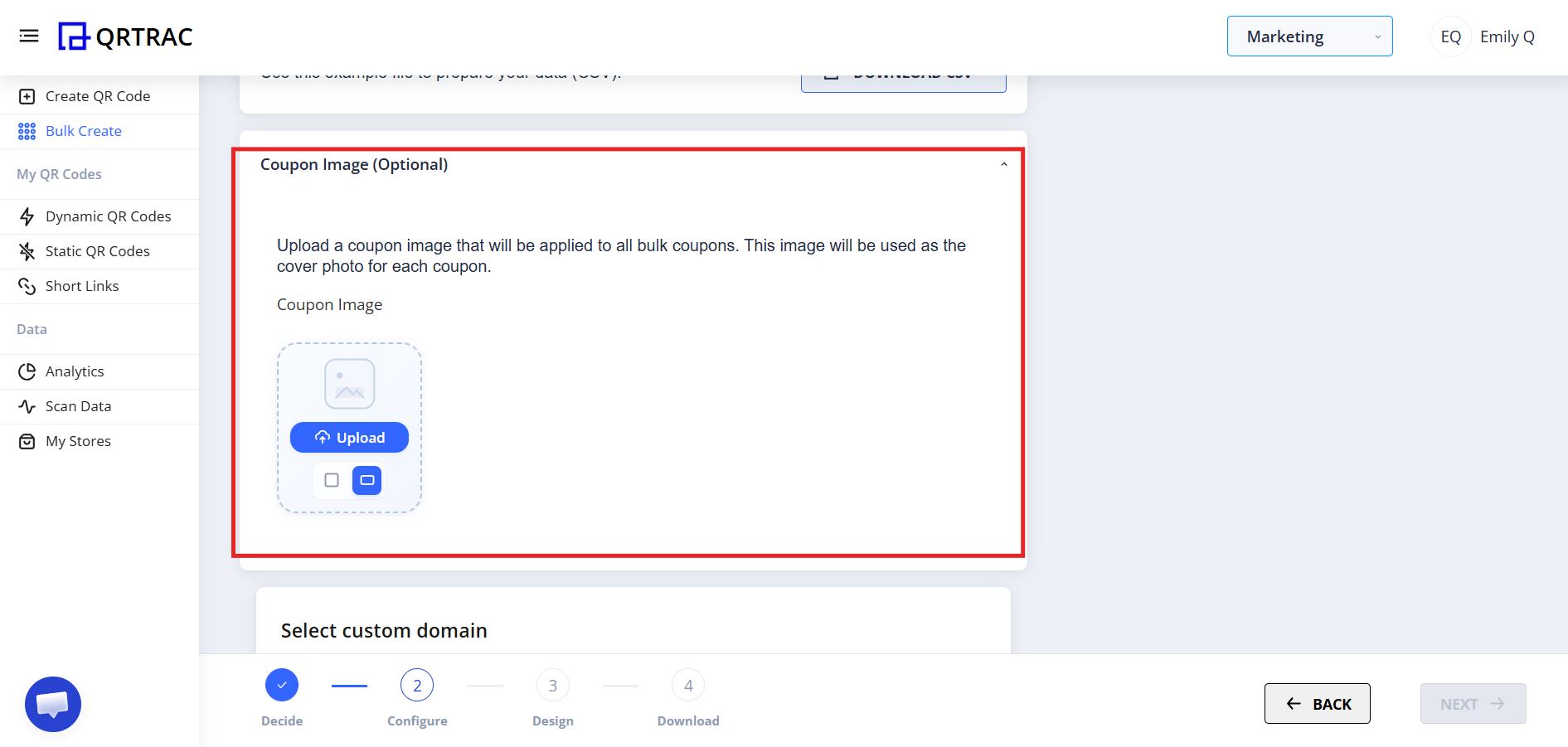
- Upload a coupon banner image
- Select a custom domain
- Configure tracking, expiry rules, and redirection rules
Dynamic QR — No Reprinting Needed
Update your bulk QR code destinations at any time from the QRTRAC dashboard without reprinting.
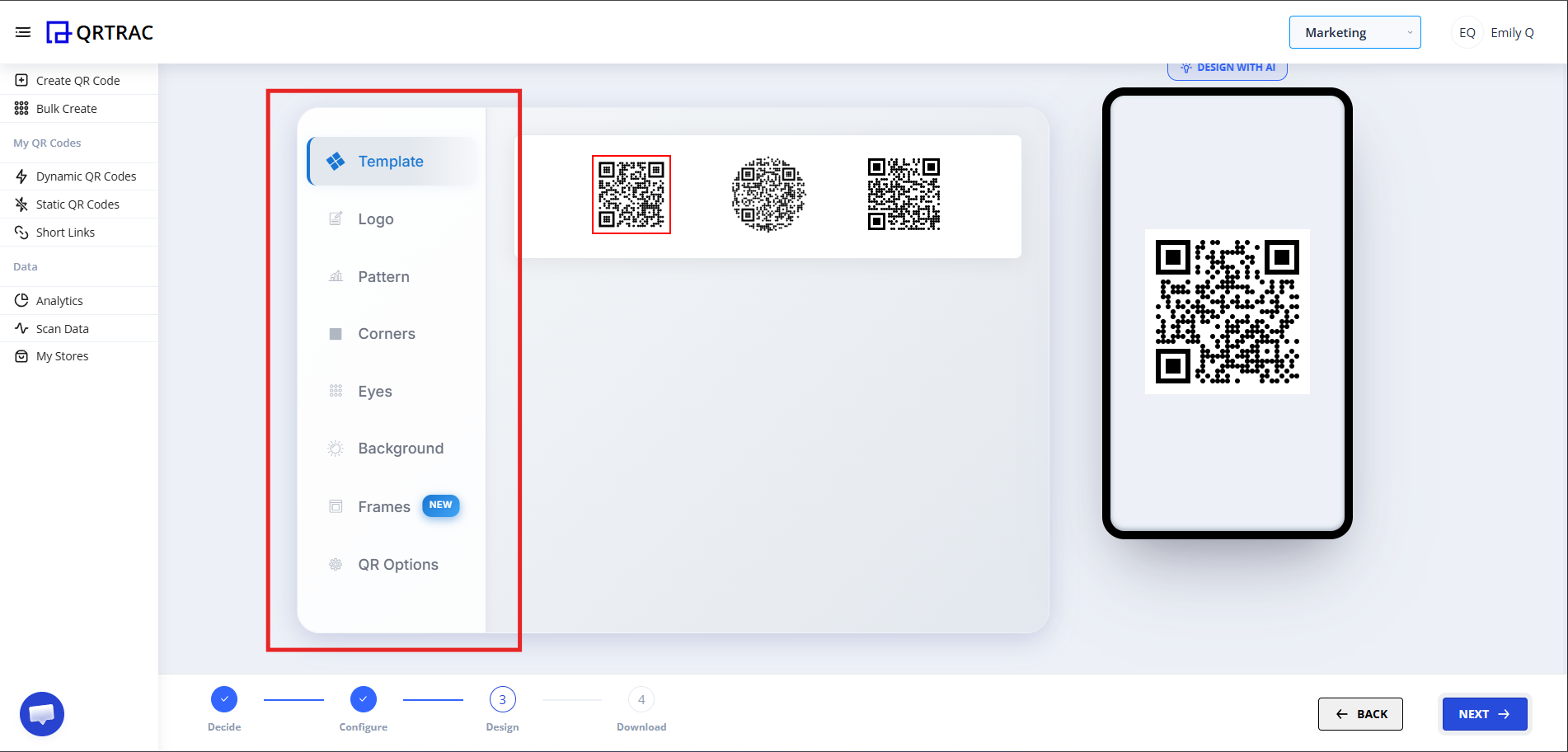
Step 6: Design QR Code
Click Next to move to the Design section. Here you can:
- Change QR color
- Add logo in center
- Modify QR pattern
- Change eye style
- Adjust background
Step 7: Review & Generate
After design, click Next. The system will generate all QR codes in bulk. Since multiple QR codes are being created, there may be slight processing time. All generated QR codes will appear in your dashboard.
Step 8: Download All QR Codes
- Go to My QR Codes
- Click Select All
- Click the Bulk Actions button
- Choose Download QR Codes from the dropdown
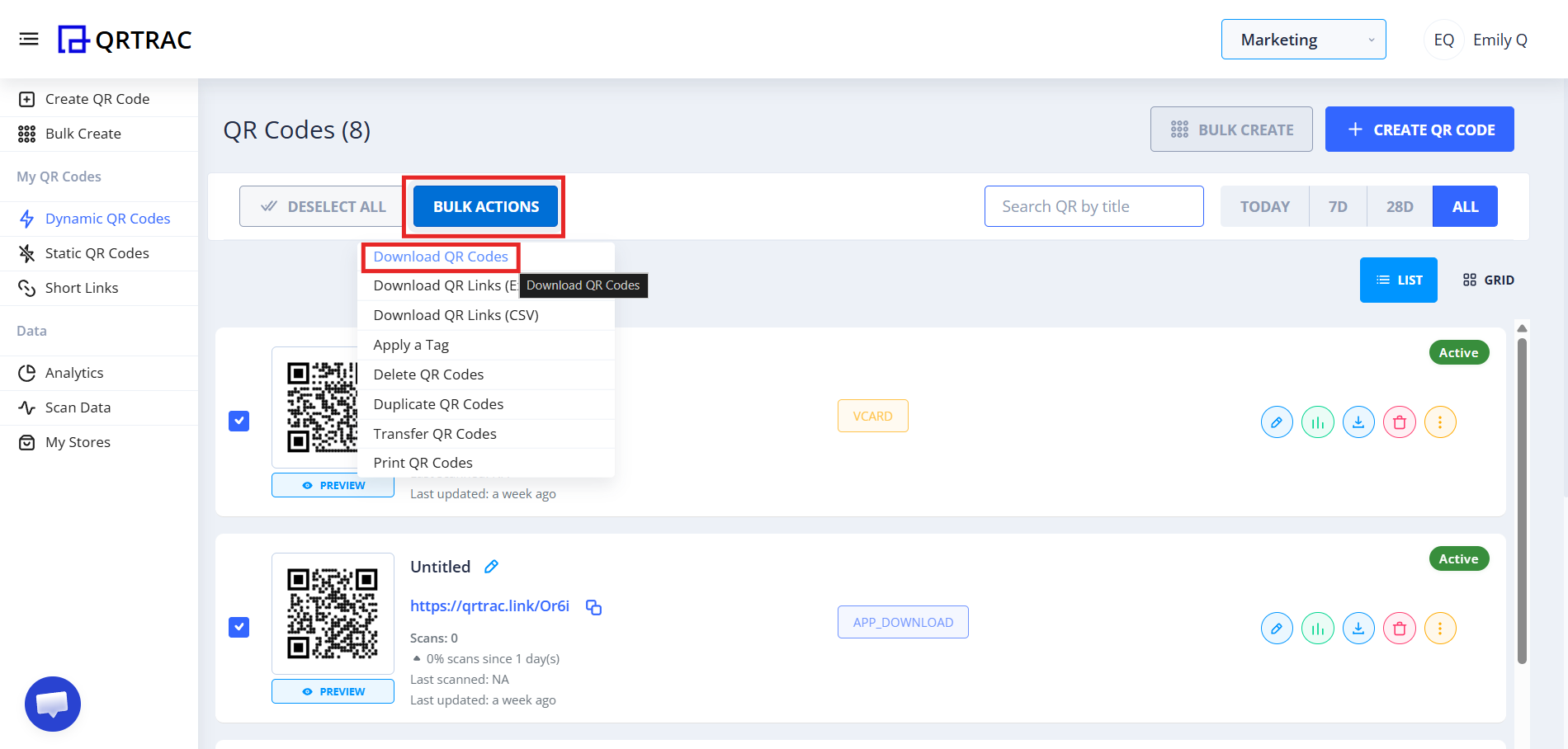
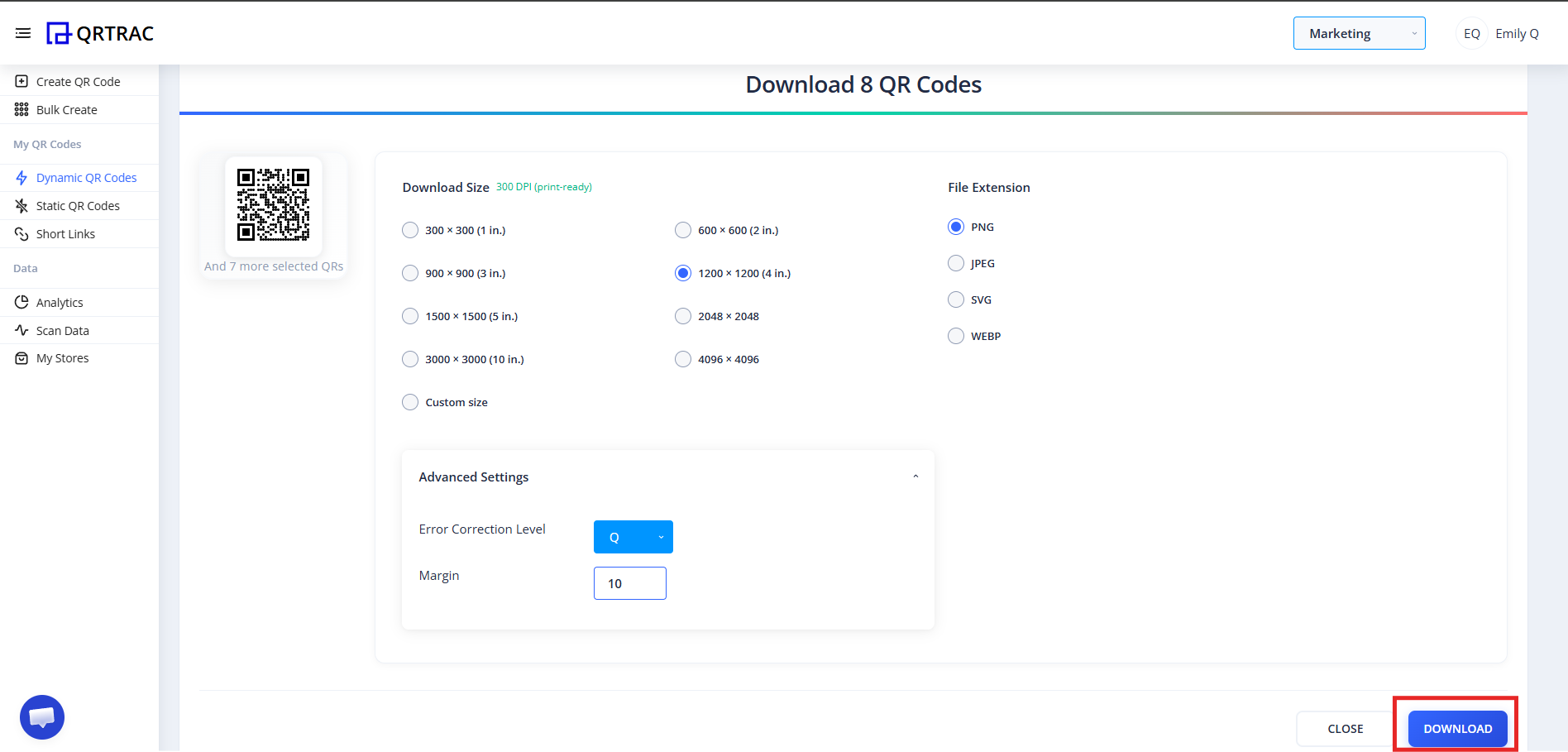
A download window will open.
- Select the format you want (PNG, SVG, etc.)
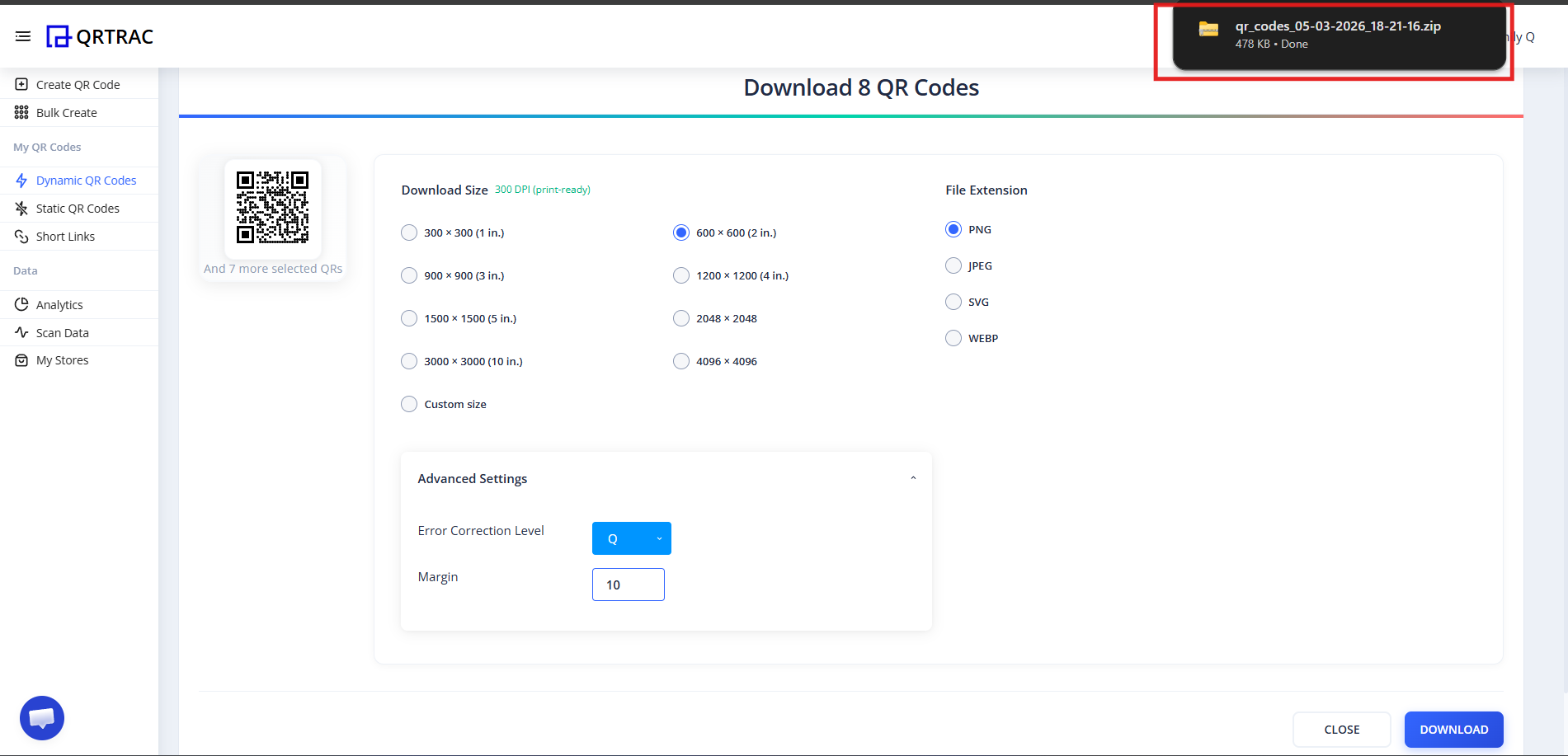
- Click Download
All selected QR codes will be downloaded together in a ZIP folder.
Tip: Always test your QR code with a smartphone camera straight from your computer monitor before you download and print it.
Frequently Asked Questions
Can I update my details later?
Yes. Because this is a Dynamic QR Code, you can log into your QRTRAC dashboard and update your destination information at any time without needing to reprint the physical code.
Can I track how many people viewed my code?
Absolutely. The analytics dashboard provides real-time data on scan volume, unique visitors, and geographic locations.
Does it work offline?
No, an internet connection is required for the scanner to load your digital profile and download the destination file.
Common Mistakes
- ❌ Using duplicate coupon codes across rows.
- ❌ Changing or deleting required column headers in the template.
- ❌ Skipping the final testing phase before bulk printing.
Launch Checklist
- Coupon codes verified as unique
- Expiry dates and discount values confirmed
- Sample QR codes scanned and verified
Ready to generate bulk coupon QR codes?
Our Bulk QR Code Generator supports coupon and URL QR codes at scale — upload your CSV, customize branding, and download thousands of unique codes in minutes.
Try Bulk QR Code Generator →